




Netskope Global Technical Success (GTS)
Block Claude Web Chat and Desktop App While Allowing Claude Code CLI on Windows
Netskope Cloud Version - 135
Overview
Anthropic's Claude is accessible through multiple clients: the Claude.ai web interface, the Claude Desktop application, and developer-oriented tools such as Claude Code CLI. In enterprise environments, IT and security teams often need to permit programmatic API access (e.g., Claude Code for developer workflows) while blocking direct consumer-grade access channels that may bypass DLP and AI governance controls.
This article explains how to use Netskope's HTTP Header Profile feature within Real-time Protection policies to differentiate between these clients based on their User-Agent strings. The configuration results in a three-policy stack that:
- Allows Claude Code CLI traffic (API-driven, header-governed developer access)
- Blocks Claude Web Chat (browser-based claude.ai conversations)
- Blocks the Claude Desktop App (Electron-based desktop client)
This approach leverages the fact that each Claude client sends a distinct User-Agent \ Referer string with every HTTPS request. Netskope can inspect these headers post-SSL decryption and apply differentiated policy actions accordingly.
This configuration has been tested on Windows. Claude Code CLI runs on Node.js, and like most Node.js-based tools, it uses its own bundled certificate store rather than the Windows system certificate store. This means that when Netskope performs SSL inspection, Claude Code CLI will encounter certificate errors unless the Netskope root CA certificate is explicitly trusted by Node.js.
To make Claude Code CLI work with Netskope SSL inspection on Windows, you need to import the Netskope certificate into Node.js using the NODE_EXTRA_CA_CERTS environment variable.
Ref :
https://code.claude.com/docs/en/network-config#custom-ca-certificates
Prerequisites
- Admin access to Netskope management console
- SSL Inspection policy covering the anthropic.com and claude.ai domains
Configuration
Step 1 - Create HTTP Header Profiles
HTTP Header Profiles define what request headers Netskope should look for when evaluating a policy's Source criteria. In this use case, all three profiles inspect the User-Agent\Referer request header to identify which Claude client is making the connection.
Navigate to Policies > Real-time Protection > HTTP Header (under Profiles in the left sidebar) and create the following three profiles.
Profile 1: Claude Code CLI
This profile matches traffic originating from Claude Code and the Claude CLI developer tools. Anthropic's API-based CLI tools send User-Agent strings containing the tokens claude-code and claude-cli.
.*claude-cli.*
.*claude-code.*
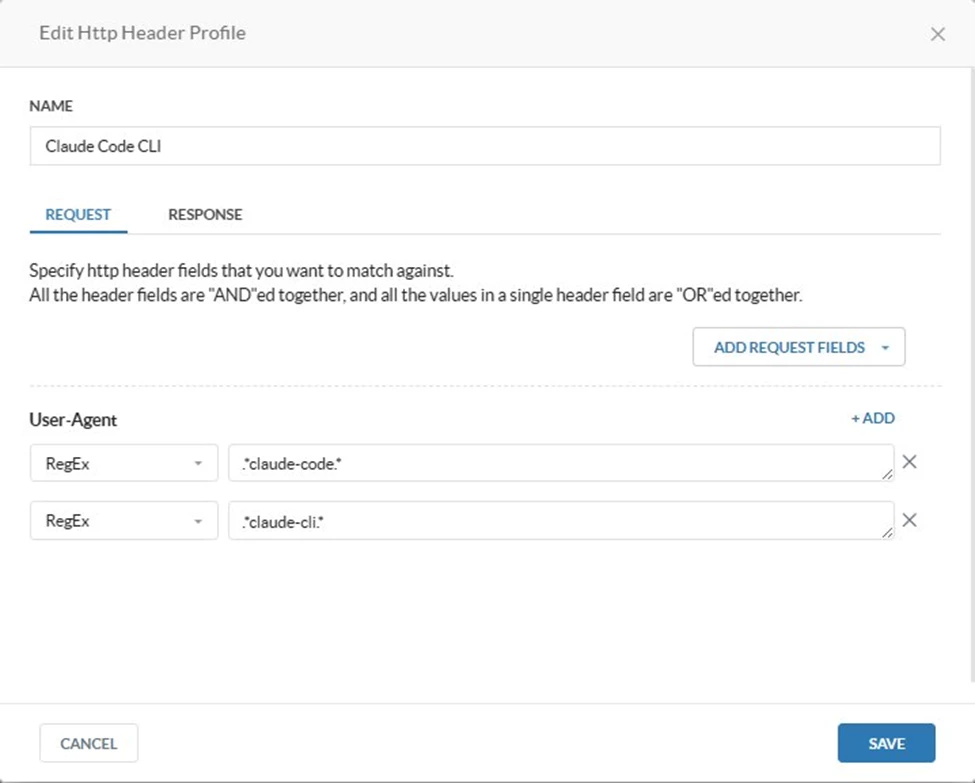
The two values within the same header field are OR-ed together. A request matches this profile if its User-Agent contains either claude-code or claude-cli. This covers both the Claude Code VS Code extension and the standalone Claude CLI tool.
Profile 2: Block Claude Browser
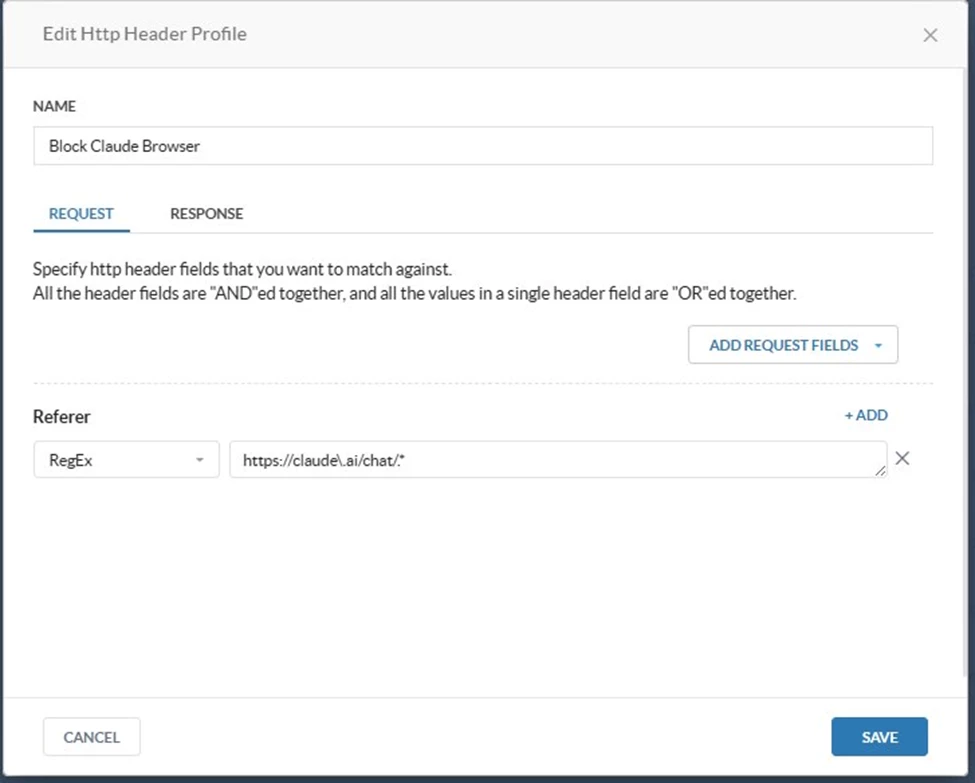
This profile identifies browser-based Claude web chat traffic using the HTTP Referer header . When a user is actively chatting on claude.ai, the browser sends a Referer header pointing back to the chat origin URL. The profile matches this using a RegEx value of https://claude\.ai/chat/* on the Referer field, which precisely scopes the match to active chat sessions originating from the claude.ai chat interface.
https://claude\.ai/chat/.*
Profile 3: Claude Desktop App
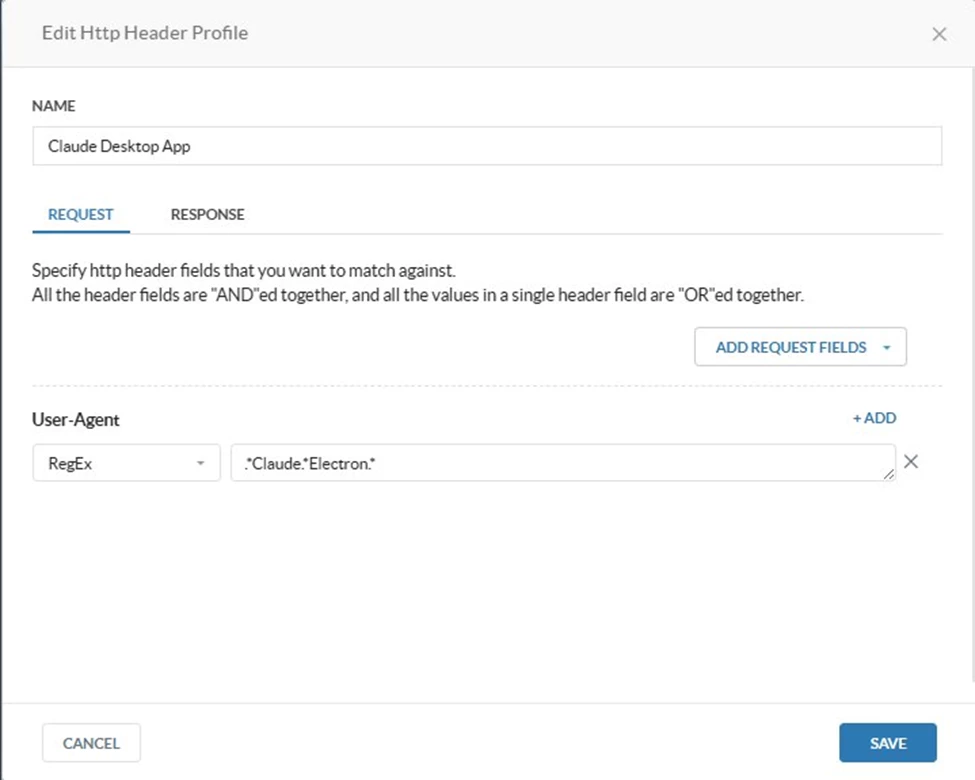
The Claude Desktop application is built on the Electron framework. Electron-based apps append their application name to the standard Chromium User-Agent string. Claude Desktop sends a User-Agent that includes both 'Claude' and 'Electron'.
.*Claude.*Electron.*
Step 2 - Create Destination Profiles
Destination Profiles define the network endpoints that the policies will target. Navigate to Policies > Real-time Protection > Destination and create the following three profiles.
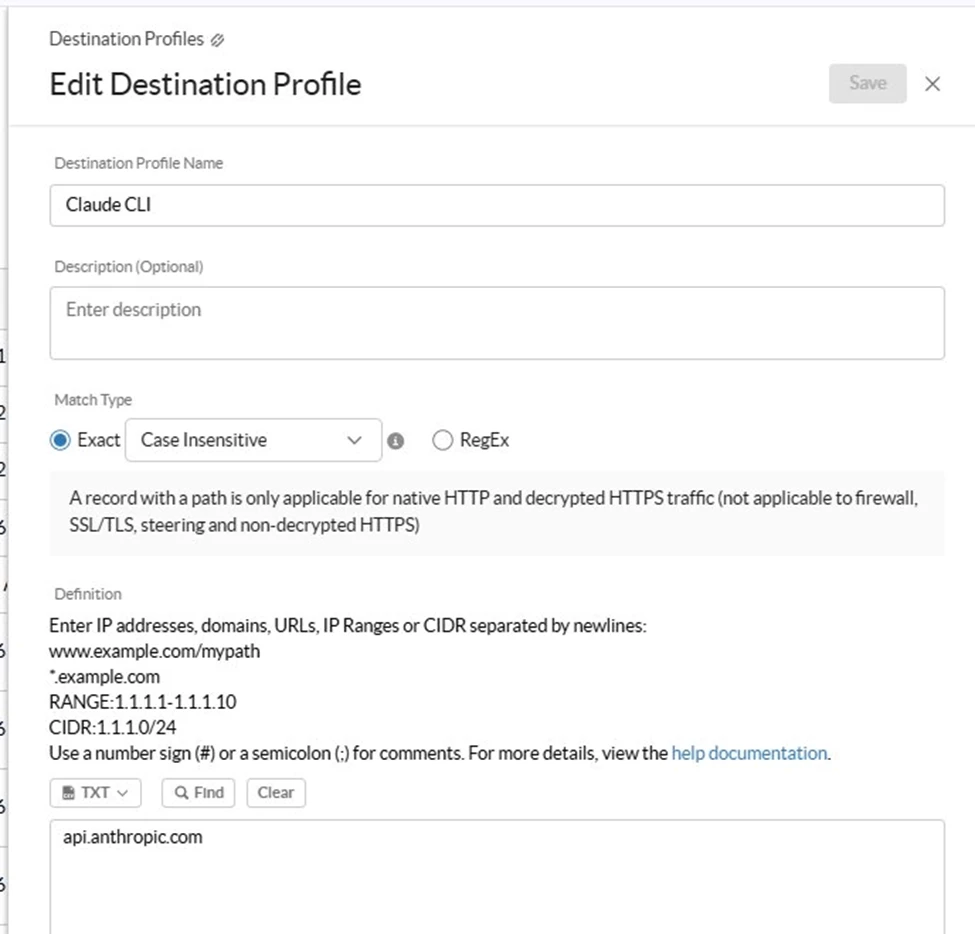
Destination 1: Claude CLI
This destination covers the Anthropic API endpoint that Claude Code CLI communicates with. All programmatic API calls go through api.anthropic.com.
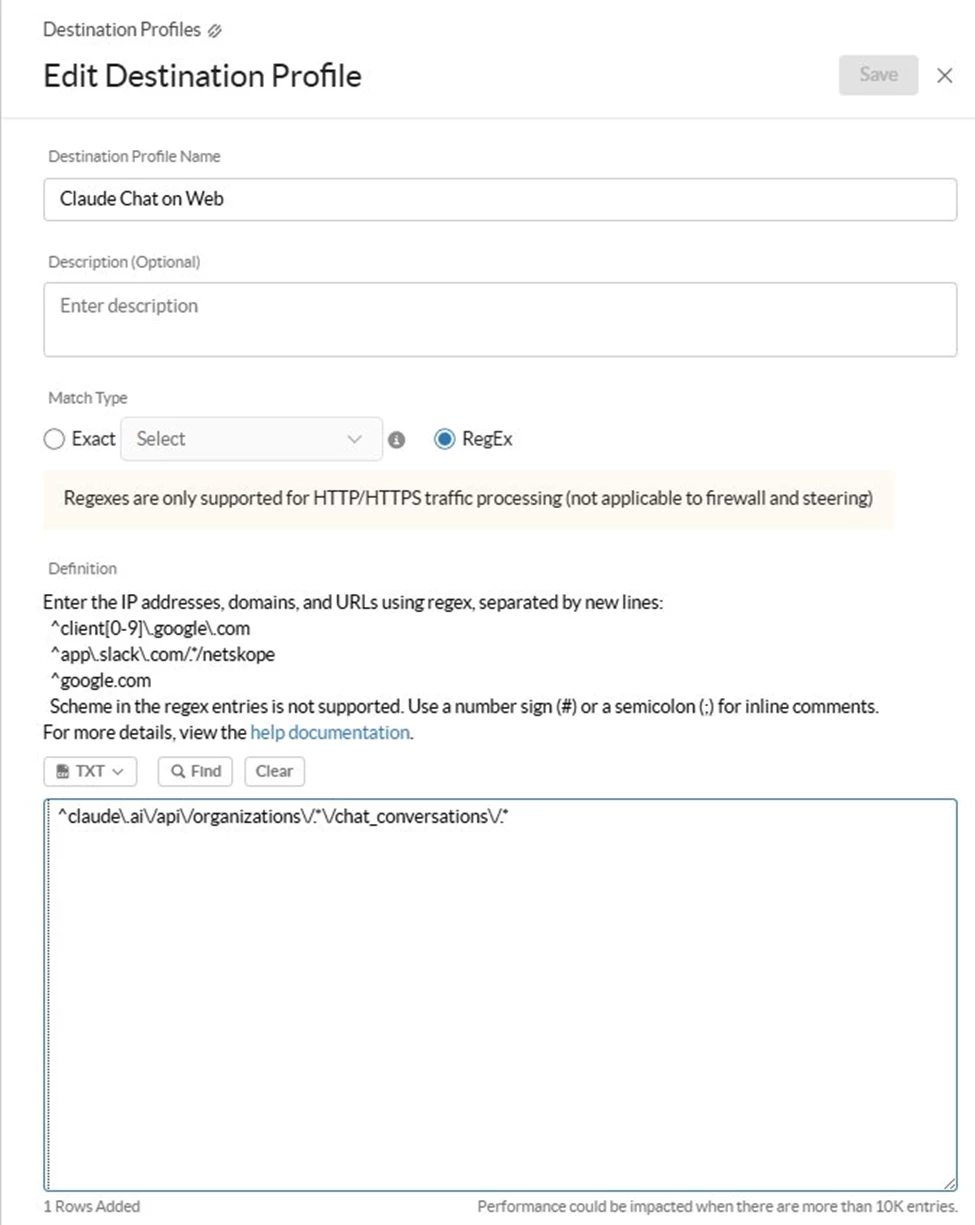
Destination 2: Claude Chat on Web
This destination specifically targets the Claude.ai web chat conversation API endpoint. Rather than blocking all of claude.ai (which could affect API calls routed through the same domain), this profile uses a RegEx pattern to scope the block to the chat conversations path only.
^claude\.ai\/api\/organizations\/.*\/chat_conversations\/.*
Destination 3: Claude Desktop App
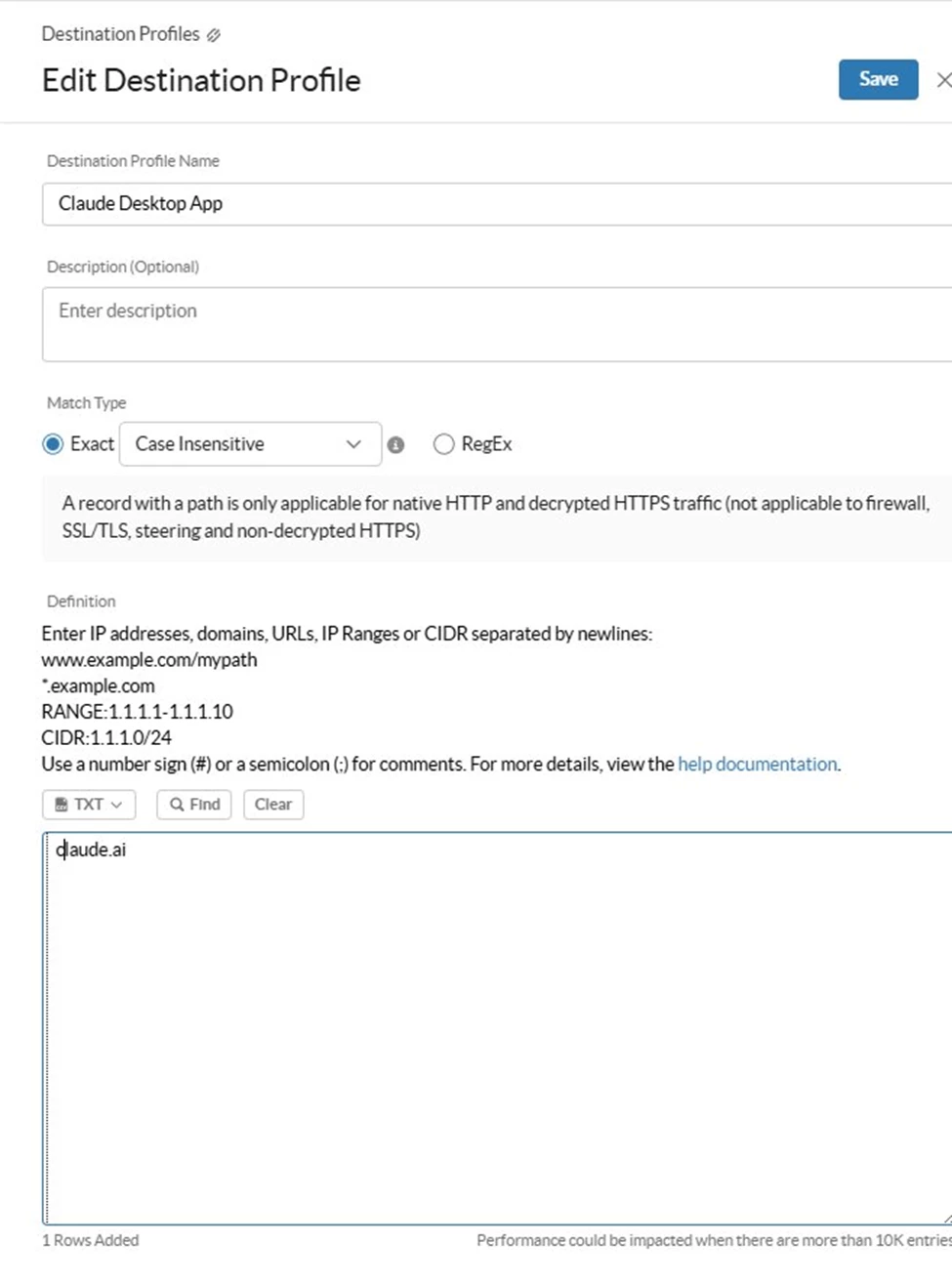
This destination targets claude.ai as a whole domain, which is the endpoint the Desktop App connects to. Unlike the Web Chat policy which needs path-level precision, the Desktop App policy can block at the domain level since the Desktop client's traffic should not be reaching claude.ai at all.
Step 3 - Create Real-time Protection Policies
Create the following three policies under Policies > Real-time Protection.
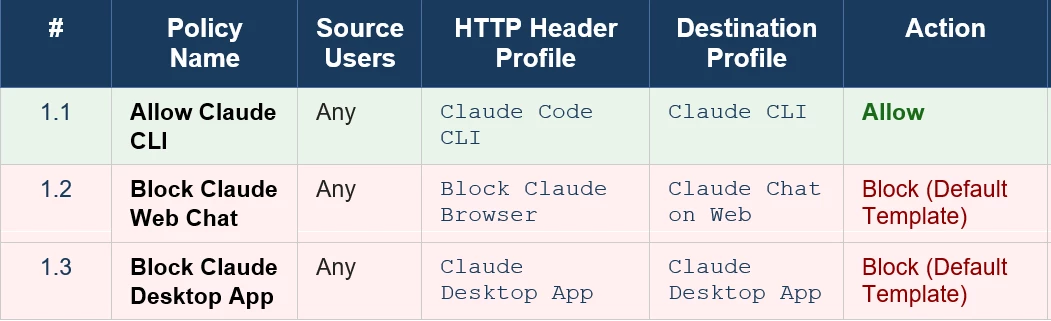
All three policies should be ordered exactly as shown below. Policy evaluation is top-down and first-match wins.

Policy 1.1 - Allow Claude CLI
This policy is the explicit allowlist for developer tooling. It matches requests where the User-Agent identifies the client as Claude Code CLI, and the destination is api.anthropic.com. When both conditions are met, traffic is allowed through without any block action.
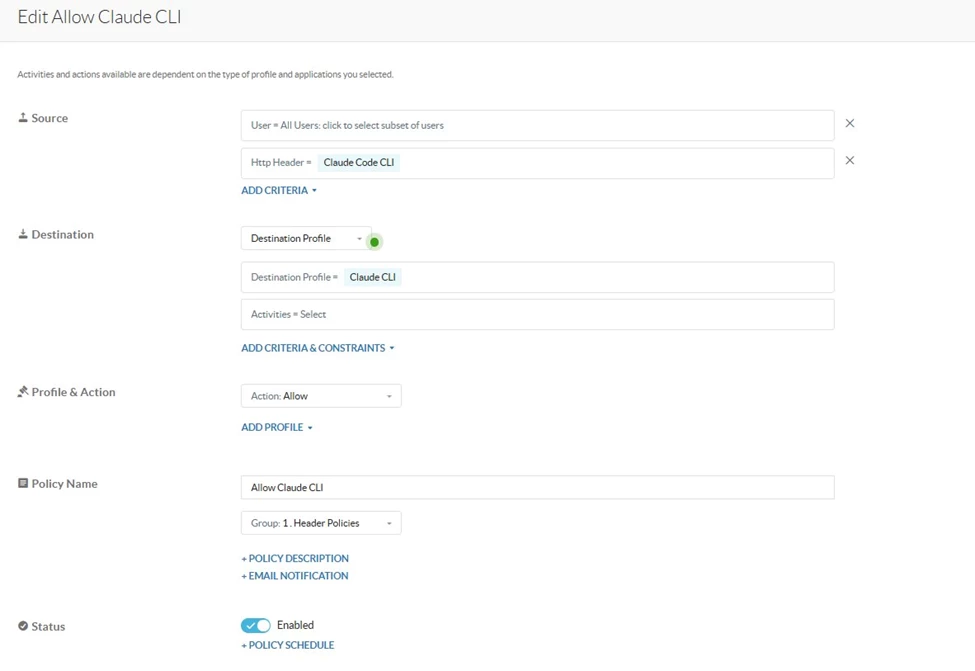
Why this must be first: The Anthropic API (api.anthropic.com) is also reachable by other Claude clients in some scenarios. Placing this Allow rule at position 1.1 ensures that CLI traffic is permitted before any subsequent block rules are evaluated.
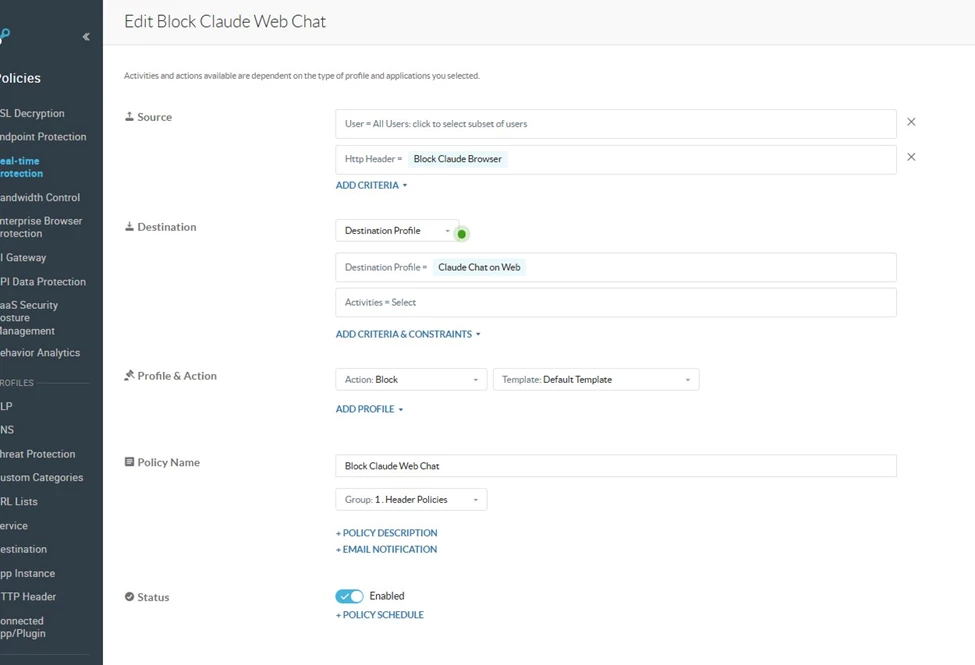
Policy 1.2 - Block Claude Web Chat
This policy intercepts browser-based chat sessions on claude.ai. The destination profile targets the specific REST API endpoint used by the web interface to carry chat messages. When a browser (Chrome, Firefox, Edge, etc.) accesses this endpoint, Netskope intercepts the request and returns the default block page.
Policy 1.3 - Block Claude Desktop App
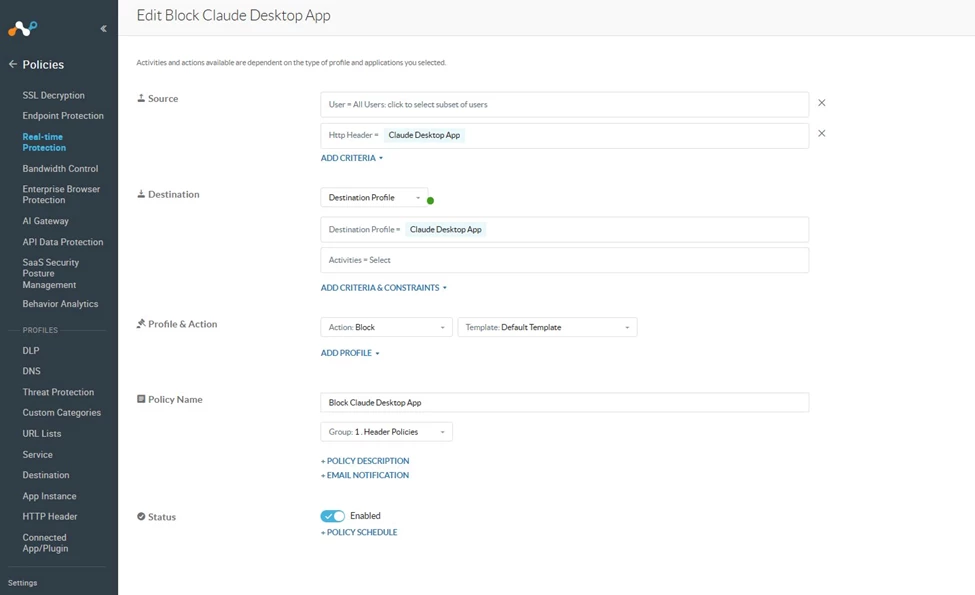
This policy blocks the Claude Desktop application entirely. The User-Agent matching on .*Claude.*Electron.* precisely identifies the Electron-wrapped desktop client. The destination profile targets claude.ai, which is the primary endpoint the Desktop App communicates with for its sessions.
Important Notes:
- The Claude Desktop App User-Agent pattern was observed as .*Claude.*Electron.* at the time of writing. Anthropic may update this string in future Desktop App versions. Monitor policy hit counts and re-validate the regex after major Desktop App updates.
- The Web Chat destination regex targets the known chat conversation API path. If Anthropic modifies their API URL structure, the regex will need to be updated.
Terms and Conditions
- All documented information undergoes testing and verification to ensure accuracy.
- In the future, it is possible that the application's functionality may be altered by the vendor. If any such changes are brought to our attention, we will promptly update the documentation to reflect them.
Notes
- For any further inquiries related to this article, please contact Netskope by submitting a support case with 'Case Type – How To Questions'.



