
Netskope Log Streaming GCP Pub/Sub to Cribl
To move logs from a GCP bucket to Cribl using Pub/Sub, you’ll essentially set up a "trigger" system. When Netskope drops a log file into your bucket, GCP will send a notification to a Pub/Sub topic, which Cribl will then "pull" to ingest the data.
Since Netskope writes files to GCS, we will use a "Notification-Based Ingestion" strategy. This is the gold standard: GCP tells Cribl a file exists, and Cribl immediately goes and grabs it.
Here are the step-by-step instructions to set this up:
Prerequisites
- Netskope NLS setup sending logs to a GCP Bucket
- The Service account you used for the NLS setup should have the following permissions
- Pub/Sub Subscriber & Viewer
- Storage Object Viewer
- Pub/Sub Subscriber
GCP Infrastructure
You need a "Topic" to announce new files and a "Subscription" for Cribl to listen to.
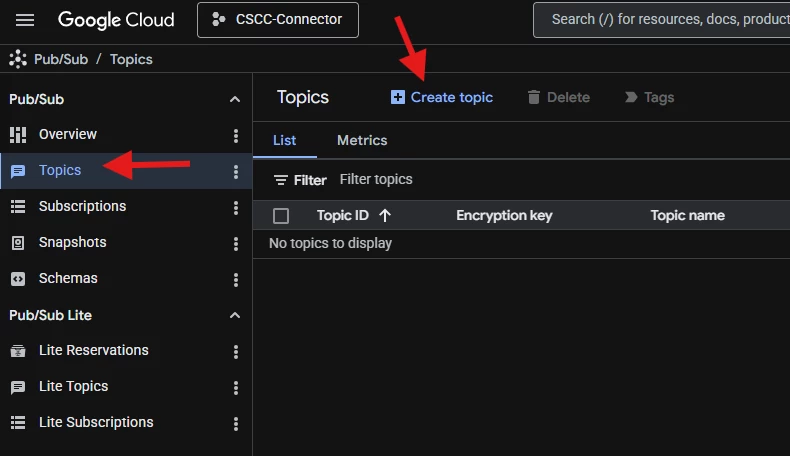
- Create a Pub/Sub Topic: * Go to Pub/Sub > Topics in the GCP Console.
Click Create Topic (e.g., netskope-log-notifications).
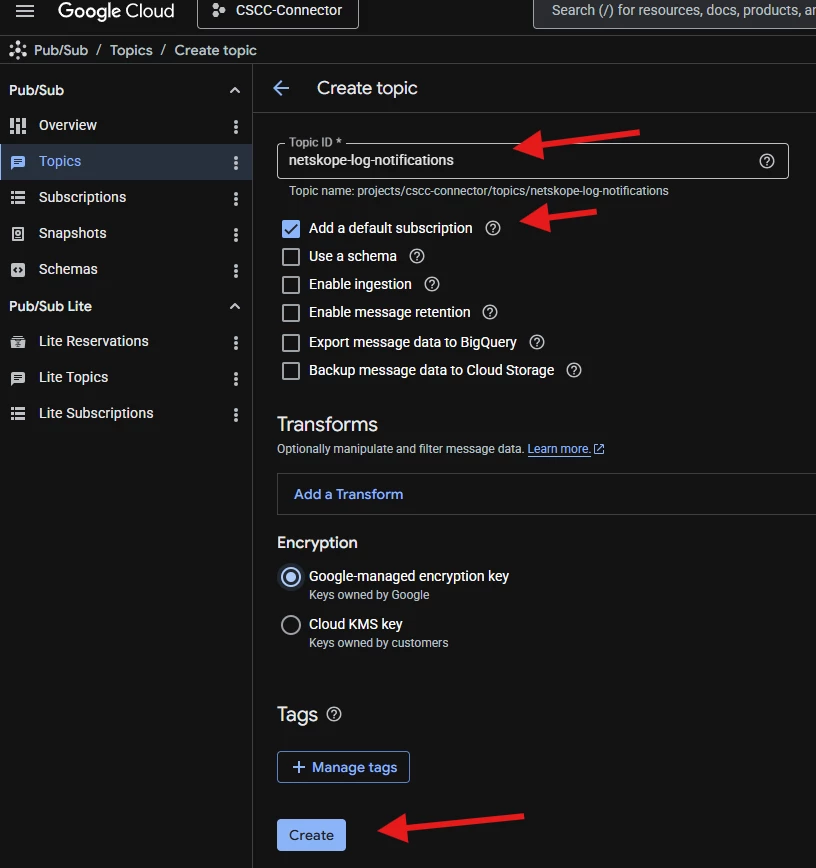
- Create a Subscription:
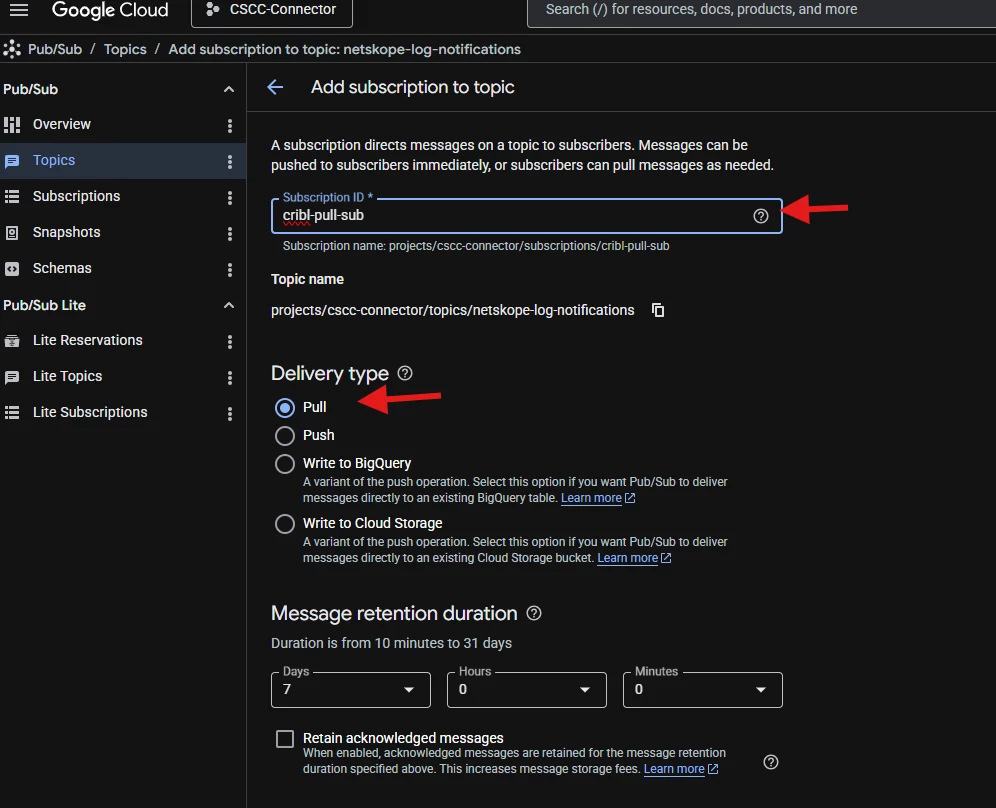
Inside that topic, click Create Subscription.
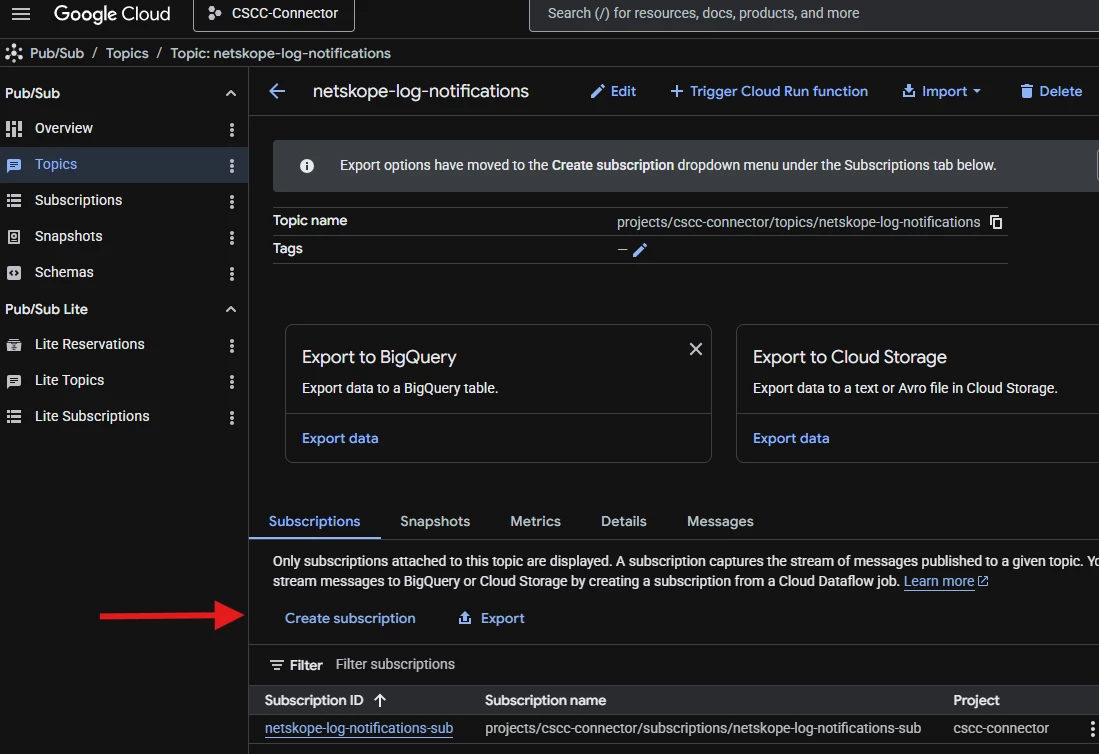
- Name: cribl-pull-sub.
- Delivery Method: Pull.
- Message Retention: Set to 7 days (to protect against data loss if Cribl is down).
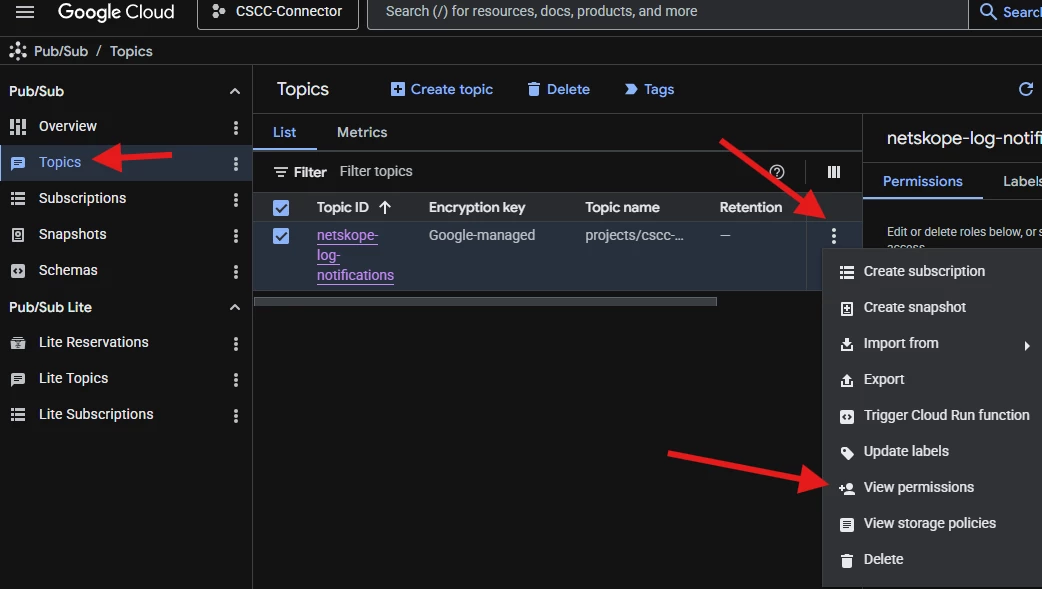
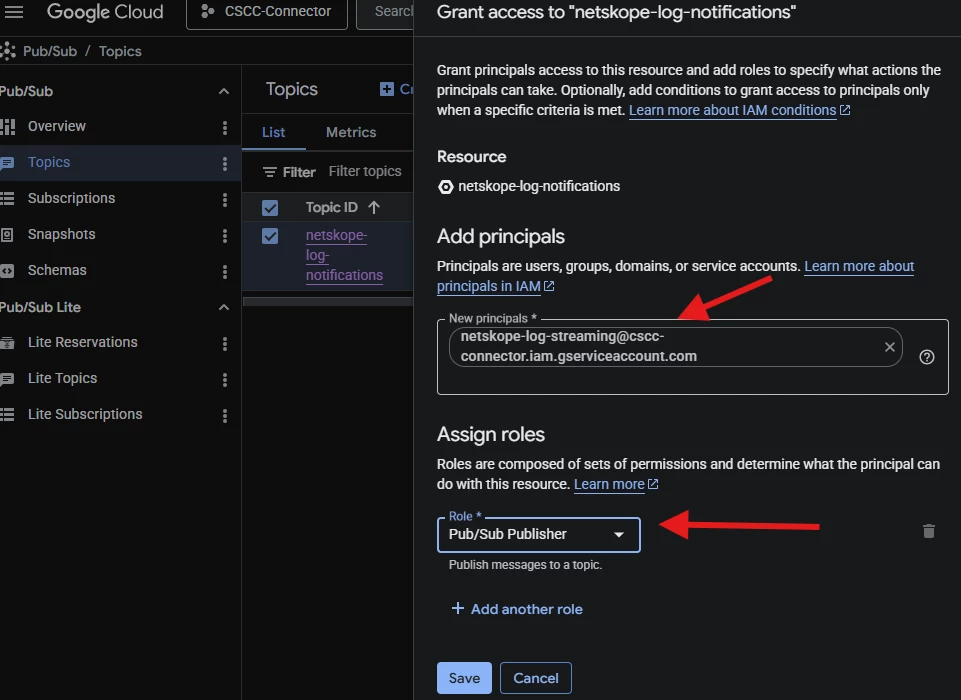
- Grant Bucket Permissions:
Go to your Pub/Sub Topic > Permissions and add that email with the role: Pub/Sub Publisher.
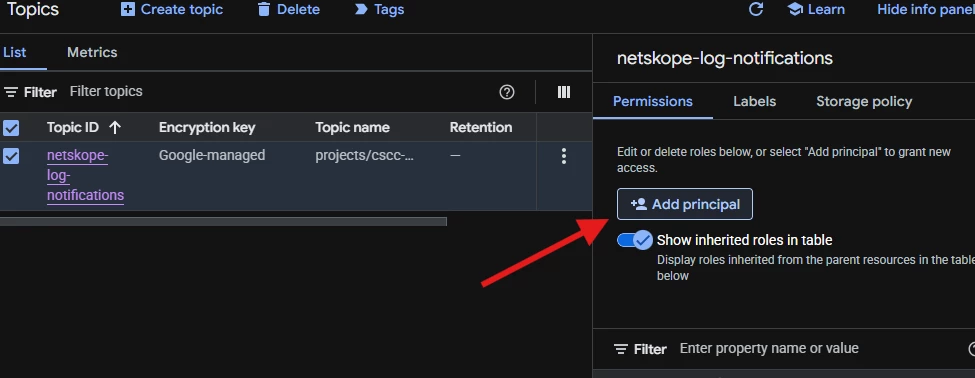
This is the same service account that you used when you setup NLS giving Netskope access to your bucket.
Link the Bucket to Pub/Sub
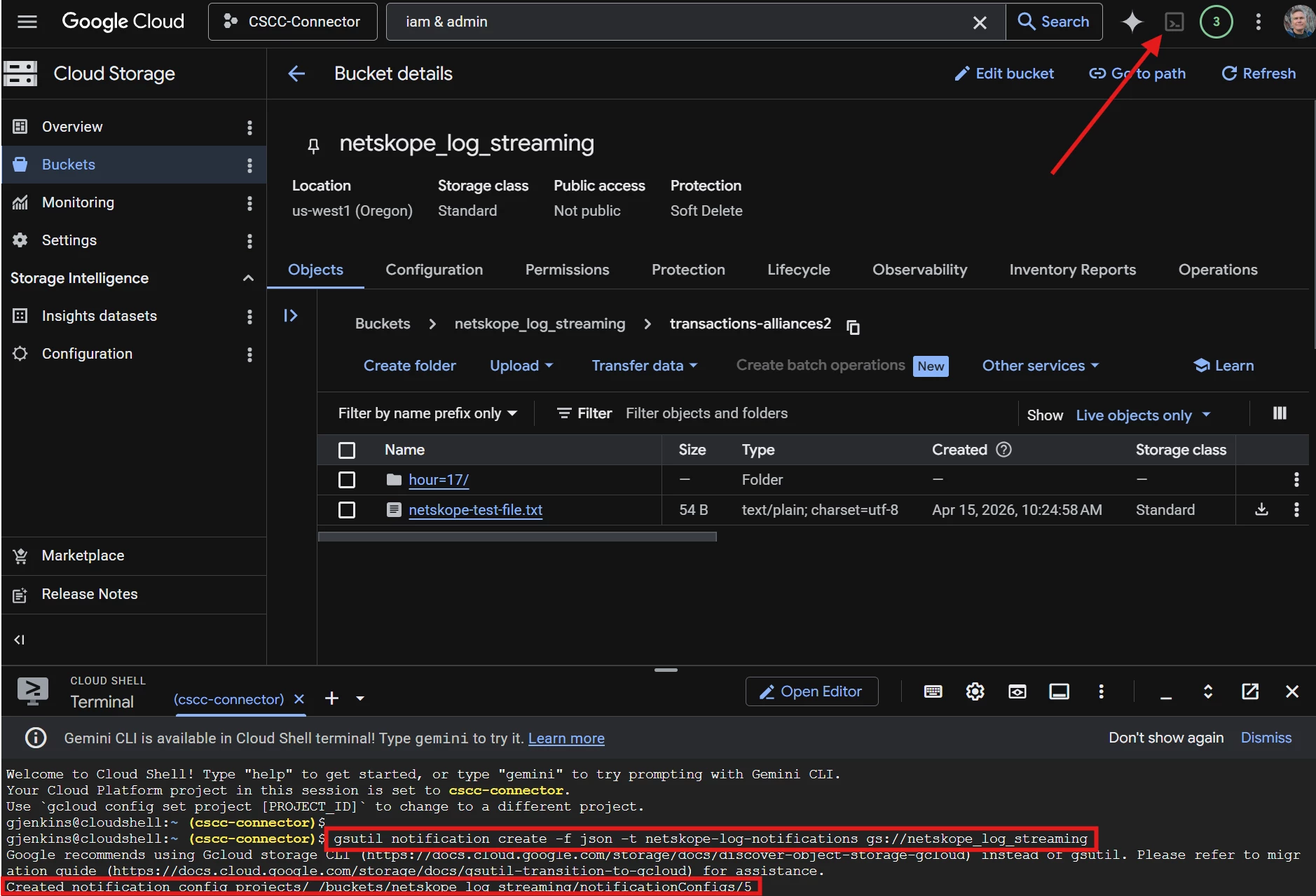
This step ensures that every time Netskope drops a csv.gz file into the bucket, a message is sent to your new topic.
- Enable Notifications: Open the Google Cloud Shell and run:
Bash
gsutil notification create -f json -t [TOPIC_NAME] gs://[YOUR_NETSKOPE_BUCKET_NAME]- This is what mine looks like
gsutil notification create -f json -t netskope-log-notifications gs://netskope_log_streaming
Configure Cribl Stream
We will now set up Cribl to listen to the "doorbell" (Pub/Sub) and automatically fetch the "package" (the file in the Bucket).
1. Configure the Source
- In Cribl, go to Data > Sources > Google Cloud Storage.
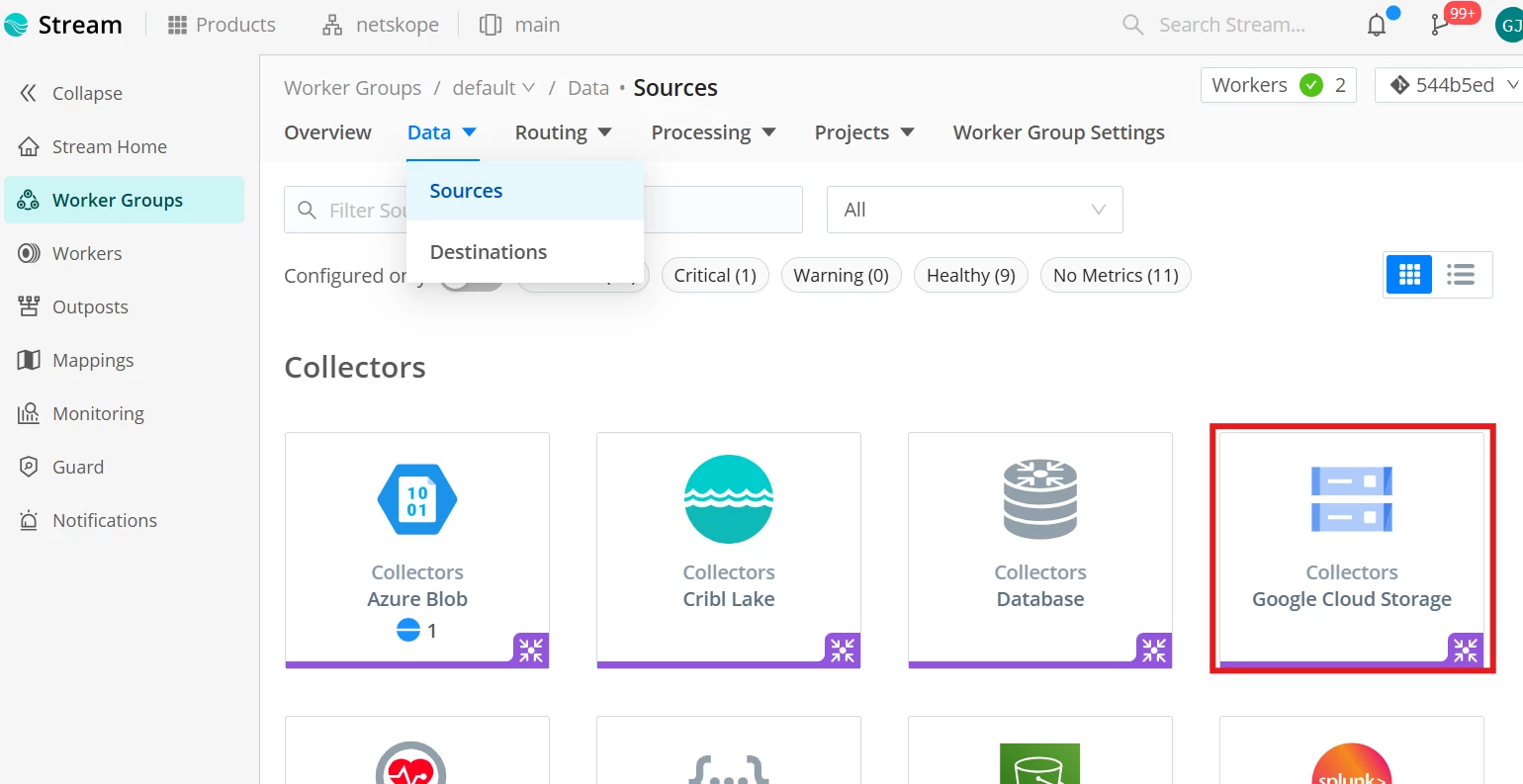
- Click Add Collector and set the following:
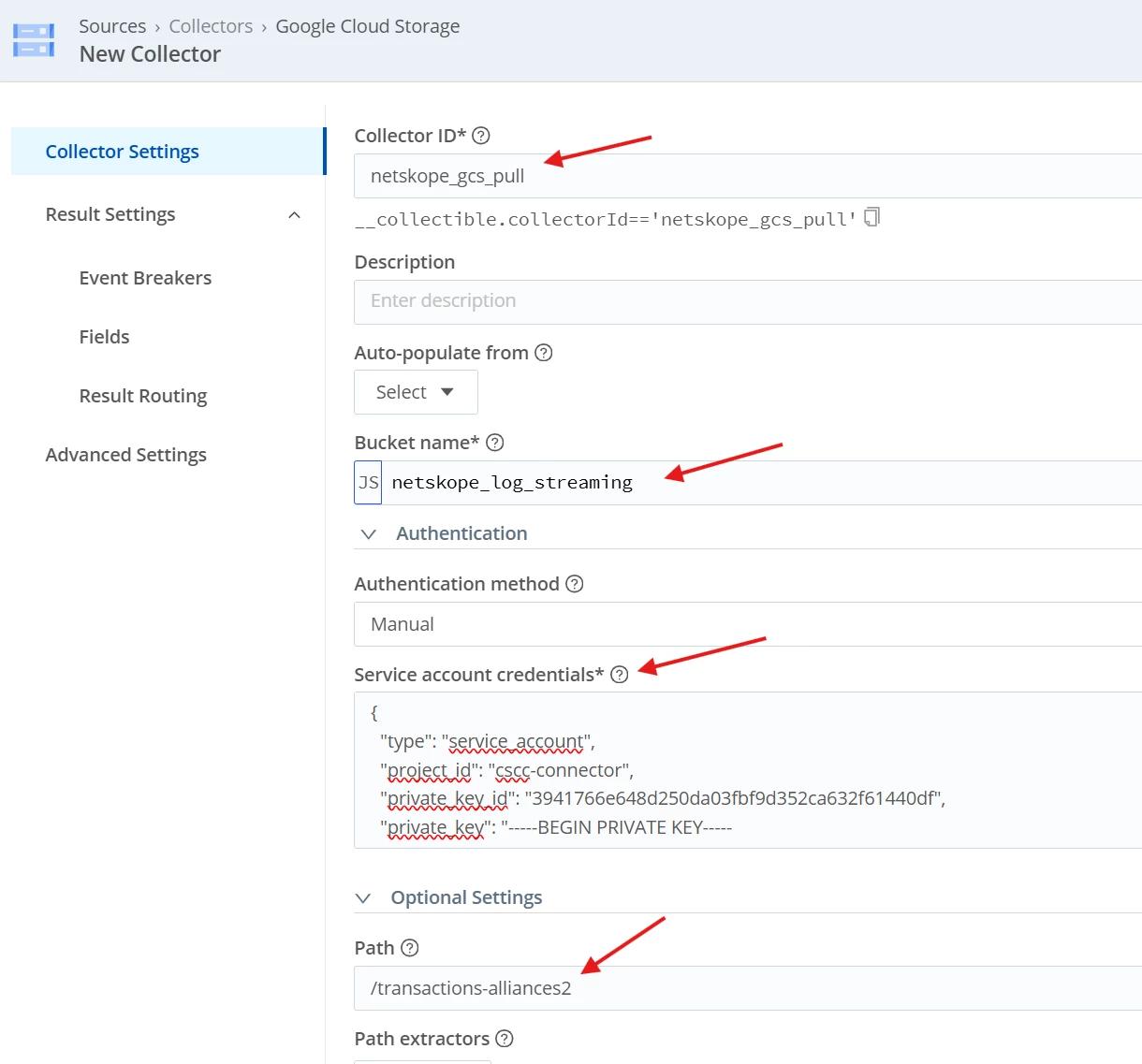
- Input ID: netskope_gcs_pull.
- Storage Bucket: [YOUR_NETSKOPE_BUCKET_NAME].
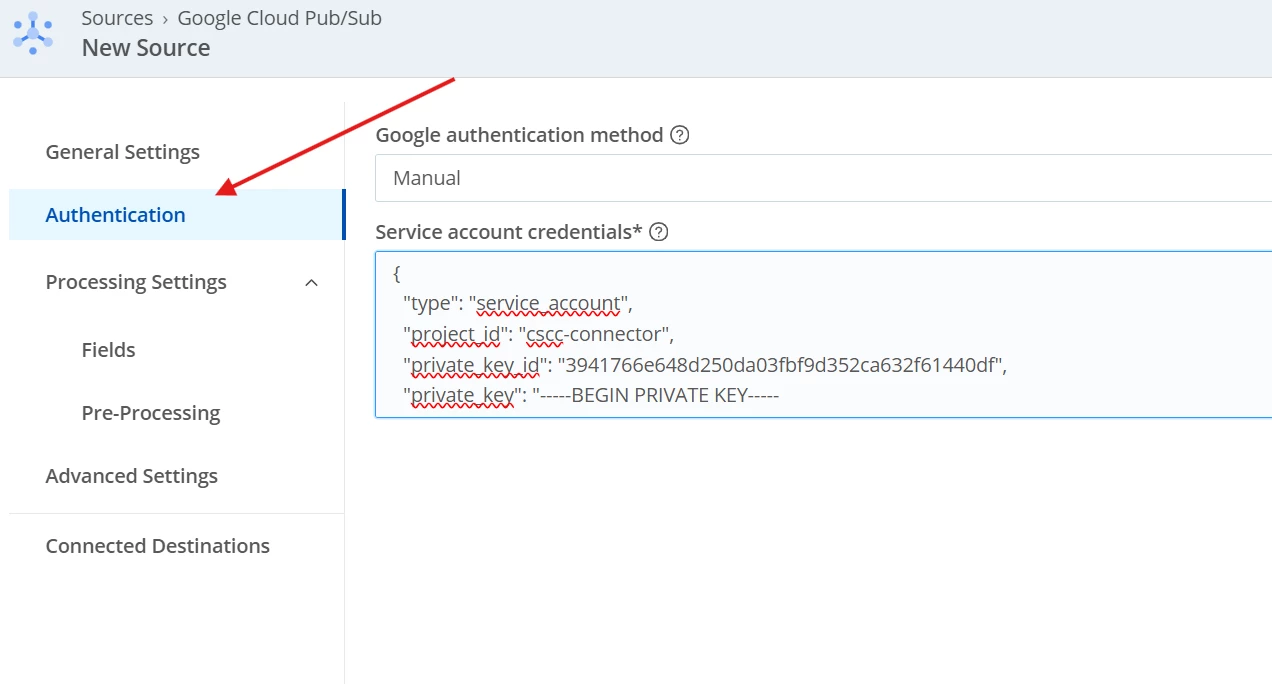
- Authentication: Use Manual and paste your verified Service Account JSON key.
- Path: When you configured NLS in Netskope, there was an option to add a path. If you added a path, include it here. You can also see this in your GCP Storage bucket
- The Secret Sauce (Pub/Sub Trigger):
- Look for Pull - Google Cloud Pub/Sub tab within the Source settings.

- Enable Subscription-based collection.
- Subscription ID: Enter the full path: projects/[PROJECT_ID]/subscriptions/cribl-pull-sub.
To find the Subscription ID go back to GCP and Pub/Sub.
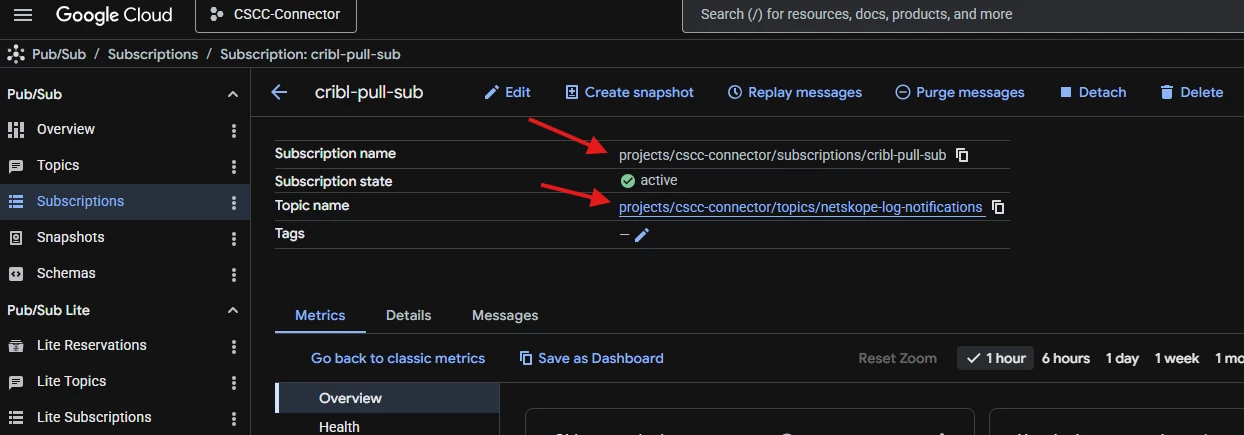
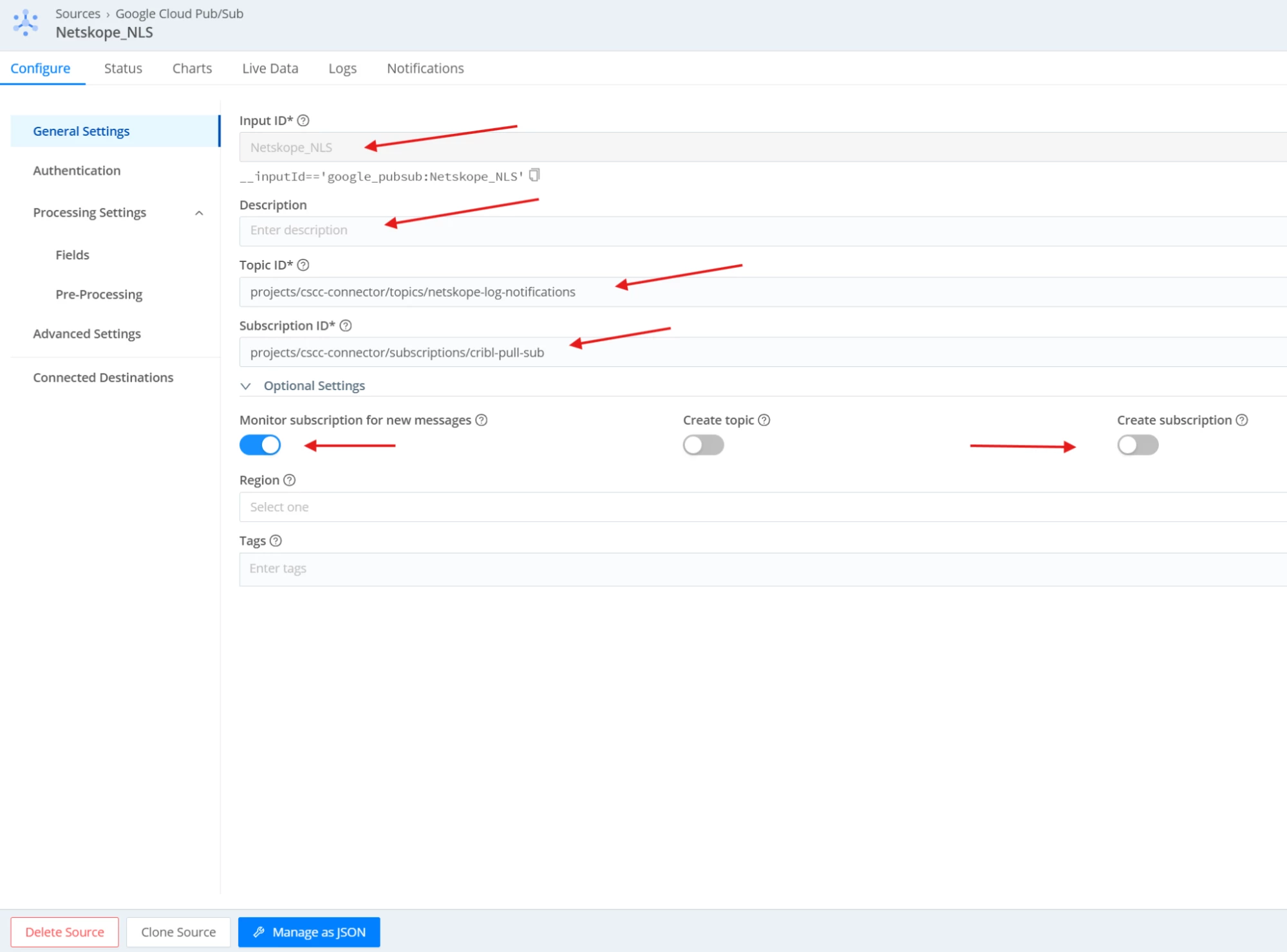
View the subscription for the fields you need to add in Cribl. Have your optional setting match the below.
Before saving, you will need to add your service account one more time.
Validation
- Check Pub/Sub: In GCP, look at the "Unacknowledged message count" for your subscription. It should spike when Netskope uploads a file, then drop to zero once Cribl reads it.
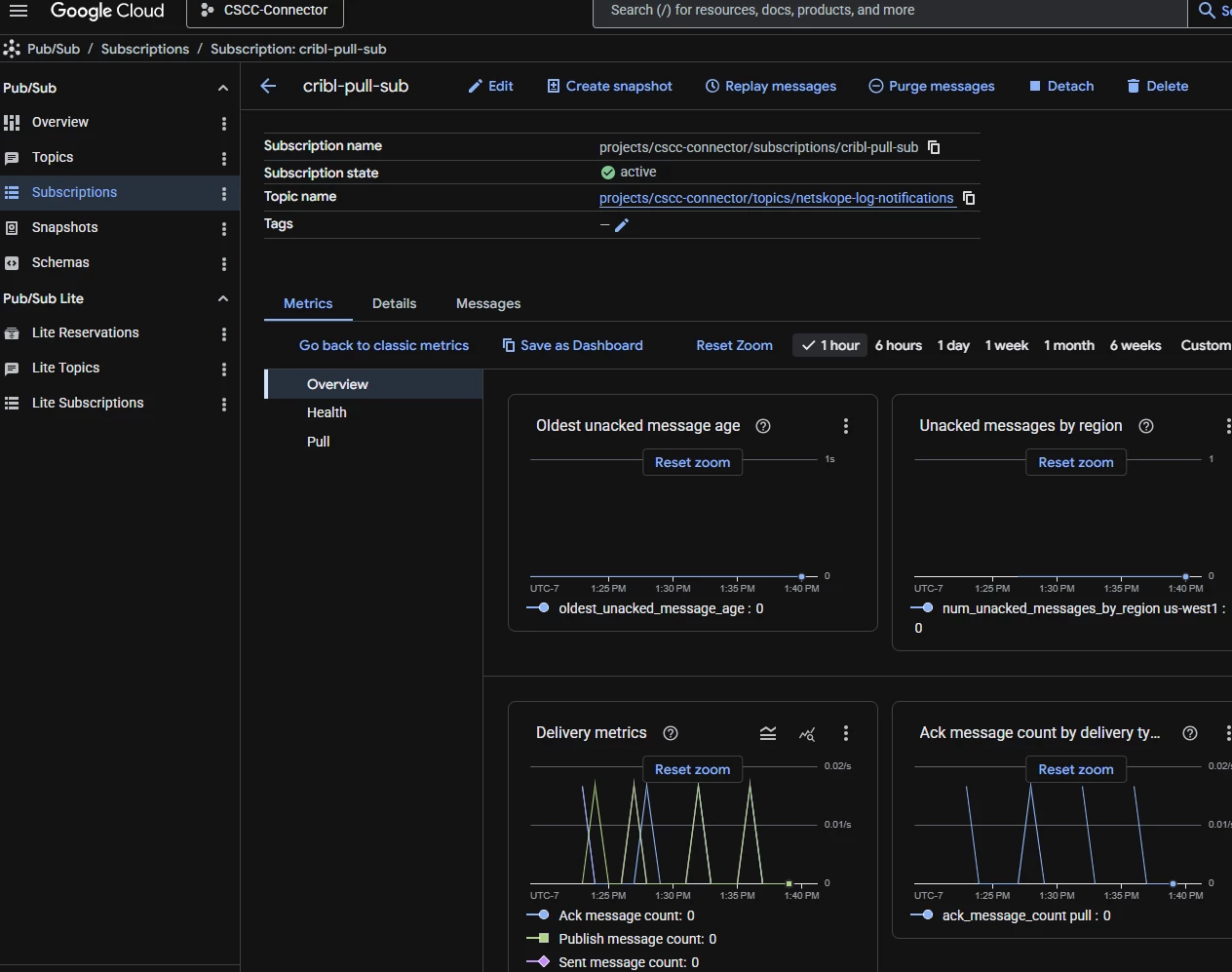
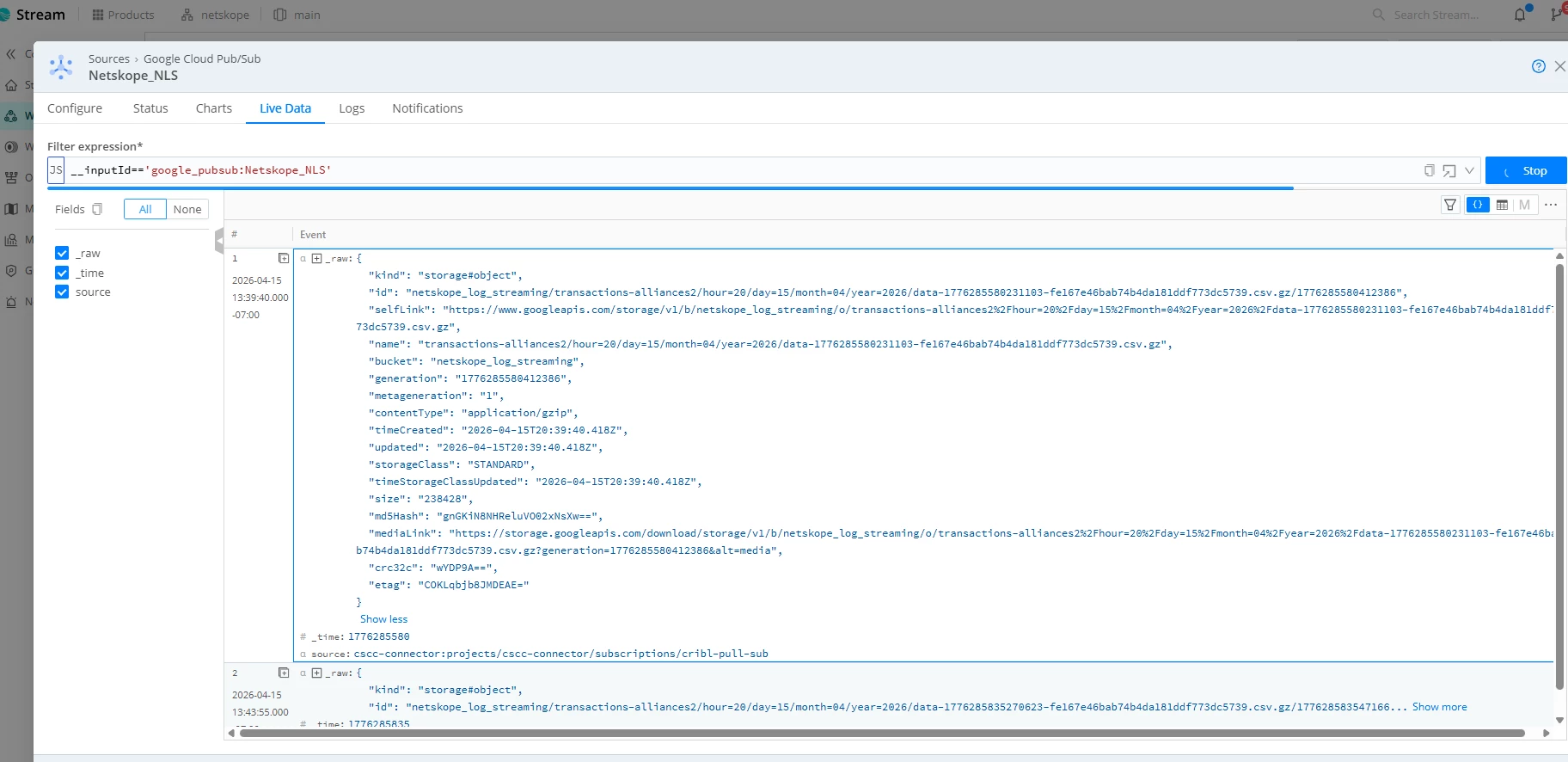
- Check Cribl: Go to Data > Sources > GCS > [Your Source] and click the Live Data tab.
- Success: You see raw Netskope security events (JSON strings containing user, app, action).
- Failure (Notifications only): If you only see metadata like {"bucket": "...", "name": "..."}, check that you are using the GCS Source with Pub/Sub enabled, and not just the standalone Pub/Sub Source.