I’m looking for guidance on how best to handle chat bots within business web applications, particularly when they are being blocked under Online Ads filtering.
For example, we use the Blackbaud web application. While the main application functions as expected, the embedded chat bot is being blocked because it is categorized as Online Ads. The chat bot is an important feature, as it is used to create support cases for the application.
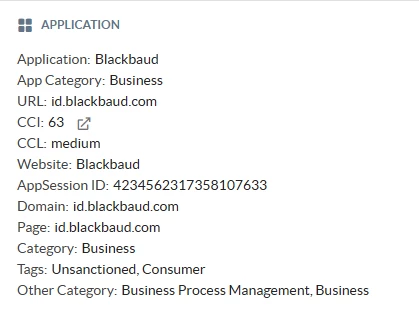
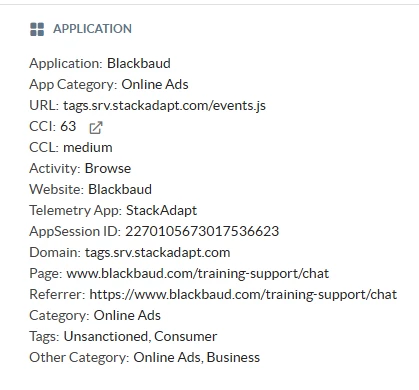
Additionally, I’ve included screenshots from SkopeIT and had a couple of related questions:
Is it normal for the same application to appear under multiple App Categories?
What is the difference between a URL and a Page as shown in SkopeIT?
Any insights or best practices would be appreciated.
Business WebAppChat bot on Business WebApp
Best answer by AJ-Dunham
Hey Siva,
It is normal for domains to fall into multiple categories. In this case, Stackadapt is an AI powered online marketing platform that is embedded into your business application.
Regarding the difference between URLs and Pages. The page is what the user is currently viewing. It is what you would see in the browser. URLs could match the page or they could be resources that the browser is calling in the background to render the page. In your example above, the user would see www.blackbaud.com/training-support/chat in the browser URL bar. However, the browser is calling tags.srv.stackadapt.com/events.js in the background. You could see this call by opening developer tools in chrome and watching the network tab as the page loads.
To allow this traffic, you could create an exception for tags.srv.stackadapt.com in a custom category. However, this will allow stackadapt across the board. You probably don’t want this if non-sanctioned SaaS is using this service to collect information.
A better route is probably to create an exception using an HTTP Header Profile and keying on the referer field. You can do this by navigating to Policies > Profiles (Section) > HTTP Header.
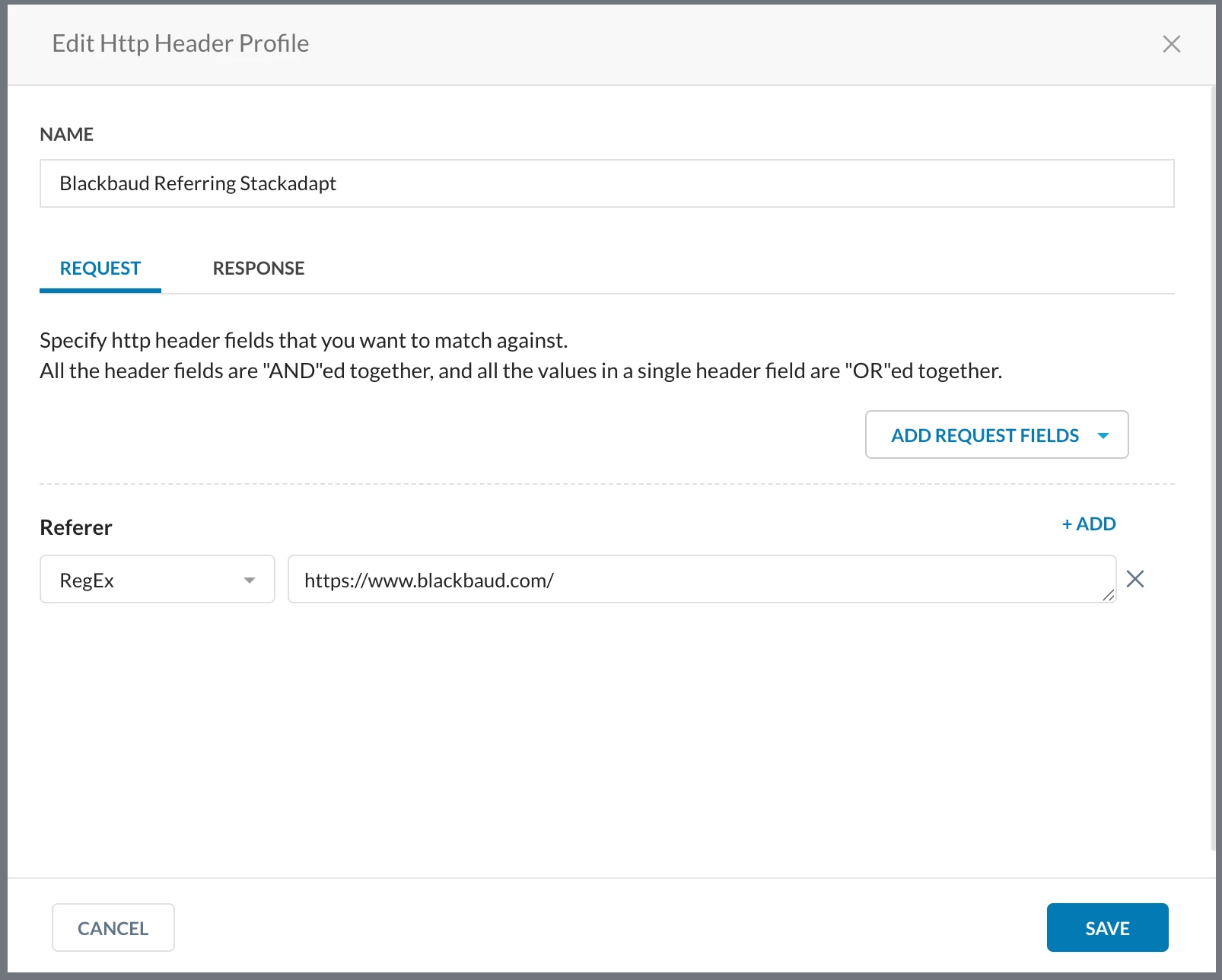
Remove all pre-populated fields. Then select ADD REQUEST FIELDS and find Referer. Once the field is added, match the image below and save the profile. This can now be referenced in Real-time Protection Policy.
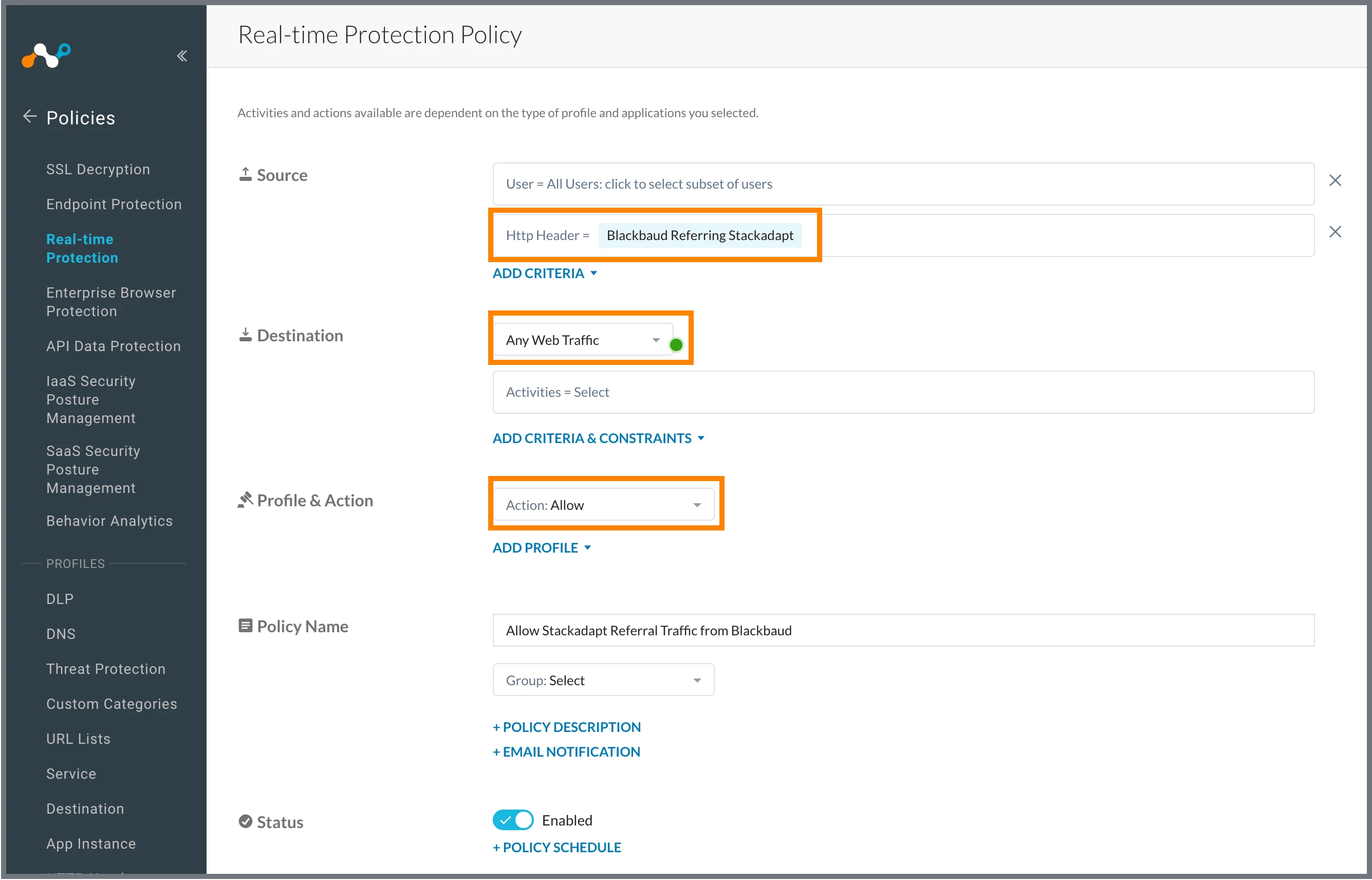
Create a policy that looks similar to this. Add HTTP Header as a source and reference the header profile you created in the step above. Destination can be Any Web Traffic since this is only going to apply to traffic referred by Blackbaud. Set the action to Allow. Make sure this policy is positioned above the Online AD block.
It is normal for domains to fall into multiple categories. In this case, Stackadapt is an AI powered online marketing platform that is embedded into your business application.
Regarding the difference between URLs and Pages. The page is what the user is currently viewing. It is what you would see in the browser. URLs could match the page or they could be resources that the browser is calling in the background to render the page. In your example above, the user would see www.blackbaud.com/training-support/chat in the browser URL bar. However, the browser is calling tags.srv.stackadapt.com/events.js in the background. You could see this call by opening developer tools in chrome and watching the network tab as the page loads.
To allow this traffic, you could create an exception for tags.srv.stackadapt.com in a custom category. However, this will allow stackadapt across the board. You probably don’t want this if non-sanctioned SaaS is using this service to collect information.
A better route is probably to create an exception using an HTTP Header Profile and keying on the referer field. You can do this by navigating to Policies > Profiles (Section) > HTTP Header.
Remove all pre-populated fields. Then select ADD REQUEST FIELDS and find Referer. Once the field is added, match the image below and save the profile. This can now be referenced in Real-time Protection Policy.
Create a policy that looks similar to this. Add HTTP Header as a source and reference the header profile you created in the step above. Destination can be Any Web Traffic since this is only going to apply to traffic referred by Blackbaud. Set the action to Allow. Make sure this policy is positioned above the Online AD block.