


Overview
This guide shows how to stream Netskope alerts and events into Microsoft Sentinel.
The connector is called Netskope Alerts & Events Connector (via Blob Storage). Netskope publishes it. It ingests alerts and events logs from Netskope Log Streaming into Microsoft Sentinel via Azure Blob Storage, using the Microsoft Sentinel Codeless Connector Framework (CCF).
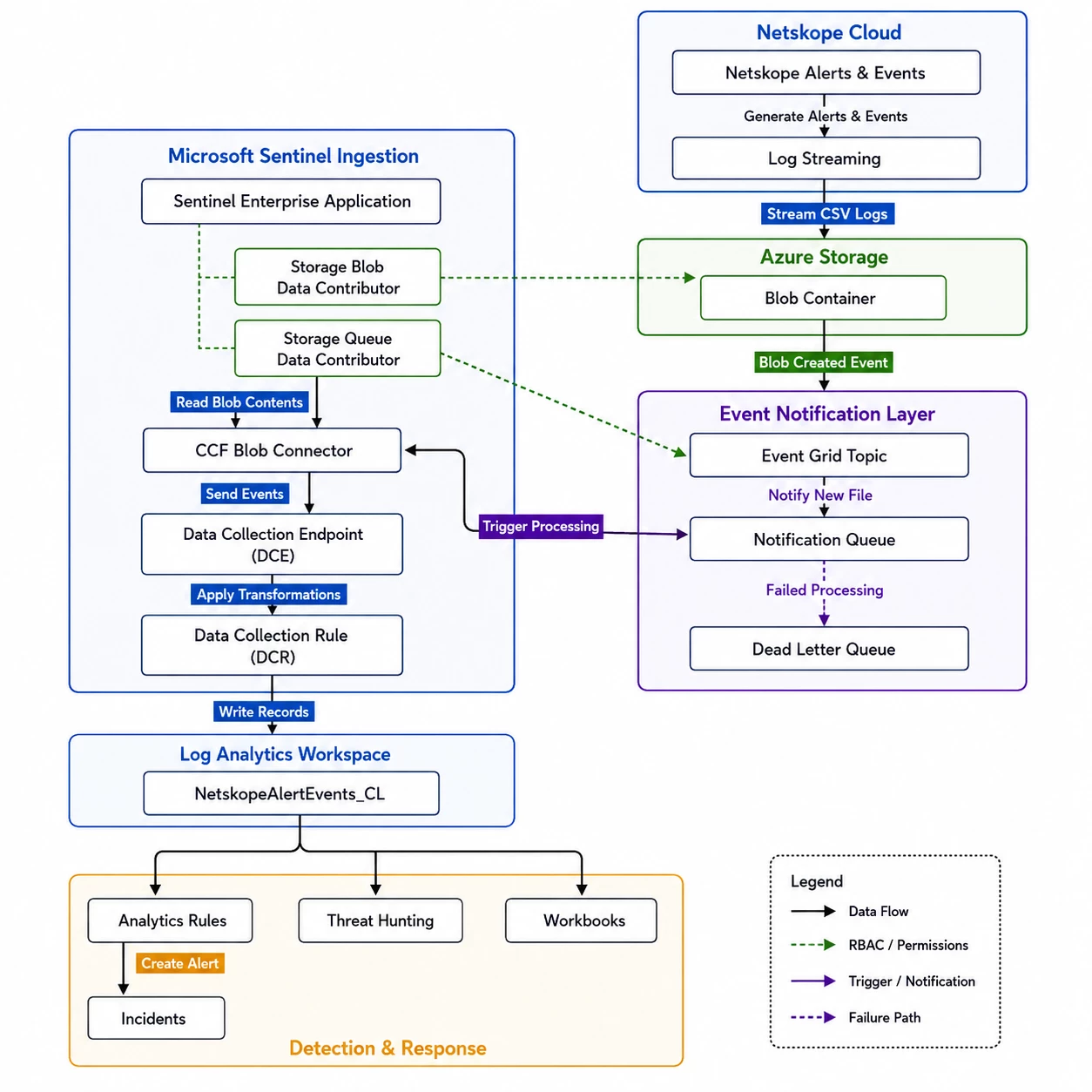
The data flow does not push logs straight into Sentinel. Netskope Log Streaming writes logs to an Azure Blob Storage container. Sentinel then reads those blobs and writes the records into the Log Analytics table NetskopeAlertEvents_CL.
This article is based on the connector's own deployment template (netskope_alert_events_log_streaming.json). UIs in Netskope and Azure change over time, so verify each screen against current documentation as you go.
How it works (architecture)
The pipeline has three stages.
- Netskope Log Streaming sends Alerts & Events logs to an Azure Blob Storage container.
- Azure infrastructure signals new data. An Event Grid topic sends a “blob created” event to a storage queue (the notification queue). A dead-letter queue holds messages that fail.
- Microsoft Sentinel (CCF connector) reads the new blobs, parses them, and writes rows into the NetskopeAlertEvents_CL table.
Prerequisites
Confirm each item before you start.
Netskope
- A Netskope tenant with Log Streaming available.
- Permission in the Netskope admin console to configure Log Streaming destinations.
Azure — Microsoft Sentinel
- A Log Analytics workspace with Microsoft Sentinel enabled.
- Read and Write permissions on the workspace (Microsoft.OperationalInsights/workspaces). The template also lists delete rights on workspace content.
- Action rights on workspace shared keys (Microsoft.OperationalInsights/workspaces/sharedKeys).
Azure — subscription
You need permission to create the data-flow resources:
- Storage queues — a notification queue and a dead-letter queue.
- Event Grid topic and subscription, to send “blob created” notifications to the notification queue.
- Role assignments, to grant the Sentinel application access to the blob container and the storage queues.
Azure — Blob Storage account
- An Azure Storage account with a blob container for the Netskope logs.
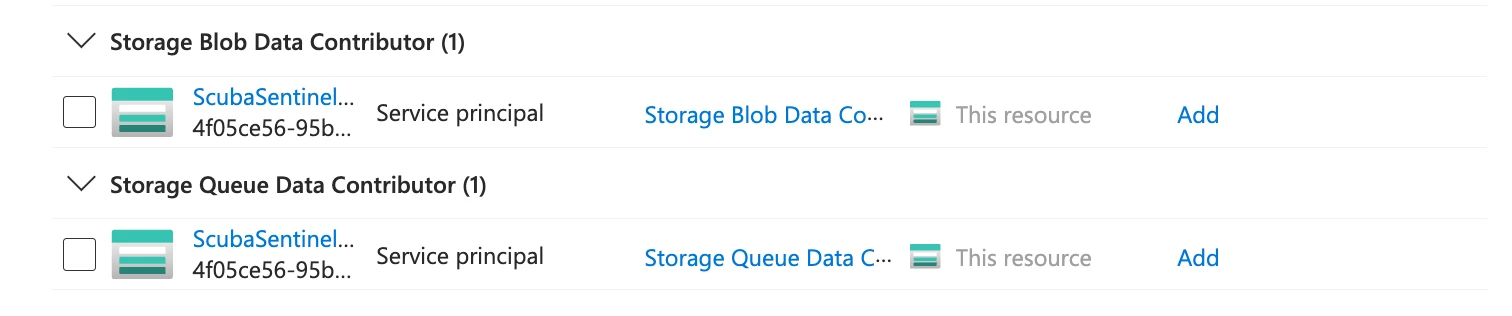
- Role assignments on that storage account, granted to the Sentinel enterprise application service principal with App ID: 4f05ce56-95b6-4612-9d98-a45c8cc33f9f
- Storage Blob Data Contributor — to read blob data from the container.
- Storage Queue Data Contributor — to manage the notification and dead-letter queue messages.
Network restriction warning. Firewall or IP rules on the Azure Blob Storage account are not supported for this connector. Per Azure Storage limitations, IP network rules have no effect on requests from the same Azure region as the storage account, and cannot control access in some scenarios. Do not lock the storage account behind IP/firewall rules. Verify the current Azure Storage network-security guidance before changing any network setting.
Step 1 — Configure Netskope Log Streaming to your blob container
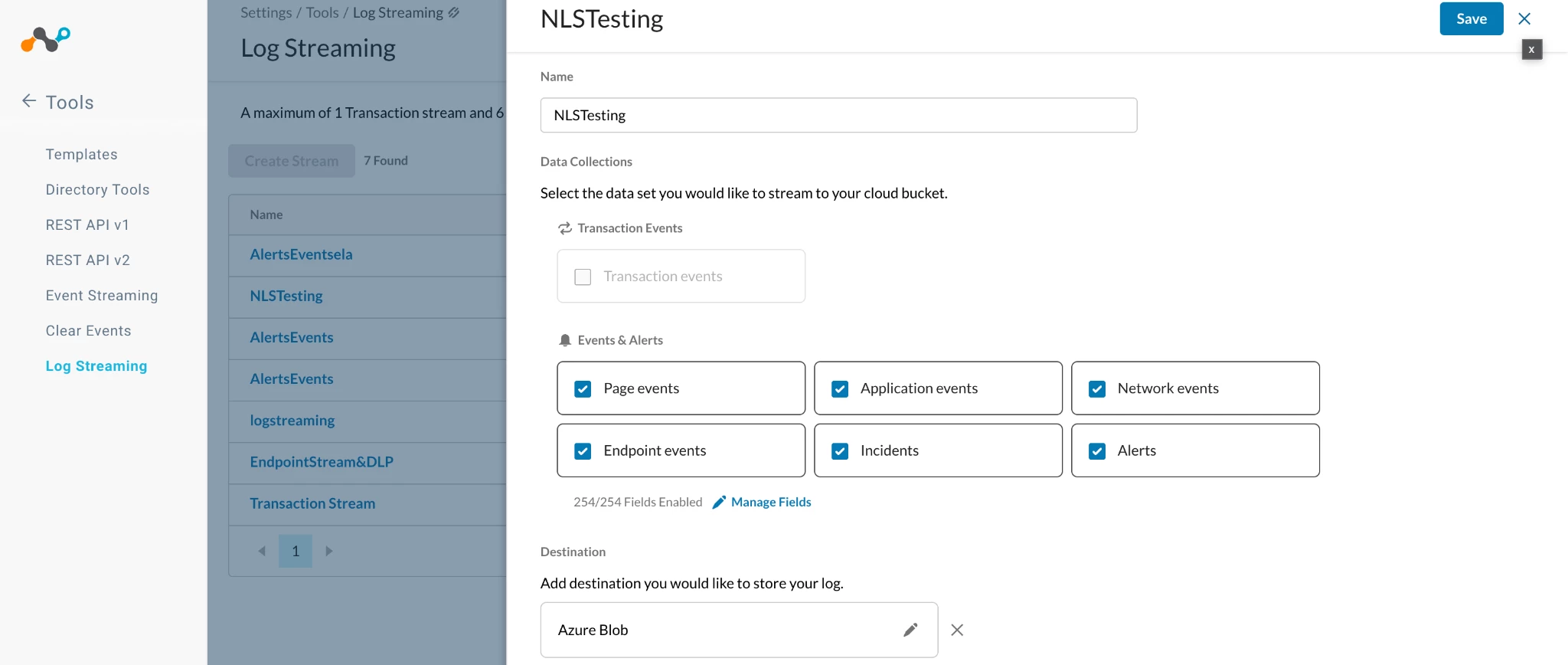
Set up Netskope to stream Alerts & Events to your Azure Blob Storage container.
- Sign in to the Netskope admin console.
- Open Settings → Tools → Log Streaming (Event Streaming).
- Create a streaming configuration that targets your Azure Blob Storage container.
- Select the Alerts and Events log types you want to send.
- Save and confirm the stream is active.
Follow the steps in the Netskope Log Streaming documentation for the exact fields and current screens: Netskope Log Streaming docs
Step 2 — Prepare the Azure Blob Storage account
- Create (or pick) the storage account and the blob container that will receive the logs.
- Note these values. You will enter them in the connector later:
- Blob container URL.
- Blobs folder name inside the container (optional).
- Storage account location (region).
- Storage account resource group name.
- Storage account subscription id.
- Existing Event Grid topic name, if any. Leave empty if not.
- Assign the two RBAC roles to the Sentinel enterprise application service principal: Storage Blob Data Contributor and Storage Queue Data Contributor.
- Keep the storage account open to the connector. Do not apply firewall/IP rules.
Step 3 — Install the connector in Microsoft Sentinel (ARM template)
The connector ships as a Sentinel solution. It is not yet available in Content Hub, so deploy it with the ARM template for now.
Download the connector template from GitHub:
- Connector template (GitHub): https://github.com/netskopeoss/Netskope_Web_Transactions_Azure_Sentinel/blob/b9d541b5fd2d43ca58237c068a4492a3af2c1000/NLS%20Alerts%20%26%20Events%20Connector/netskope_alert_events_log_streaming.json
Then deploy it:
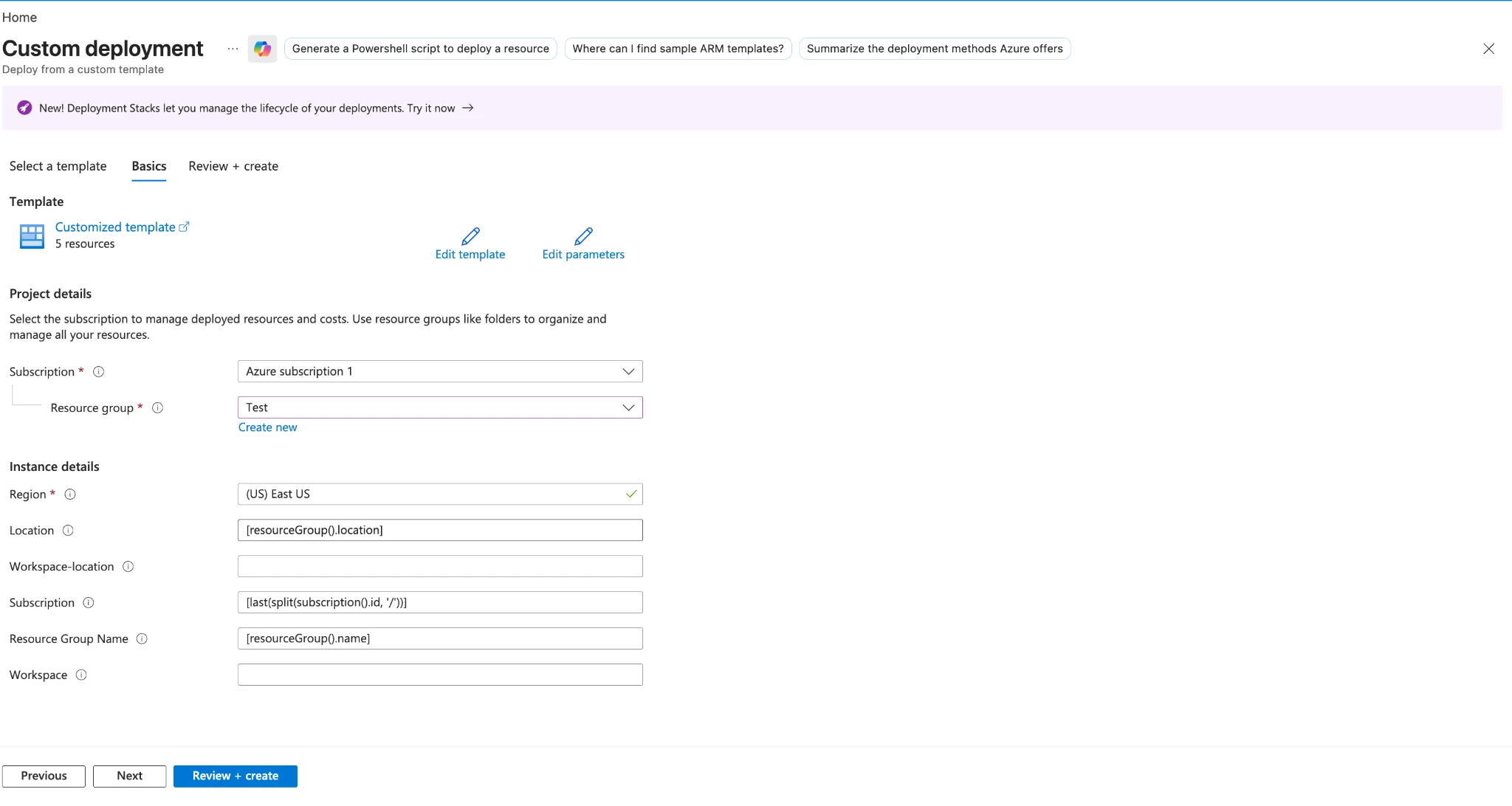
- In the Azure portal, open Deploy a custom template.
- Load netskope_alert_events_log_streaming.json.
- Set the parameters: target workspace, workspace-location, subscription, and resourceGroupName.
- Review and deploy.
The template targets Microsoft.OperationalInsights/workspaces/providers/... resources only (data connector definition, content template, metadata, content package). It does not create the storage account or blob container — you prepare those in Step 2.
Step 4 — Configure and connect the connector
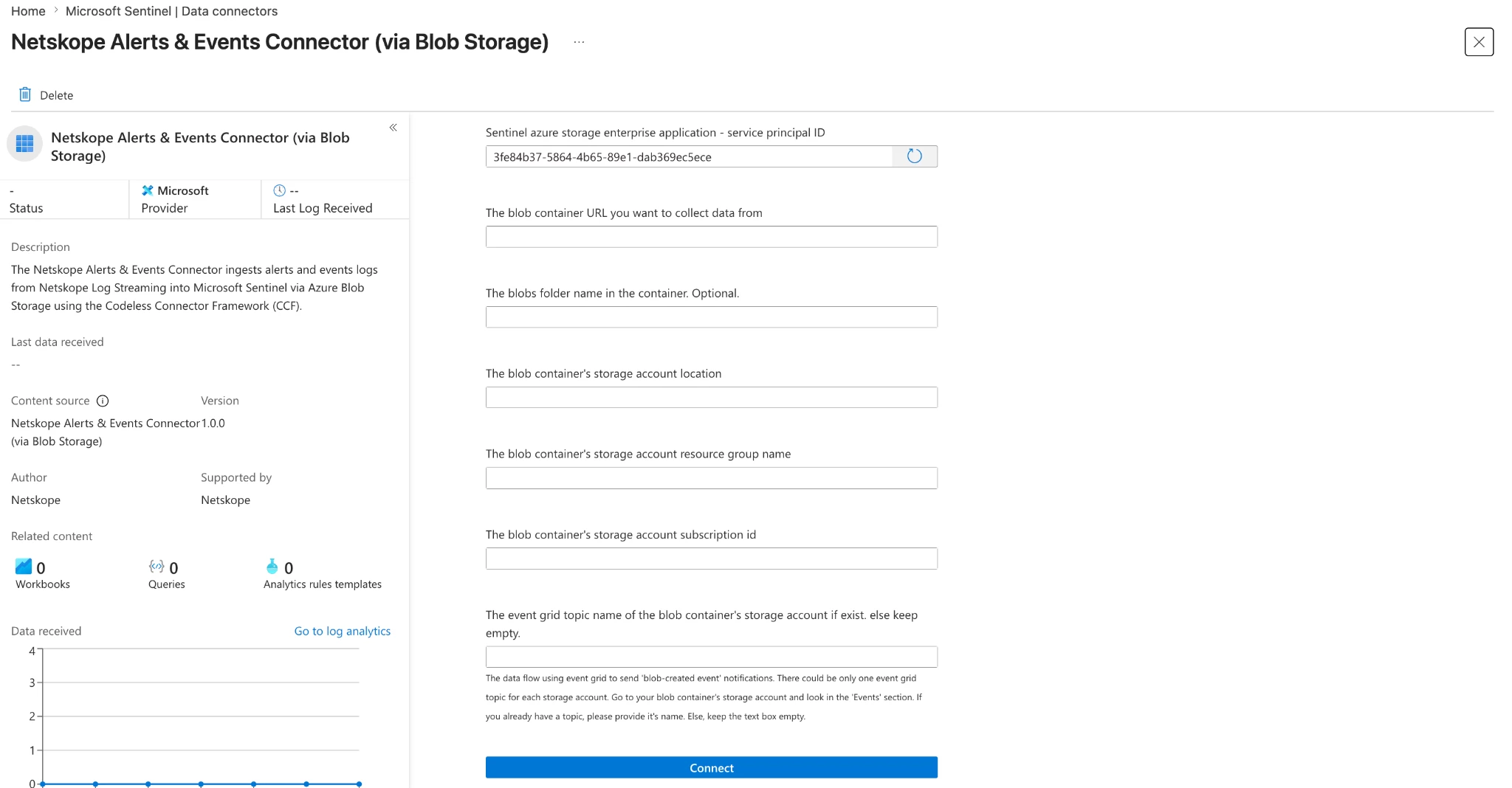
- In Microsoft Sentinel, open Data connectors.
- Find Netskope Alerts & Events Connector (via Blob Storage) and open it.
- Open the connector page Connect / configuration section.
- Fill in the connection fields:
- Blob container URL — the container to collect data from.
- Blobs folder name — the folder inside the container (optional).
- Storage account location — the container's storage account region.
- Storage account resource group name.
- Storage account subscription id.
- Event Grid topic name — enter it if the storage account already has one; otherwise leave empty.
- Use the Connect toggle to enable the connector.
When connected, the connector provisions the notification and dead-letter queues and the Event Grid subscription, then begins reading blobs.
Step 5 — Set up the workbook
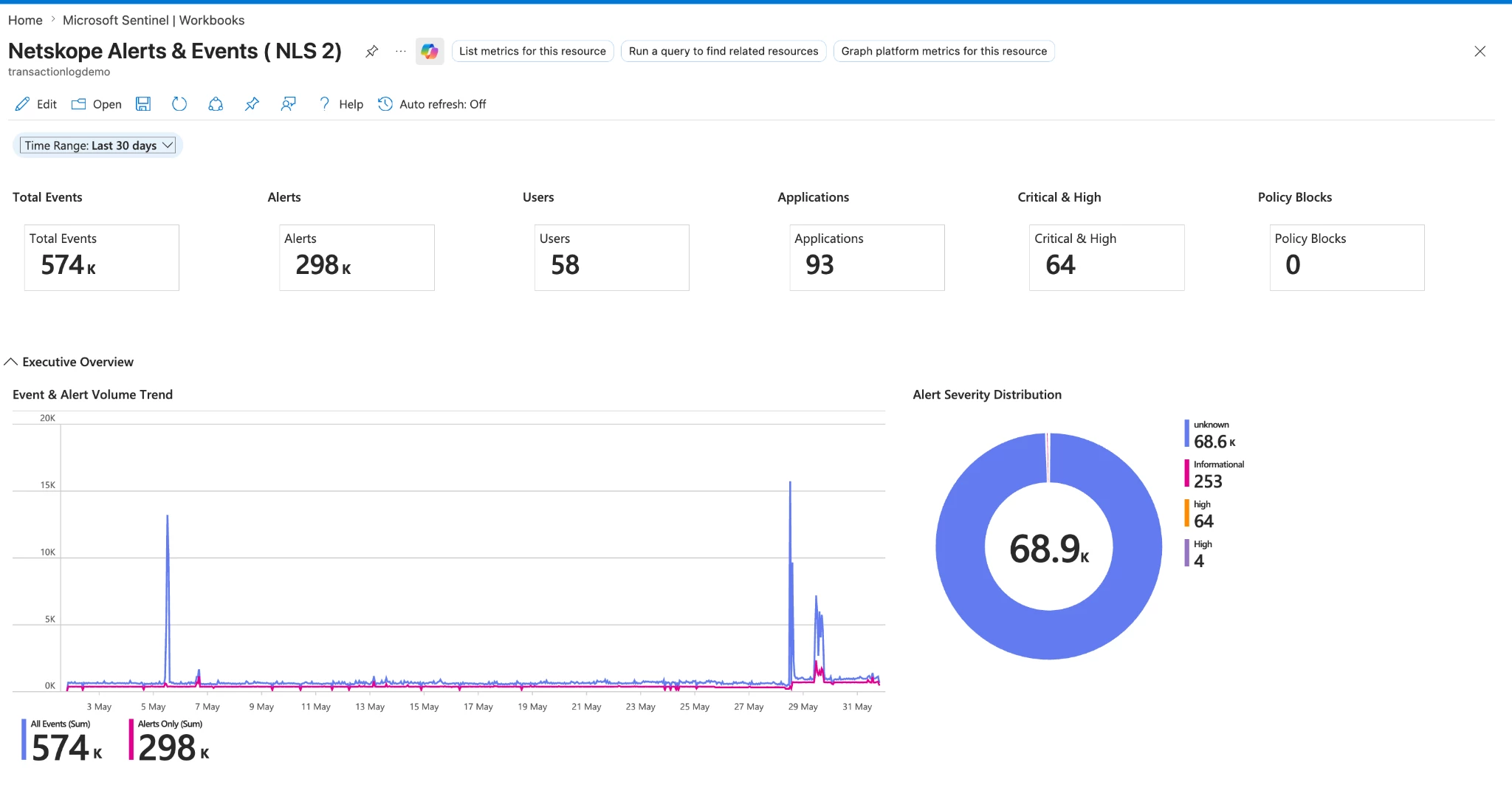
Netskope provides a companion workbook to visualize the Alerts & Events data. Deploy it after the connector is connected.
Download the workbook from GitHub:
- Workbook (GitHub): https://github.com/netskopeoss/Netskope_Web_Transactions_Azure_Sentinel/blob/b9d541b5fd2d43ca58237c068a4492a3af2c1000/NLS%20Alerts%20%26%20Events%20Connector/NetskopeAlertEvents_Workbook_Gallery.json
Then deploy it:
- In the Azure sentinel, open workbook.
- Click on Add workbook. Click on edit and Advanced Editor.
- Paste the template and click on save.
- Provide the name of the workbook.
Step 6 — Validate ingestion
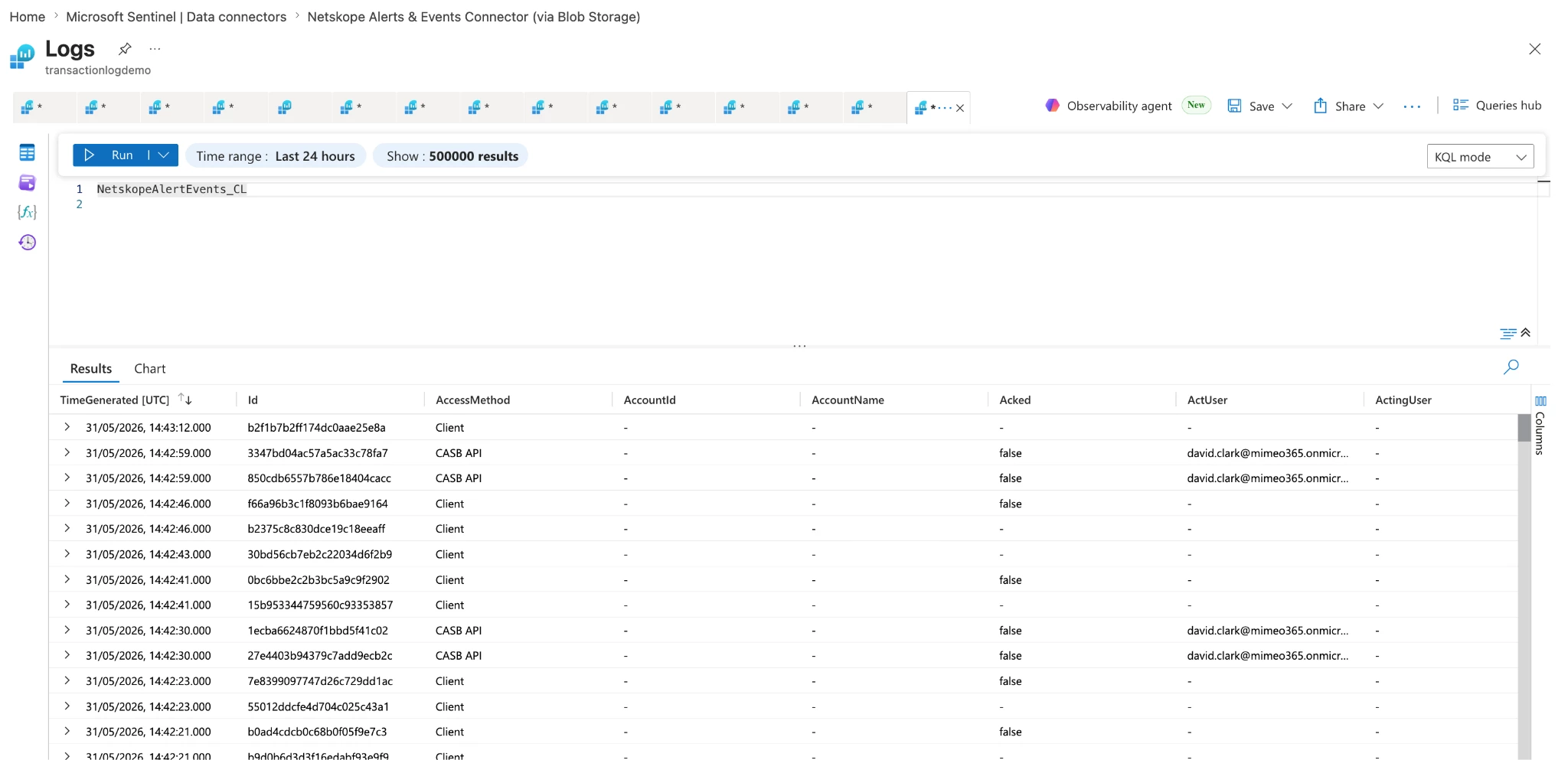
Give the pipeline time to deliver the first blobs, then check the data in Log Analytics.
Confirm rows arrive
NetskopeAlertEvents_CL
| take 10
Check the most recent data
NetskopeAlertEvents_CL
| where TimeGenerated > ago(12h)
| summarize Time = max(TimeGenerated)
If you see rows and a recent timestamp, the connector is working.
Troubleshooting
- No data in NetskopeAlertEvents_CL. Confirm Netskope Log Streaming is active and writing to the correct container. Check that new blobs appear.
- Blobs arrive but no rows in Sentinel. Re-check the RBAC roles on the storage account (Storage Blob Data Contributor and Storage Queue Data Contributor) for the Sentinel service principal.
- Notifications fail. Inspect the dead-letter queue. Confirm the Event Grid topic and subscription point to the notification queue.
- Access errors after a network change. Remove firewall/IP rules from the storage account. They are not supported for this connector.
- Wrong table. NetskopeWebTransactions_CL is the Web Transactions table. Alerts & Events use NetskopeAlertEvents_CL.
References
- Connector template (GitHub): https://github.com/netskopeoss/Netskope_Web_Transactions_Azure_Sentinel/blob/b9d541b5fd2d43ca58237c068a4492a3af2c1000/NLS%20Alerts%20%26%20Events%20Connector/netskope_alert_events_log_streaming.json
- Workbook (GitHub): https://github.com/netskopeoss/Netskope_Web_Transactions_Azure_Sentinel/blob/b9d541b5fd2d43ca58237c068a4492a3af2c1000/NLS%20Alerts%20%26%20Events%20Connector/NetskopeAlertEvents_Workbook_Gallery.json
- Netskope Log Streaming (Event Streaming) documentation
- Azure Storage network security (firewall/IP limitations)
- Connector deployment template (local): NLS_AlertsEvents_AzureSentinel/netskope_alert_events_log_streaming.json
- Companion workbook (local): NLS_AlertsEvents_AzureSentinel/NetskopeAlertEvents_Workbook_Gallery.json