



This document outlines the integration of Netskope Web Transaction Logs with Microsoft Sentinel on Azure US Government cloud using the Codeless Connector Framework (CCF). Separate templates are provided for comma-delimited and space-delimited blob data. This native integration provides near real-time visibility for effective threat hunting and incident management. To configure Netskope Log Streaming to send logs to your Blob storage please go through the article: https://docs.netskope.com/en/stream-logs-to-azure-blob
✅ Update: Azure Government now supports restricting public network access on Blob Storage through Azure Network Security Perimeter (NSP). See the 🛡️ Securing Blob Storage Access with Azure Network Security Perimeter (NSP) — Azure Government section below for the full walkthrough, including the Government-specific ordering of steps.
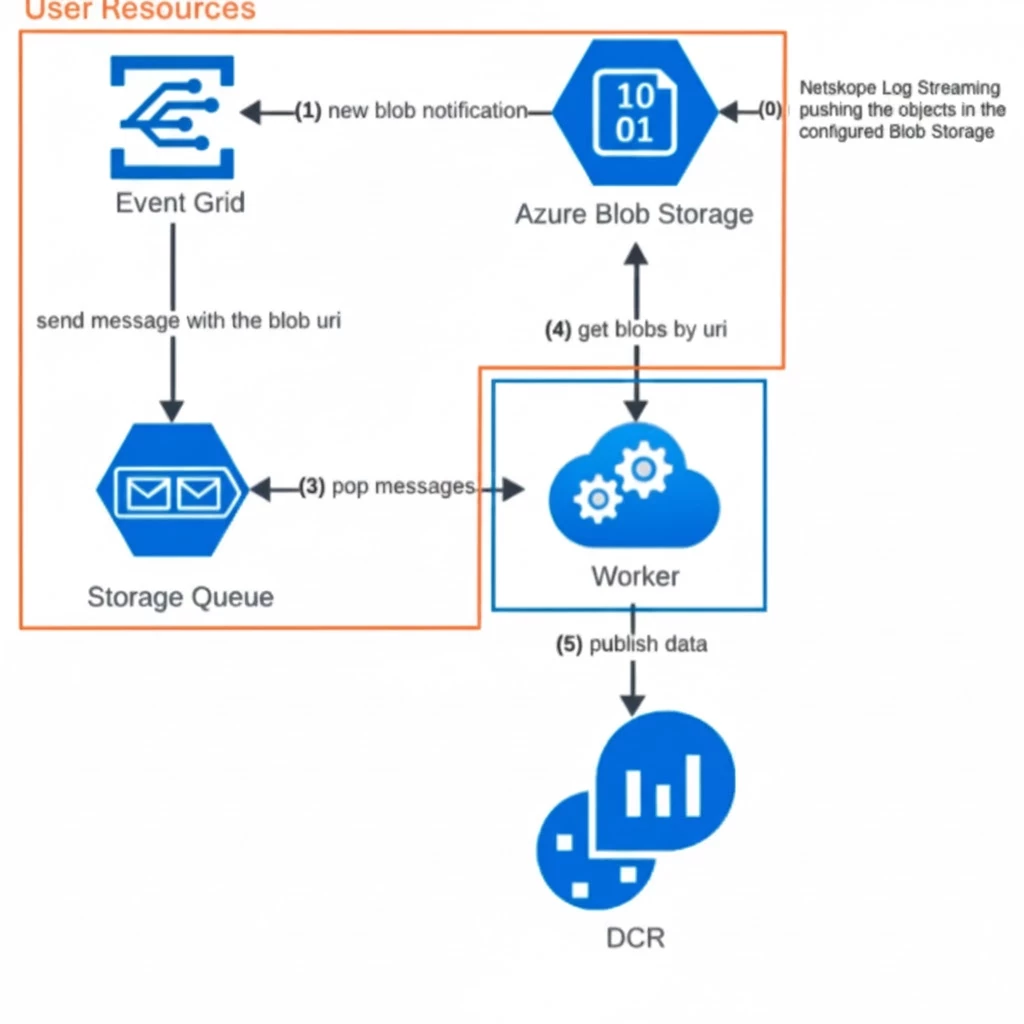
🏗️ Integration Architecture Overview
The integration leverages several Azure services to ensure reliable and scalable log delivery:
- Netskope to Azure Storage Blob: Netskope pushes Web Transaction Logs into a customer-owned Azure Storage Blob Container (as gzipped CSV files).
- Event Grid Notification: Every time a new file (blob) is written, an automatic notification is sent to Azure Event Grid.
- Storage Queue Messaging: Event Grid pushes the blob URI to a Storage Queue. This acts as a work queue for the connector.
- Microsoft Sentinel CCF Connector (Scuba Workers): These connectors continuously pull (pop) messages from the Storage Queue.
- Data Ingestion: The Scuba workers retrieve the data from the Blob Storage, process it, and ingest it into the Log Analytics Workspace via a Data Collection Rule (DCR).
- Log Analytics: The Netskope Web Transactions appear in the NetskopeWebTransactions_CL table within Microsoft Sentinel.
🔀 Comma vs Space Delimited Templates
Netskope can write Web Transaction blobs as either comma-delimited (standard CSV) or space-delimited (W3C Extended Log File Format). Because the Sentinel CCF blob connector parses CSV using a single delimiter character, two separate Government-cloud templates are provided. Both write to the same NetskopeWebTransactions_CL table, so downstream queries, workbooks, and analytics rules are identical.
| Template | Delimiter | GitHub link |
|---|---|---|
| Comma-delimited | , | |
| Space-delimited | (space) |
Deploy only the one that matches your Netskope output. To confirm which delimiter your tenant emits, download a single blob and inspect the first line — comma-separated fields → use the Comma template; space-separated fields → use the Space template.
🔒 Prerequisites
To successfully deploy the custom template and configure the Netskope Data Connector, the user or Service Principal performing the steps must have the following minimum permissions assigned:
1. Configure Netskope Log Streaming to Azure
Follow the documentation: Stream Logs to Azure Blob - Netskope Knowledge Portal for the Netskope Log Streaming configuration to Azure.
2. Microsoft Entra ID (Tenant-Level Role)
The deployment process involves working with Enterprise Applications (Service Principals) to set up the connector.
| Role | Scope | Required Action | Minimum Prerequisite Role for Assignment |
|---|---|---|---|
| Application Administrator | Microsoft Entra ID (Tenant) | Required to create, manage, and configure all aspects of application registrations and Enterprise Applications (Service Principals). | Privileged Role Administrator |
3. Azure Role-Based Access Control (Subscription-Level Role)
The connector deployment uses an ARM template that creates several Azure resources (Data Collection Rule, Event Subscription, etc.) and requires the ability to deploy resources.
| Role | Scope | Required Action | Minimum Prerequisite Role for Assignment |
|---|---|---|---|
| Owner | Azure Subscription | Grants full access to manage all resources (including deploying the ARM template and creating required resources), excluding the ability to assign roles (like Owner/User Access Administrator) to others. | Owner or User Access Administrator (at the same scope) |
4. Microsoft Sentinel-Enabled Log Analytics Workspace
You must have a Log Analytics workspace with Microsoft Sentinel enabled. If you don't have one, create it first: Onboard to Microsoft Sentinel | Microsoft Learn.
5. Enable Auditing & Health Monitoring
Make sure to turn on Auditing & Health Monitoring for the Azure Sentinel: https://learn.microsoft.com/en-us/azure/sentinel/enable-monitoring. This will help us to get to the root cause of the issue.
6. Confirm the Workspace Region (Government cloud)
The Data Collection Rule must be created in the same region as the Log Analytics workspace. Deploying with a mismatched Workspace-location results in an InvalidWorkspace error at connect time. Confirm your workspace region before deploying and use that value for the Workspace-location parameter.
How to Enable the Integration
1. Create the Service Principal
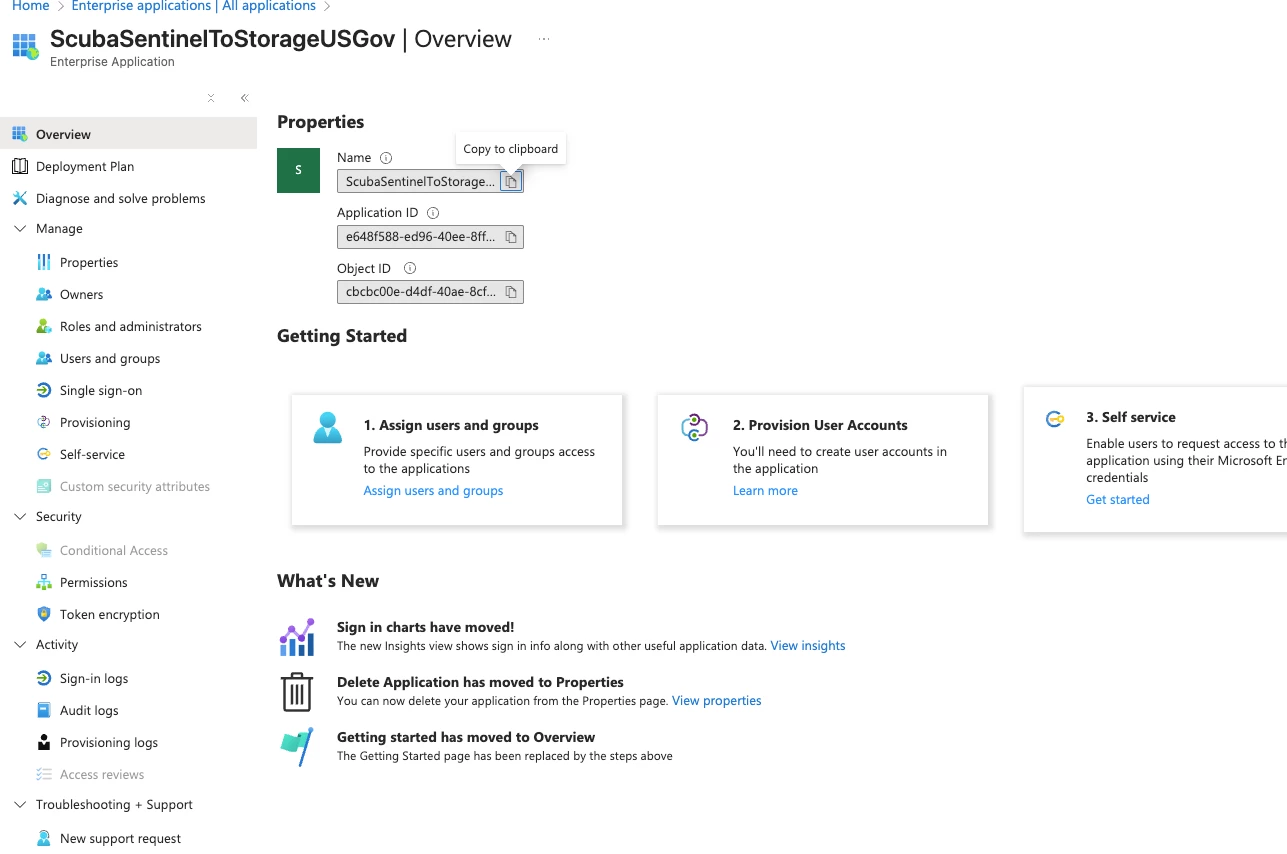
The connector authenticates using a Microsoft first-party application. Its Service Principal must exist in your tenant before connecting. Create it with the Azure CLI (signed in to your Government tenant, with az cloud set --name AzureUSGovernment):
az ad sp create --id e648f588-ed96-40ee-8ffa-12e13d6b16fa
If it returns "already in use", the Service Principal already exists — no action needed. Either way, the Enterprise Application (display name ScubaSentinelToStorageUSGov) will be present in your tenant, and its Object ID auto-populates the connector's Service Principal ID field.
Provide the Admin consent to the particular Application
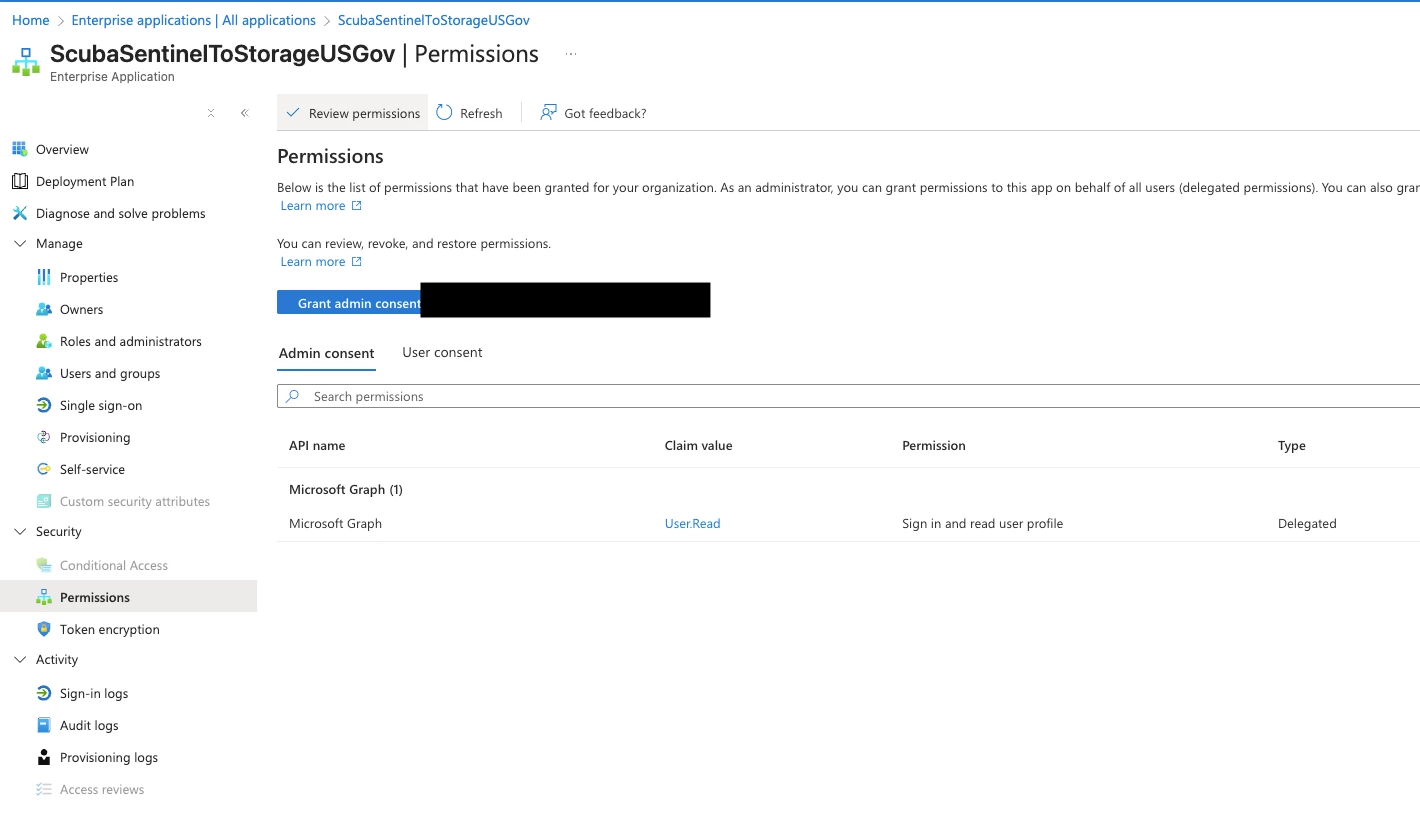
2. Deploy the Azure Sentinel Connector Template
- Navigate to the Azure Government Portal.
- Search for and select Deploy a Custom Template.
- Select Build your own template in the editor.
- Paste the contents of the template that matches your data (from the GitHub links in the table above) into the editor.
- Click Next.
- Fill in the required deployment parameters (Workspace, Workspace-location, Subscription, and Resource Group where your Sentinel instance is located).
- Click Review + Create and then Create to deploy the necessary Azure resources (Event Subscription, Storage Queues, Data Collection Rule, etc.).
3. Configure the Data Connector in Sentinel
- Navigate to your Microsoft Sentinel Instance.
- Under Content management, select Data Connectors.
- Locate the new connector named NetskopeWebTxConnector.
- Select Open connector page.
- Fill out the required parameters:
| Parameter | Description |
|---|---|
| Sentinel azure storage enterprise application - service principal ID | Grant the tenant Admin access to the Service Principal for the creation of Service Principal. If the Service Principal is already existing it will be auto populated with values. |
| The blob container URL you want to collect data from | The full URL of the Netskope container (e.g., https://[storageaccountname].blob.core.usgovcloudapi.net/[containername]). |
| The blob container's storage account location | The Azure region of the Storage Account. |
| The blob container's storage account resource group name | The Resource Group name of the Storage Account. |
| The blob container's storage account subscription id | The Azure Subscription ID of the Storage Account. |
| The event grid topic name of the blob container's storage account | If an Event Grid Topic exists for the Storage Account, enter its System Topic name. If not, keep this empty. You can find the existing System Topic Name under Events in the particular Blob Storage. |
- Before clicking on connect assign the Storage Blob Data Contributor and Storage Queue Data Contributor at the Service Principal Level.
- Click Connect to finalize the integration.
📝 Note: Data will typically begin appearing in your Log Analytics workspace within 20 minutes after successful connection.
- After connection you can check out the data in the Table: NetskopeWebTransactions_CL
Workbook & Analytics Rules
For Workbook and Analytics Rules creation, please follow the corresponding article.
Securing Blob Storage Access with Azure Network Security Perimeter (NSP) — Azure Government
Once your Netskope Web Transactions connector is up and running, you can further lock down your environment by restricting public network access to the Blob Storage account using Azure Network Security Perimeter (NSP). NSP lets you centrally manage inbound and outbound access rules for a group of Azure resources, so you can secure the storage account without breaking log delivery from Netskope or ingestion by the Sentinel CCF connector.
⚠️ Prerequisite: Complete the connector setup described above and confirm the Data Connector shows a Connected status before enforcing NSP. Enforcing NSP before the connector is connected will block the initial handshake and log delivery.
⚠️ Azure Government ordering is different from commercial Azure. In the Azure Government portal, the storage account's Networking blade currently does not expose the Secured by perimeter option. You must therefore:
- Associate the storage account with the NSP profile from the NSP resource (it lands in Transition mode), then
- set the storage account's Public network access to Disabled, and only then
- switch the association from Transition to Enforced.
Do not disable public network access before the storage account is associated with the perimeter — doing so blocks Netskope writes and Scuba reads until the association exists, and you will see a gap in NetskopeWebTransactions_CL.
Step 1: Create a Network Security Perimeter and profile
- In the Azure Government Portal (portal.azure.us), search for and open Network Security Perimeters.
- Create a new perimeter in the same region as the storage account (e.g.,
gov-netskopewebtx-nsp). - Inside the perimeter, create a Profile (e.g.,
netskopewebtx-storage-profile). This profile will hold the inbound access rules that control who can reach your storage account.
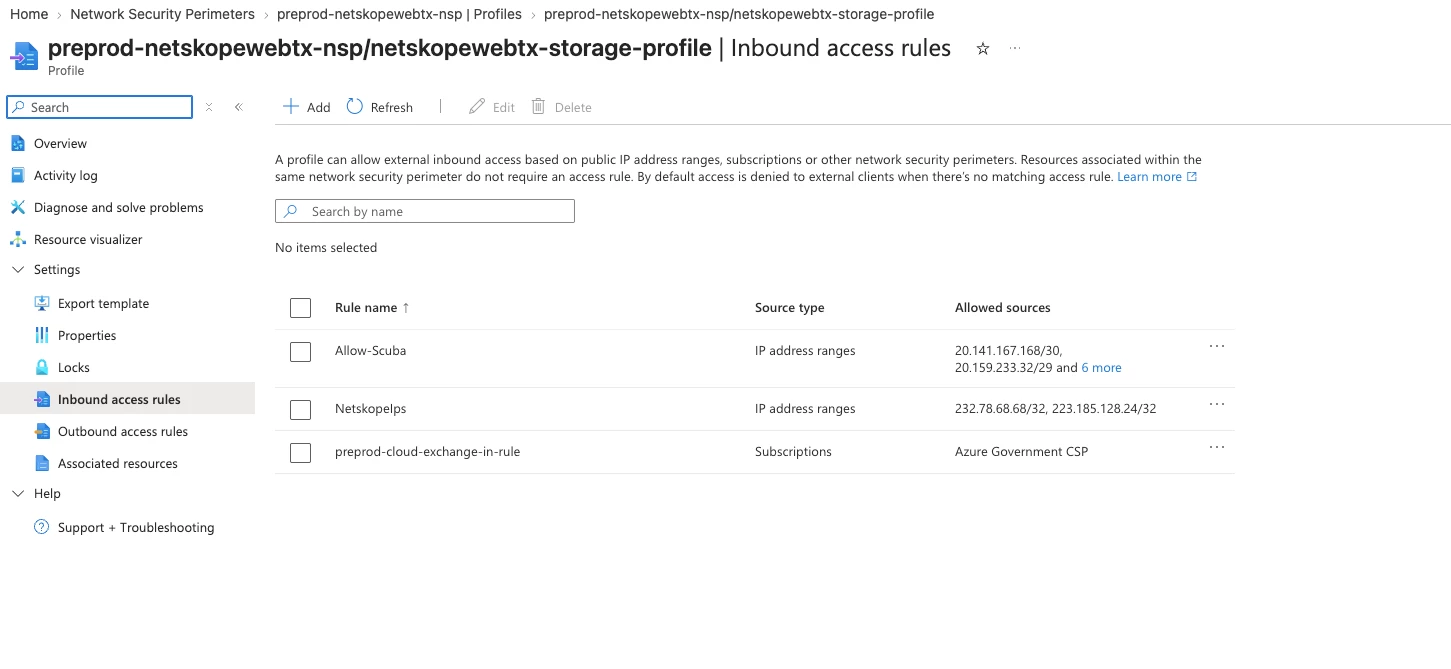
Step 2: Add three inbound access rules to the profile
Add three Inbound access rules to the profile so that Netskope, the Microsoft Sentinel ("Scuba") workers, and your own subscription can all still reach the storage account once public access is locked down.
| Rule name | Source type | Purpose |
|---|---|---|
| Allow-Netskope-IPs | IP address ranges | Whitelists the Netskope Government log-streaming source IPs so Netskope can keep writing Web Transaction logs to the blob container |
| Allow-Scuba | IP address ranges | Whitelists the Microsoft Sentinel worker ("Scuba") IP ranges for Azure Government so the CCF connector can read the blobs and pop queue messages |
| Allow-Subscription | Subscriptions | Whitelists your own Azure Government subscription so administrators, the Event Grid system topic and other in-subscription resources retain access |
1. Allow-Netskope-IPs — add the Netskope Log Streaming source IP ranges for your Netskope Government environment. Add only the ranges for the environment your tenant is hosted in.
| Netskope environment | IP address ranges to whitelist |
|---|---|
| FedRAMP (US Government) | 163.116.149.0/24, 163.116.159.0/24 |
| PBMM (Canada Protected B) | 163.116.143.0/24, 163.116.152.0/24 |
2. Allow-Scuba — add the Microsoft Scuba/Sentinel worker IP ranges for Azure Government. Pull the current list from Microsoft's Azure IP Ranges and Service Tags – US Government Cloud download: https://www.microsoft.com/en-us/download/details.aspx?id=57063 and filter the JSON for the Scuba service tag (described by Microsoft as "Data connectors for Microsoft security products (Microsoft Sentinel, Defender, etc.)"). Add every IPv4 prefix listed under that tag.
📝 Note: Only IPv4 addresses are supported — Inbound access rules on a Network Security Perimeter do not currently support IPv6. Skip any IPv6 prefixes in the download.
📝 Note: Microsoft refreshes the Government IP ranges file periodically. Re-check the Scuba tag after each refresh and update the rule, otherwise new worker addresses will be denied and ingestion will silently stop. The NSP diagnostic logs in Step 8 will show these as NspPublicInboundPerimeterRulesDenied.
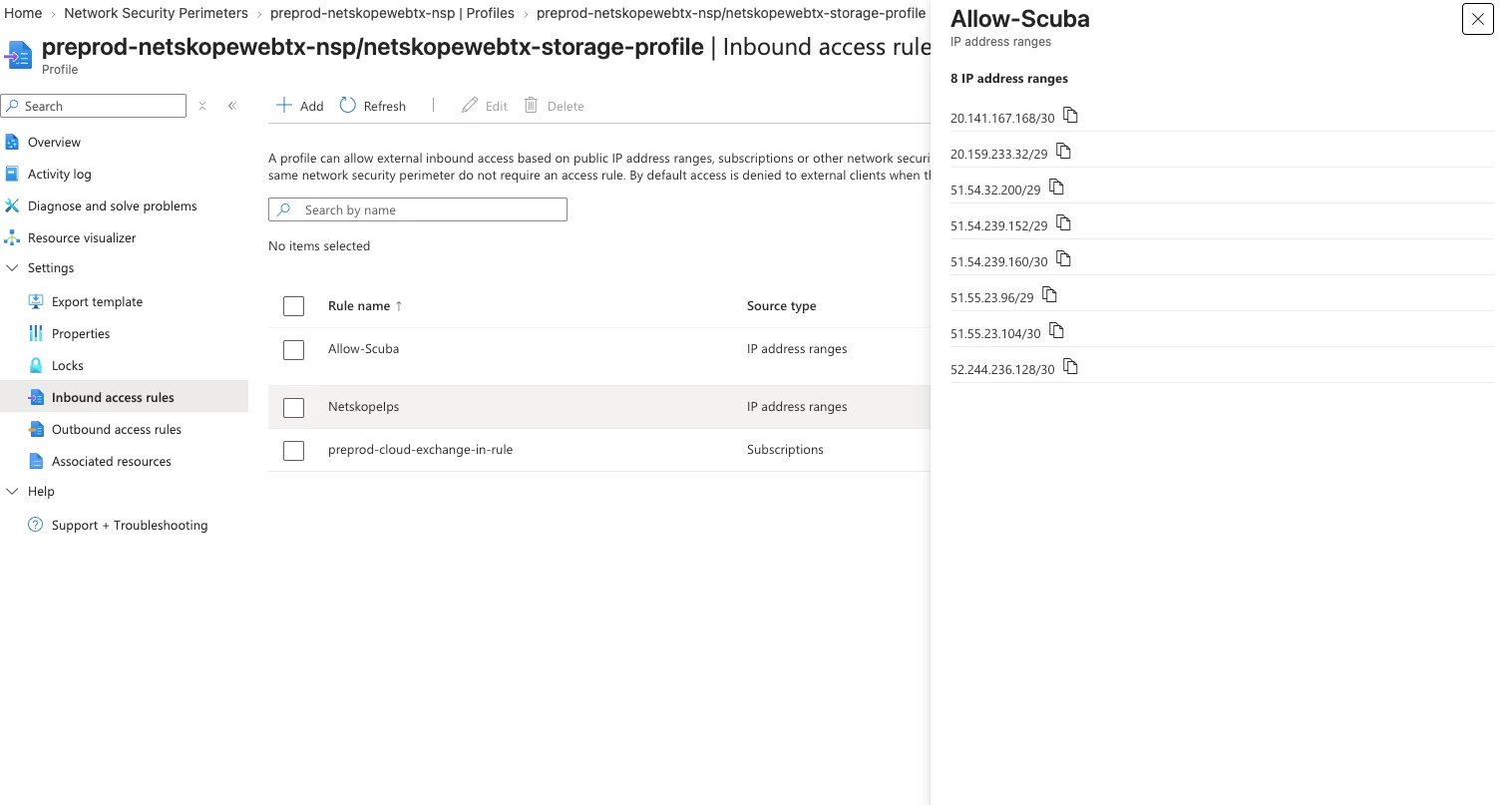
3. Allow-Subscription — add your own Azure Government subscription (the one hosting the storage account, the Event Grid system topic and the Sentinel workspace) as an allowed source so you and other in-subscription resources aren't locked out.
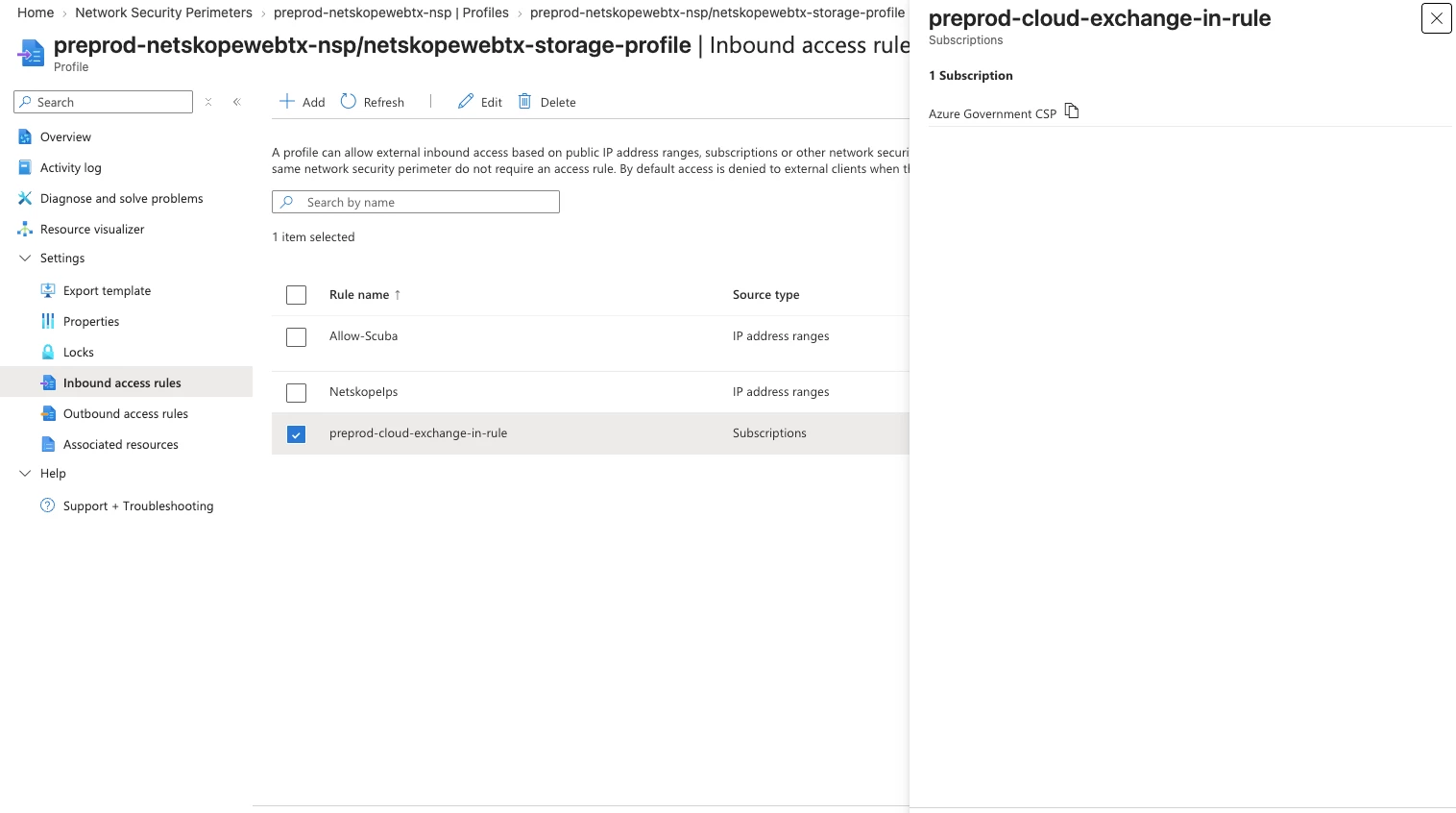
Step 3: Grant the Event Grid system topic permission to write to the Storage Queue
Deploying the connector template creates an Event Grid System Topic on your storage account, which delivers BlobCreated notifications into the Storage Queue. Once you restrict network access, this system topic's managed identity needs explicit permission to write to the queue:
- On the Storage Account, go to Access Control (IAM) → Add role assignment.
- Select the Storage Queue Data Message Sender role.
- Under Assign access to, choose Managed identity → Select members.
- Select your subscription, set Managed identity to Event Grid System Topic, and pick the system topic associated with this storage account (e.g.,
eg-system-topic-netskopewebtx-<storageaccount>). - Click Select, then Review + assign.
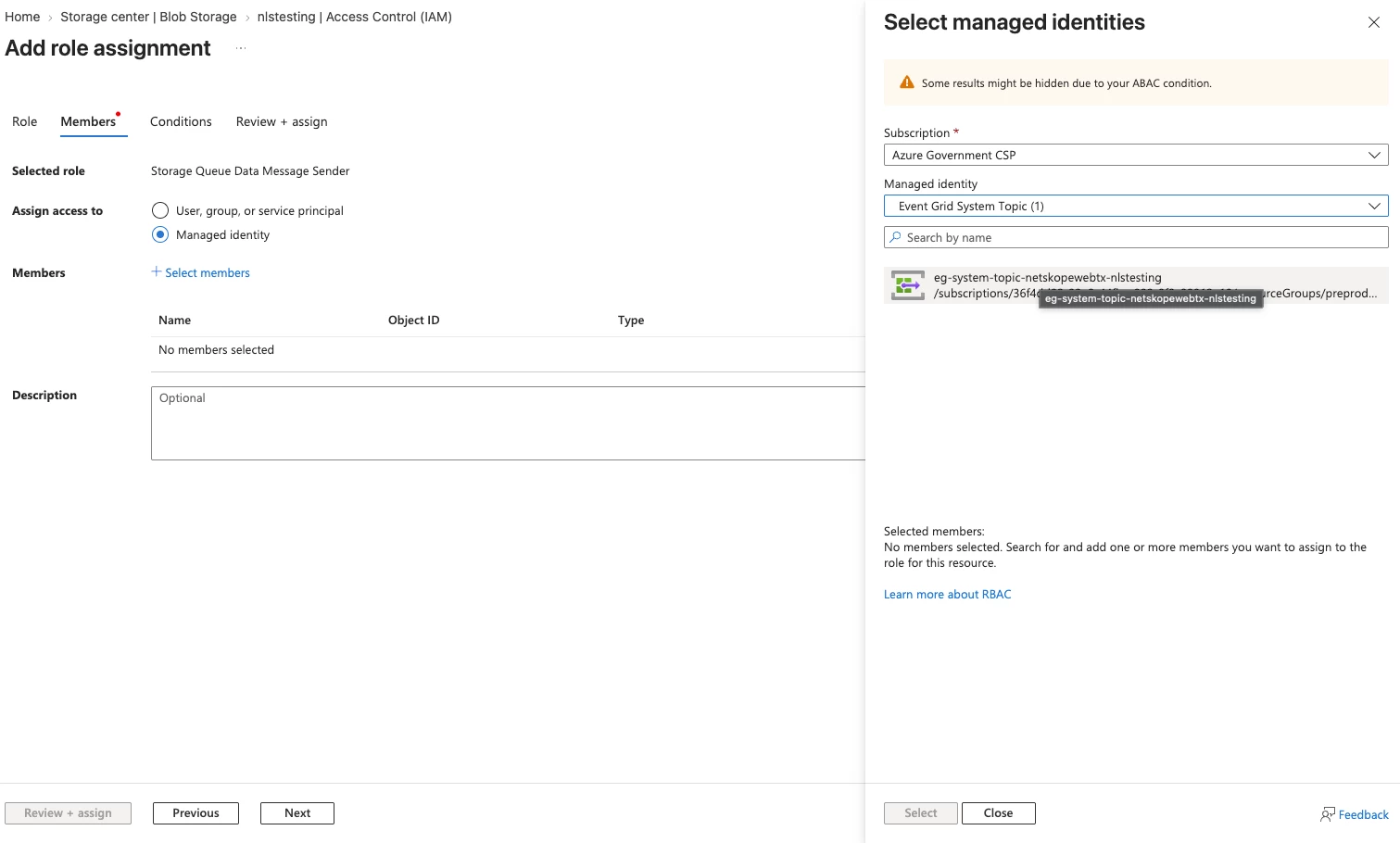
Step 4: Switch the system topic's event subscription to a system-assigned managed identity
- On the Storage Account, go to Events, and open the relevant Storage Queue event subscription (e.g.,
sentinel-connector-blobcreatedevents). - Go to the Additional Features tab.
- Under Managed Identity for Delivery, change the Managed identity type from None to System Assigned.
- Click Save.
This is what allows the Event Grid delivery to be matched against the Allow-Subscription inbound rule once the perimeter is enforced.
Step 5: Associate the storage account with the NSP profile (Transition mode)
In Azure Government this association is made from the perimeter, not from the storage account's Networking blade.
- Go to the Network Security Perimeter resource → Associated resources.
- Click + Add → Associate resources with an existing profile.
- Select the Profile created in Step 1 (the one containing all three inbound rules).
- Select the Storage account used by the Netskope connector and click Add.
- Confirm the resource appears with Access mode = Transition and Status = Succeeded.
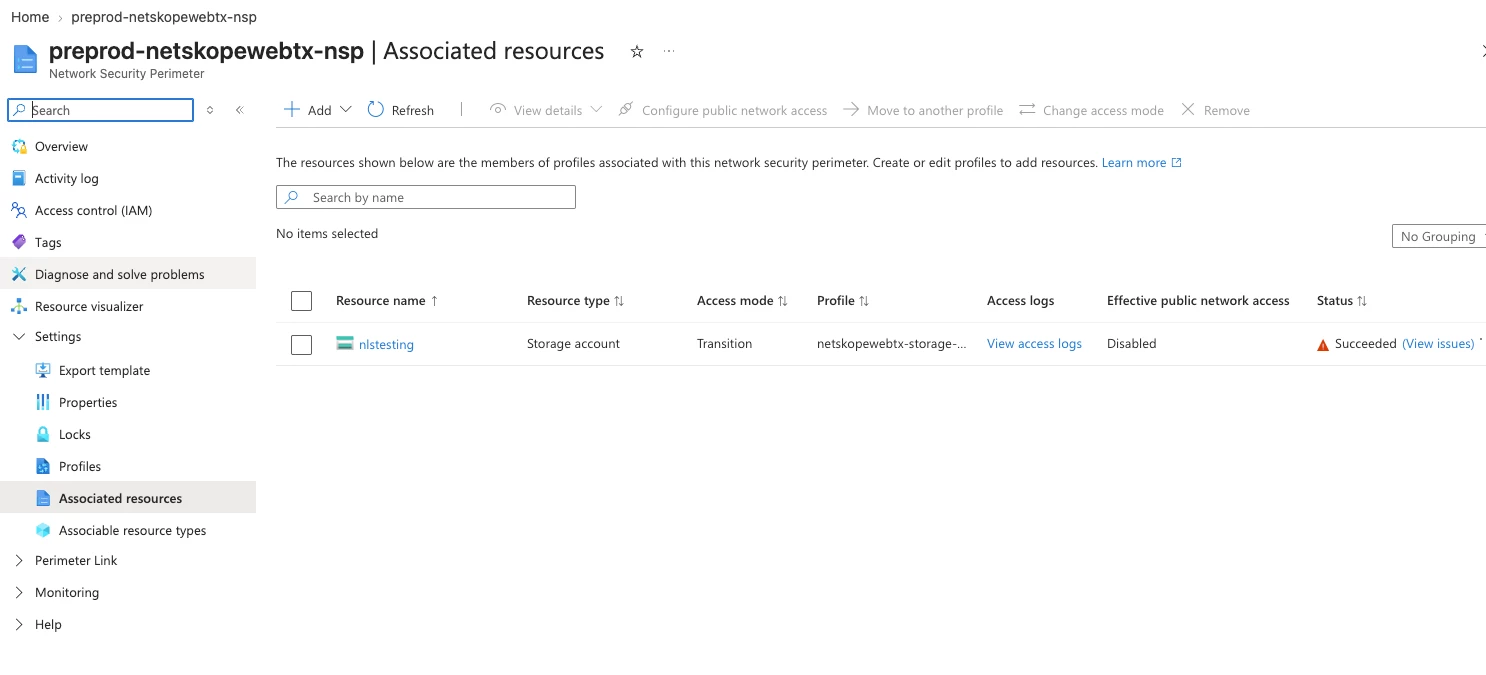
📝 Note: Transition mode logs what would be blocked without actually enforcing it. Leave the storage account in Transition for a short period and check the NSP access logs (Step 8) to confirm that Netskope writes and Scuba reads are matching your inbound rules before you continue.
Step 6: Disable public network access on the storage account
Now that the storage account is inside the perimeter, turn off its own public endpoint:
- On the Storage Account, go to Security + networking → Networking → Firewalls and virtual networks.
- Under Public network access, select Disabled.
- Click Save.
The Networking blade will now show "Public network access to this storage account has been disabled". Traffic from Netskope, the Scuba workers and your subscription continues to flow because it is evaluated against the NSP inbound rules, not against the storage firewall.
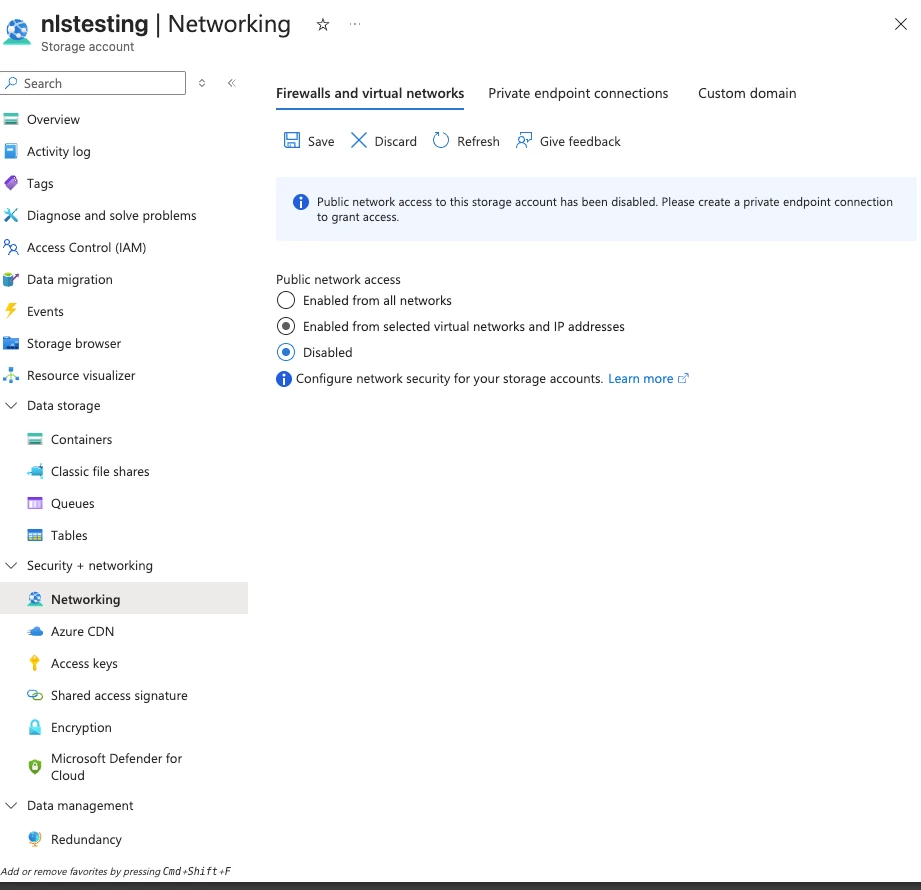
Back on the NSP Associated resources page, the Effective public network access column for the storage account should now read Disabled.
Step 7: Change the perimeter's access mode from Transition to Enforced
- Go back to the Network Security Perimeter resource → Associated resources.
- Select your storage account resource.
- Click Change access mode, choose Enforced, and click Apply.
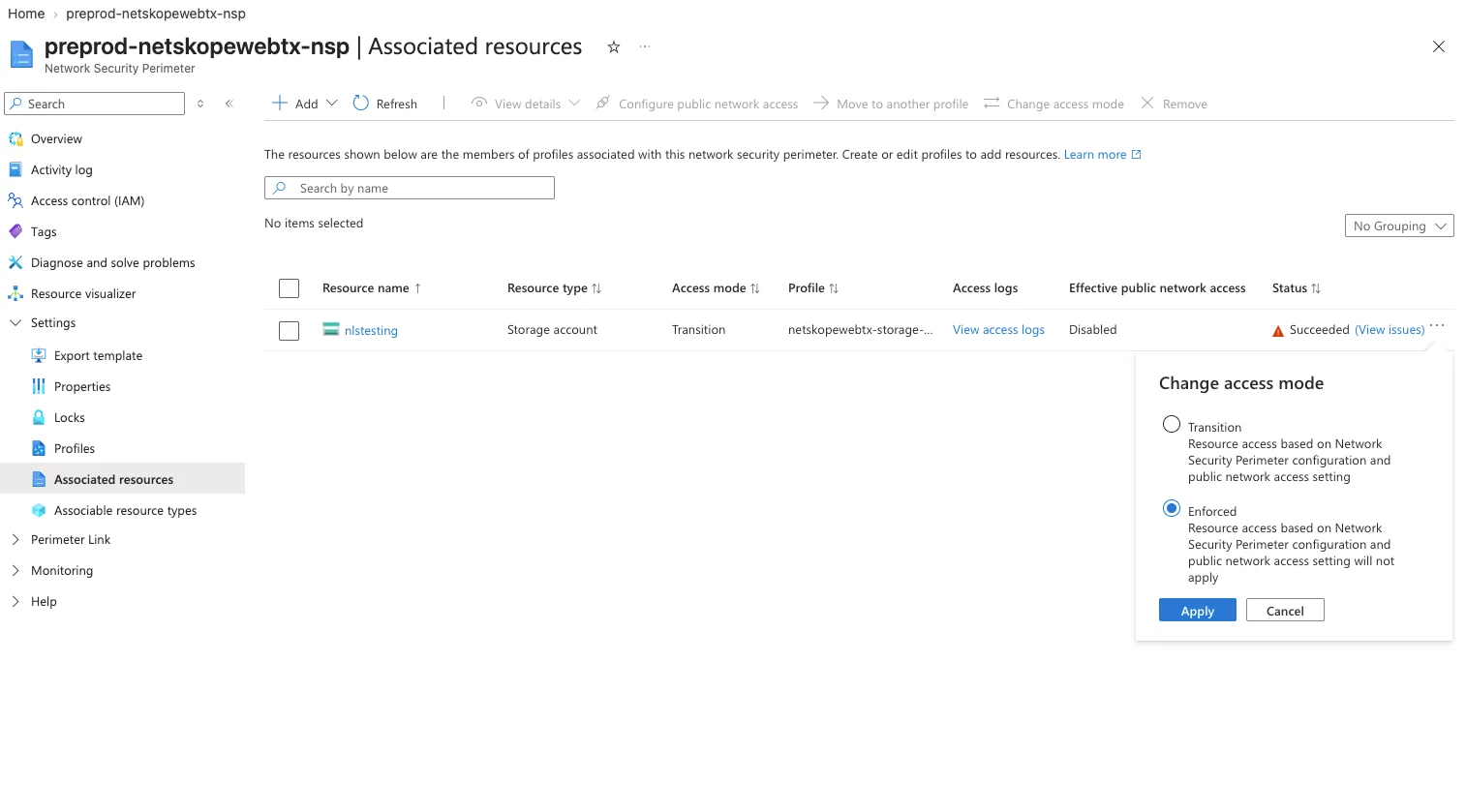
📝 Note: In Transition mode, access is granted if either the NSP rules or the storage account's own public network access setting allow it. In Enforced mode, only the NSP inbound rules are evaluated and the storage account's public network access setting no longer applies. Enforced is the state that actually restricts access to Netskope, Scuba and your subscription only.
After switching to Enforced, confirm that the Data Connector still shows Connected and that new rows keep arriving in NetskopeWebTransactions_CL.
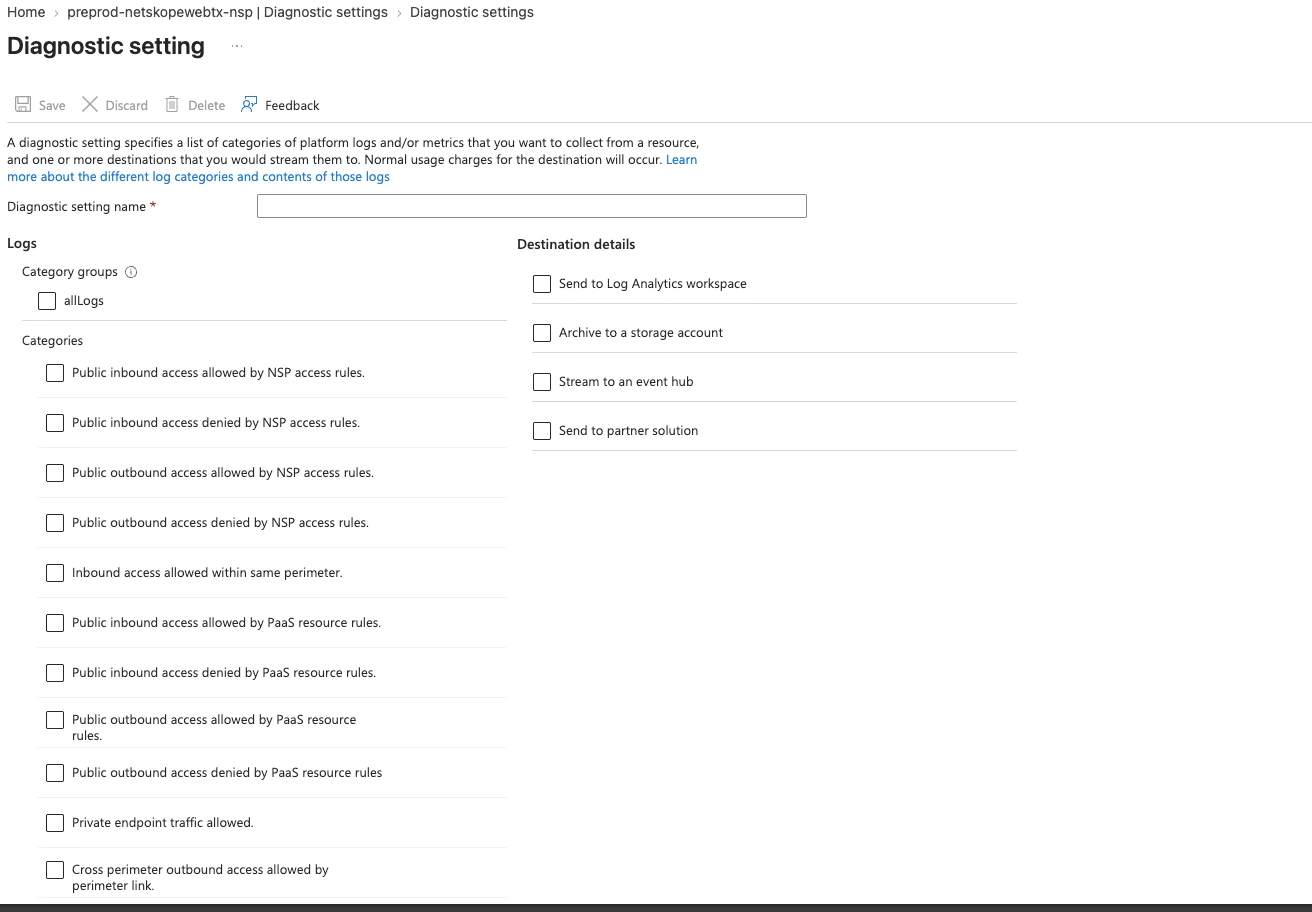
Step 8: Enable diagnostic logging on the NSP for troubleshooting
Before you rely on the perimeter in production, turn on diagnostic logging for the Network Security Perimeter resource itself. This gives you an audit trail of every allowed and denied request, which is the fastest way to root-cause it if Netskope or the Sentinel connector ever appear to stop receiving data after NSP is enforced.
-
On the Network Security Perimeter resource, go to Monitoring → Diagnostic settings → + Add diagnostic setting.
-
Give it a name (e.g.,
nsp-diagnostic-logs). -
Under Categories, select at minimum:
- Public inbound access allowed by NSP access rules
- Public inbound access denied by NSP access rules
- Public inbound access allowed by PaaS resource rules
- Public inbound access denied by PaaS resource rules
Or select allLogs under Category groups to capture everything.
-
Under Destination details, check Send to Log Analytics workspace and select the same Sentinel-enabled workspace used by the connector — this makes it easy to correlate NSP denials with gaps in NetskopeWebTransactions_CL.
-
Click Save.
Logs land in the NSPAccessLogs table. A healthy deployment shows a steady stream of NspPublicInboundPerimeterRulesAllowed entries for PutBlob (Netskope writing logs), PutMessage (Event Grid writing to the queue) and GetQueueMetadata / GetMessages / GetBlob / DeleteMessage (Scuba workers consuming the queue and reading blobs).
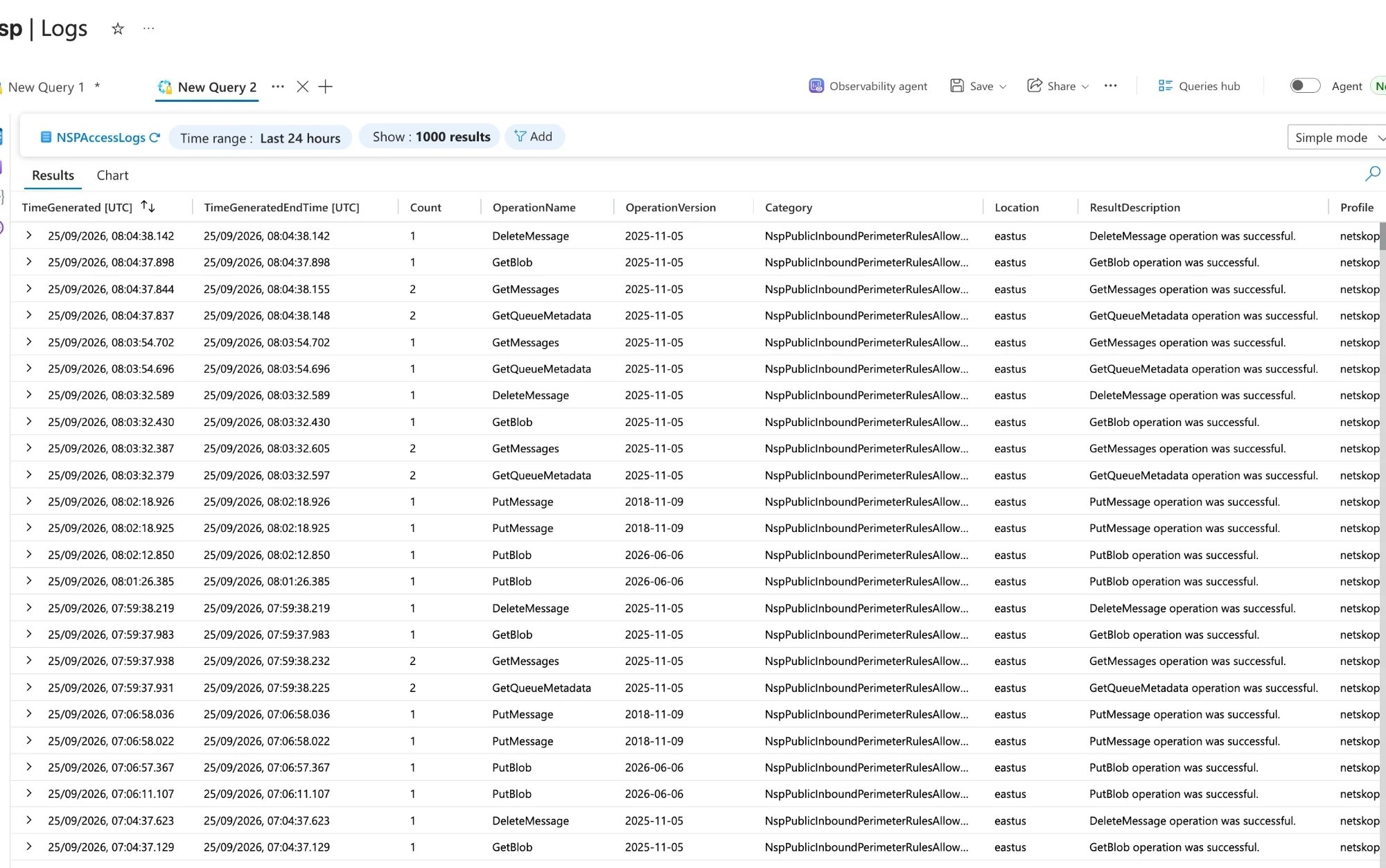
Useful starting queries:
// Anything denied by the perimeter in the last 24 hours
NSPAccessLogs
| where TimeGenerated > ago(24h)
| where ResultAction == "Denied"
| summarize Count = sum(Count) by Category, OperationName, SourceIpAddress, SourceAppId, ResultDescription
| order by Count desc
// Confirm each leg of the pipeline is being allowed
NSPAccessLogs
| where TimeGenerated > ago(1h)
| where ResultAction == "Approved" and RuleType == "NSP"
| summarize Count = sum(Count) by OperationName, MatchedRule, Profile
| order by OperationName ascIf PutBlob stops appearing, check the Allow-Netskope-IPs rule. If GetMessages / GetBlob stop appearing, refresh the Allow-Scuba ranges from the Government IP download. If PutMessage is denied, re-check Steps 3 and 4 (system topic role assignment and managed identity delivery).
How the secured architecture works in Azure Government
End-to-end flow with NSP enforced
-
Netskope → Blob Storage (write). Your Netskope Government tenant (FedRAMP or PBMM) streams gzipped CSV Web Transaction files to the customer-owned storage account on
*.blob.core.usgovcloudapi.net. These writes originate from Netskope's fixed Government egress ranges (163.116.149.0/24 and 163.116.159.0/24 for FedRAMP; 163.116.143.0/24 and 163.116.152.0/24 for PBMM). The Allow-Netskope-IPs inbound rule is the only reason thisPutBlobtraffic is accepted once the perimeter is enforced. -
Blob Storage → Event Grid System Topic. Every
BlobCreatedevent is raised to the Event Grid System Topic that the connector template created on the storage account. This hop is internal to the Azure platform and is not subject to the perimeter. -
Event Grid → Storage Queue (write). The system topic delivers the blob URI into the
{name}-notificationqueue on the same storage account. Because the queue endpoint now sits behind the perimeter, Event Grid must present an identity the perimeter can evaluate. That is why the event subscription is switched to System Assigned managed identity delivery (Step 4) and why that identity is granted Storage Queue Data Message Sender (Step 3). The managed identity belongs to your subscription, so the Allow-Subscription inbound rule admits thePutMessagecall. -
Scuba workers → Storage Queue and Blob (read). The Microsoft Sentinel CCF workers for Azure Government (Enterprise Application
ScubaSentinelToStorageUSGov) poll the queue (GetQueueMetadata,GetMessages), fetch the referenced blob (GetBlob) and acknowledge the message (DeleteMessage). These calls come from Microsoft's Government Scuba address space, so they are admitted by the Allow-Scuba inbound rule. Authorization is still RBAC: the Service Principal holds Storage Blob Data Contributor and Storage Queue Data Contributor. -
Scuba workers → Data Collection Rule → Log Analytics. The workers parse the CSV and push rows through the DCR into the Government Log Analytics workspace, where they appear in
NetskopeWebTransactions_CL. This leg never touches the storage account, so the perimeter has no effect on it. -
Administrators and other in-subscription resources. Portal browsing, Storage Explorer, scripts and any other resource running under your subscription are admitted by Allow-Subscription.
-
Everything else is denied and recorded in
NSPAccessLogsasNspPublicInboundPerimeterRulesDenied, giving you an audit trail of every rejected attempt against the storage account.
Why the Government ordering is different
- In commercial Azure the storage account's Networking blade offers Secured by perimeter, which associates the account and restricts public access in one step. The Azure Government portal currently only offers Enabled from all networks / Enabled from selected virtual networks and IP addresses / Disabled.
- The equivalent in Government is a two-part change: associate from the NSP resource (which places the account in Transition mode), then set public network access to Disabled on the storage account.
- While in Transition, access is allowed if either the perimeter rules or the storage firewall allow it. Setting the storage firewall to Disabled at this stage is safe because the perimeter rules already admit Netskope, Scuba and your subscription, and the NSP page confirms this with Effective public network access = Disabled.
- Switching to Enforced removes the storage firewall from the decision entirely. From that point, only the three inbound rules govern access, which is the desired end state.
- Doing these in the wrong order (disabling public access before association) leaves a window in which both Netskope writes and Scuba reads are rejected, producing a visible gap in NetskopeWebTransactions_CL and a backlog of blobs that Scuba will later catch up on.
Troubleshooting
- Perform all the steps below first in a "clean room" environment. That is, create a new resource group which contains only the minimal number of resources: Sentinel-enabled Log Analytics workspace, a Storage Account, and a Blob Container with expected name.
- Ensure diagnostics logs are enabled on the Sentinel Workspace. Do this before anything else.
- Deploy ONLY ONE Netskope Log Streaming Blob solution template into this workspace. Check resource group deployments to ensure that it deployed without error. After deploying, if you make any changes to the solution template, start over from step 1 in a new clean resource group.
- Connect the connector. Use the storage account in the same resource group as the Sentinel Workspace. In case of the Netskope connector, leave event grid topic blank, and be sure to set a folder name.
- Check resource group deployments to ensure that it deployed without error.
- Check that the storage account has a "Microsoft.Storage.BlobCreated" Event Subscription, with expected prefix folder.
- Click into the Event Subscription details. Ensure the "Endpoint" is {name}-notification.
- Check that the Storage account has two queues, {name}-dlq and {name}-notification.
- Check the role assignments on each queue. Ensure the expected App Registration (e.g. "ScubaSentinelToStorageUSGov") has the Storage Queue Data Contributor role. You can verify it's the correct app by clicking on its name, and comparing the Object ID on the "Enterprise Application Overview" page with the Service Principal ID in the connector deployment page.
- Manually add a piece of test data to the blob container. Be sure the data is formatted correctly, as the DCR will expect it, is in the correct format (e.g. .csv.gz) with the correct delimiter, and is in the expected folder.
- Ensure the blob was added in the correct folder, with the expected name.
- Check the metrics on the Events page for the Storage Account. Look for Published Events and Delivered Events to jump up to 1. Refresh as needed.
- Check the {name}-notification queue quickly. Look for a message to arrive in that queue with the folder and file name matching the file you just added. Refresh regularly for a few minutes, could be up to 10. The event should disappear from the queue because it has been picked up by the connector.
- Check the metrics for the DCR. Look for "Log Ingestion Requests per minute" to come up.
- Check the Sentinel Logs, run a simple KQL query for just the table name. Look for matching data to come up.
- Visit the connector page. Look for green status, and indication that "last log received" was recent.
- Repeat steps 10-15 a few more times.
- Now turn on your blob data source, and repeat steps 11-15.
- Problems? Check the SentinelHealth table for clues.
Common Errors
- Deployment Failed — { "error": { "code": "BadRequest", "message": "Connectivity check failed. ConnectorId: NetskopeWebTransactions, Status code:S3B40010, Message:An unknown exception occurred." } } — The issue is mainly due to a missing role assignment to the Service Principal, the Service Principal not being created properly, or Blob storage being enabled from a selected network where Scuba IPs are not whitelisted.
If NSP is already in Enforced mode on the storage account, also confirm that the Allow-Scuba inbound rule contains the current Azure Government Scuba IP ranges and that the Allow-Subscription rule contains the subscription hosting the connector. Query the NSPAccessLogs table (see Step 8 in the NSP section) for NspPublicInboundPerimeterRulesDenied entries from the failing source.
- Failed to create required resources for data connector — Invalid output table schema {0}: The following columns which exist in the current schema do not exist in the new schema or have different types : {1} — This kind of error is seen when you have made changes to the template schema or directly in your environment.
- { "code": "BadRequest", "message": "System topic source cannot be modified." } — Your system topic is already existing. Copy the existing system topic name from the Blob Storage > Events.
- InvalidWorkspace: Log Analytics destination resource ... is in different location ... than the Data Collection Rule — The Workspace-location you deployed with doesn't match the workspace's actual region. Confirm the region and redeploy with the matching value.
- Rows ingest but every column except TimeGenerated is empty — The wrong delimiter template was deployed. Confirm the blob's actual delimiter and deploy the matching template.
Change Logs:
- Added Government-cloud (*.usgovcloudapi.net) templates with separate comma-delimited and space-delimited variants, both writing to NetskopeWebTransactions_CL.
- Documented the Service Principal creation command for the connector app.
- Added a workspace-region confirmation step and the InvalidWorkspace error to Common Errors, as region mismatch is the most common Government-cloud failure.
- Added the Securing Blob Storage Access with Azure Network Security Perimeter (NSP) — Azure Government section. Documented the Government-specific ordering (associate with NSP in Transition mode → disable public network access on the storage account → switch to Enforced), the FedRAMP and PBMM Netskope source IP ranges, the Azure Government Scuba IP download, and NSP diagnostic logging. Removed the earlier warning stating that network access could not be restricted on the Blob Storage account - (13/10/2026)