


Netskope Global Technical Success (GTS)
Netskope NPA Partner Tenant Access Configuration
Netskope Cloud Version - 133
Objective
This document provides a clear walkthrough of Netskope Partner Tenant Access and explains how users can connect to private apps in partner tenants without unenrolling from their primary tenant. It also covers the purpose of the feature, the supported platforms, and how this capability simplifies access for customers working across multiple partner environments.
Definitions
Primary tenant: This is the customer’s main Netskope tenant where the user is enrolled. All SWG and other core security policies for that user are managed here.
Partner tenant: This is the Netskope tenant owned by a partner organization. This tenant hosts the private applications the user needs to access and also holds the relevant access policies for those apps.
Partner access: This is the feature that allows a user enrolled in their primary tenant to access private apps hosted in a partner tenant without switching enrollment.
Prerequisite:
- Windows from Client R125 onward and macOS from Client R127 onward
- Partner tenant must have Forward SAML Proxy configured for primary tenant users (Security Cloud Platform > Forward Proxy > SAML - Forward Proxy)
- Partner tenant must have the primary tenant users synced (Security Cloud Platform > Netskope Client> Users)
Configuration
For easy understanding we will use two Netskope tenants in this example.
primary.goskope.com as the primary tenant
partner.goskope.com as the partner tenant
In the primary tenant primary.goskope.com I have a user installed Netskope client and the requirement is to let this user access an NPA application that is hosted in the partner tenant partner.goskope.com. So in short below is what we need to configure.
| Primary.goskope.com | Partner.goskope.com |
| Open a support ticket and request Netskope to activate the NPA Partner Access feature | Configure SAML Forward Proxy so the user from the primary tenant can authenticate with partner tenant. |
| After the flag activation configure the Partner Tenant Access option under Client configuration in the UI | Sync the user into the partner tenant so the user identity is available for NPA policy configuration. |
| Configure a real time policy for the user to access the private applications. |
Login to primary.goskope.com
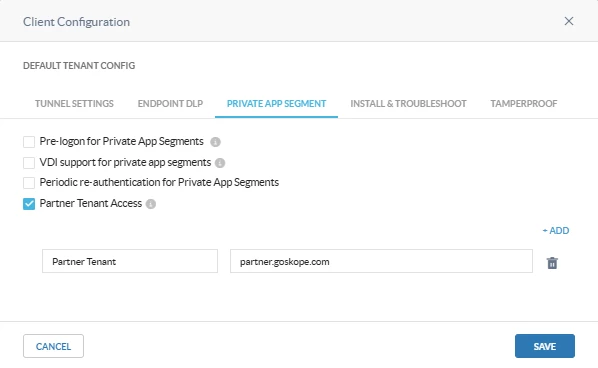
- Navigate to Security Cloud Platform > Netskope Client > Client Configuration and select the client configuration.
- Under the Private App segment option enable Partner Tenant Access and enter the partner name and tenant URL.
Login to partner.goskope.com
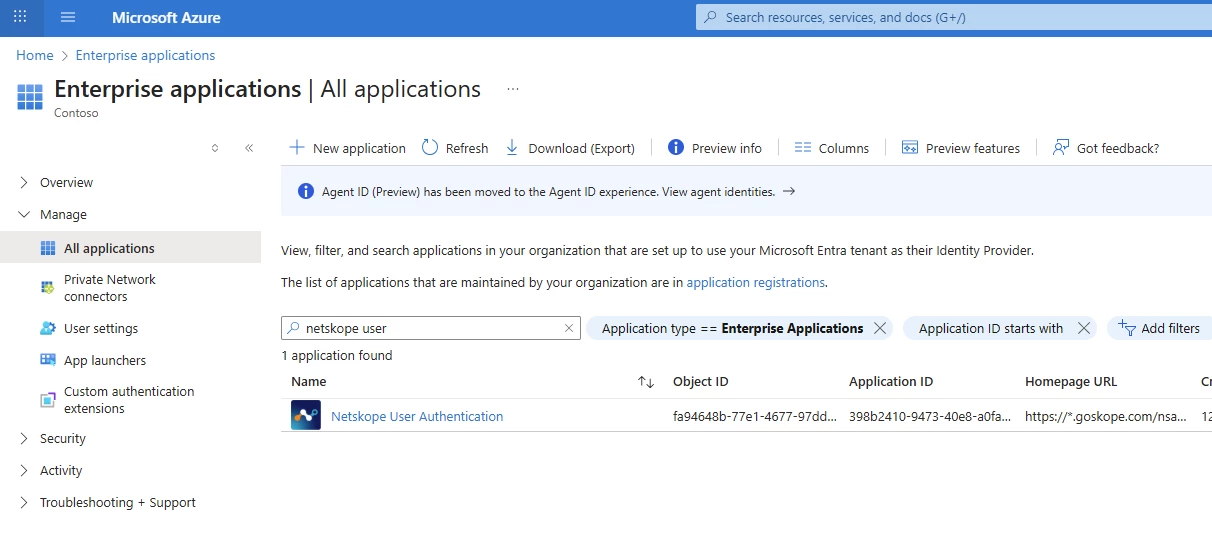
- Sync the user ( eg: primary@M365x38097171.onmicrosoft.com) to the partner tenant.
- The user should appear under Security Cloud Platform > Netskope Client > Users.

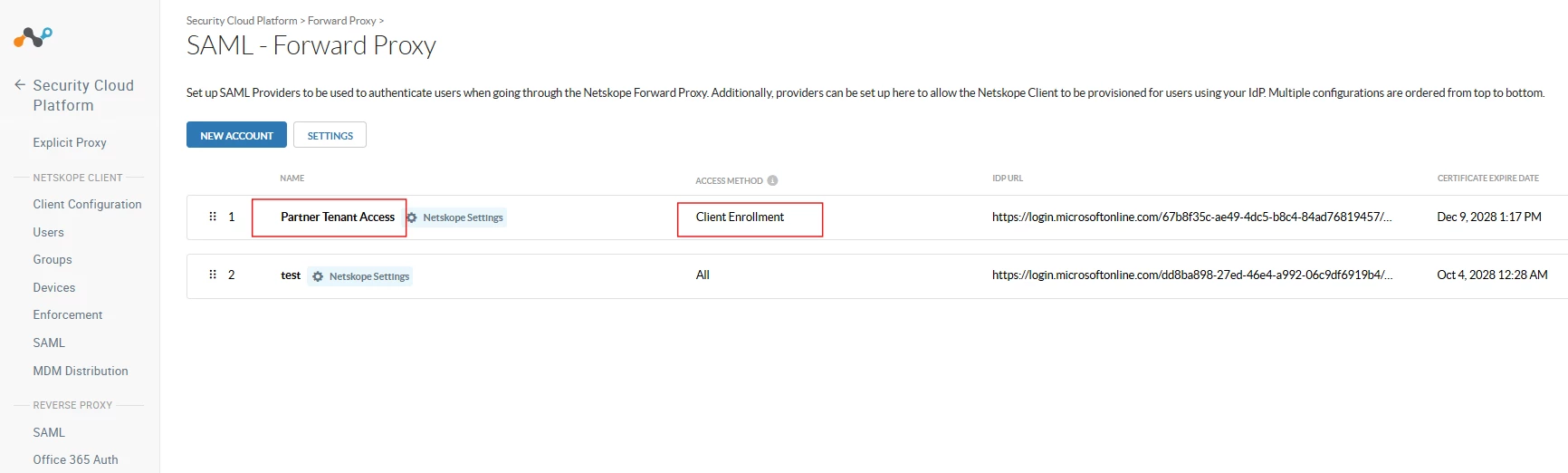
- Configure SAML Forward Proxy in the partner tenant to authenticate the user from the primary tenant (Security Cloud Platform > Forward Proxy > SAML Forward Proxy)
- Use the guides below for reference
https://docs.netskope.com/en/saml-setings-for-authentication
https://docs.netskope.com/en/saml-authentication-with-entra-id
Note: If a SAML Forward Proxy configuration already exists in the partner tenant there is no need to create a new setup. Add the user to the required application in Azure or Okta to enable access.
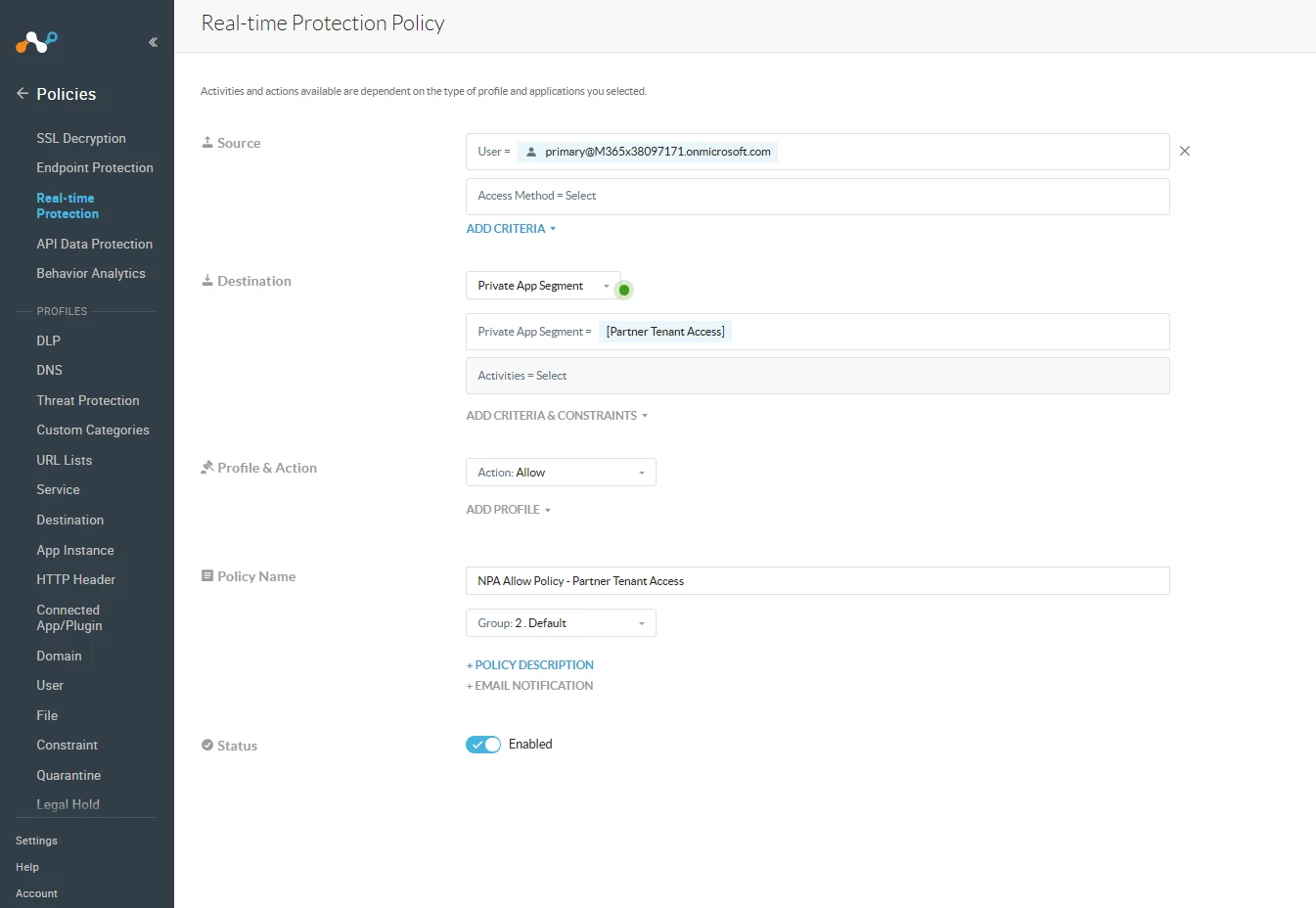
- Configure a real time protection policy for the user so they can access the private application.
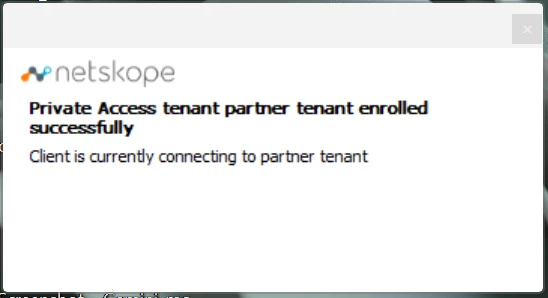
User Experience :
Partner Access Tenant becomes visible to the user from the primary tenant. The user can pick the partner tenant they want to connect their NPA tunnel to.

Once the user selects the partner tenant the client prompts them to authenticate using the identity method configured on that partner tenant. After the authentication completes successfully ,the partner tenant access is established and the NPA connection comes up.

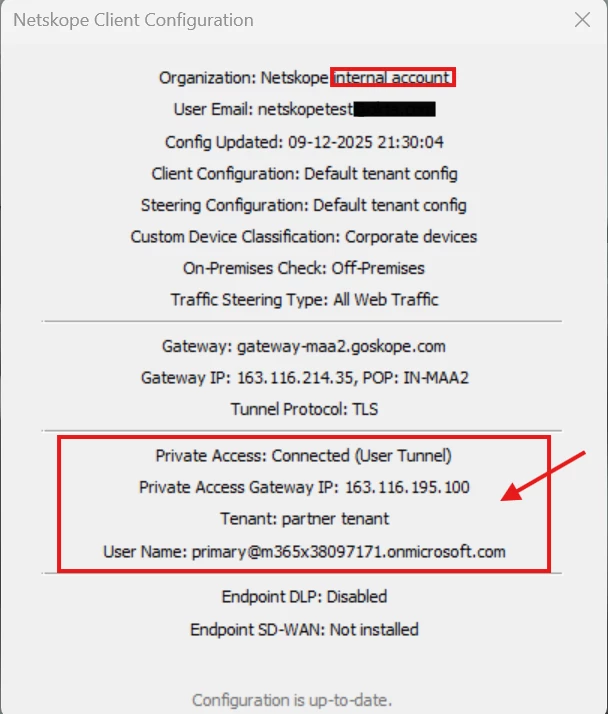
The client configuration shows the connection status along with the tenant name and the user email.
Terms and Conditions
- All documented information undergoes testing and verification to ensure accuracy.
- In the future, it is possible that the application's functionality may be altered by the vendor. If any such changes are brought to our attention, we will promptly update the documentation to reflect them.
Notes
- This article is authored by Netskope Global Technical Success (GTS).
- For any further inquiries related to this article, please contact Netskope GTS by submitting a support case with 'Case Type – How To Questions'.



