



A tier-1 analyst needs to see that a DLP policy fired, how severe it was, and which profile matched. They usually don't need to see who triggered it, the user's IP address, or the name of the file. In many organizations they aren't allowed to: privacy rules, works council agreements, and MSSP contracts often limit who can see personal data.
RBAC v3 handles this with obfuscation. You choose which fields a role can't see, and Netskope replaces those values with [obfuscated] in everything that role reads, in the console and through the REST API. The analyst still gets the full alert, just without the personal data.
This article walks through the feature end to end: what it hides, how to set it up, how to limit it to specific records, and how to prove it works before you hand the role to anyone.
Two ideas to know first
Obfuscation is set per function. In RBAC v3, a role grants a permission level (None, View, Manage, or Manage And Apply) on each function, such as Alerts, Application Events, or AI Gateway Events. Obfuscation is configured on the function row, so you can mask Alerts and leave Application Events in clear text in the same role.
Obfuscation is not Scope. Scope decides which records a role can access at all. Obfuscation decides which fields are masked inside the records the role can access. Use Scope to say "this role only sees EMEA users." Use obfuscation to say "this role sees all alerts, but not who triggered them." You can use both together.
The scenario
The steps below build one role:
- Alerts: Manage, so the analyst can triage alerts
- Application Events: View, for investigation context
- Obfuscation: on for Alerts, limited to DLP alerts, so the analyst never sees who caused a DLP incident or what data was involved
Step 1: Open the role
Go to Settings > Administration > Administrators & Roles, open the Roles tab, and click New to create a role, or edit an existing role from its ellipsis menu.
In the function list, set the permission level for each function. Functions that support obfuscation show an Obfuscation link on the right side of the row.

Not every function supports obfuscation. In this example the link appears on Alerts and Application Events.
Step 2: Choose what to hide
Click Obfuscation on the Alerts row. Under Fields, select the categories this role shouldn't see:
| Field | What it hides | Example fields in a record |
|---|---|---|
| Usernames | Who performed the activity | user, from_user, owner, sender |
| Source location information | Where the user was | Source country, region, and city |
| User IPs | The user's IP address | Source IP |
| File and object names | What was touched | file_name, dlp_file, object |
| App names, URLs, and destination IPs | Where the data went | app, site, page, referer, dstip |
| Conversation ID | Links between related events | Conversation identifiers |
| Content | The data itself | Event content |
For a tier-1 role, selecting every category is a reasonable starting point. You can relax it later if the analysts are missing context they need.
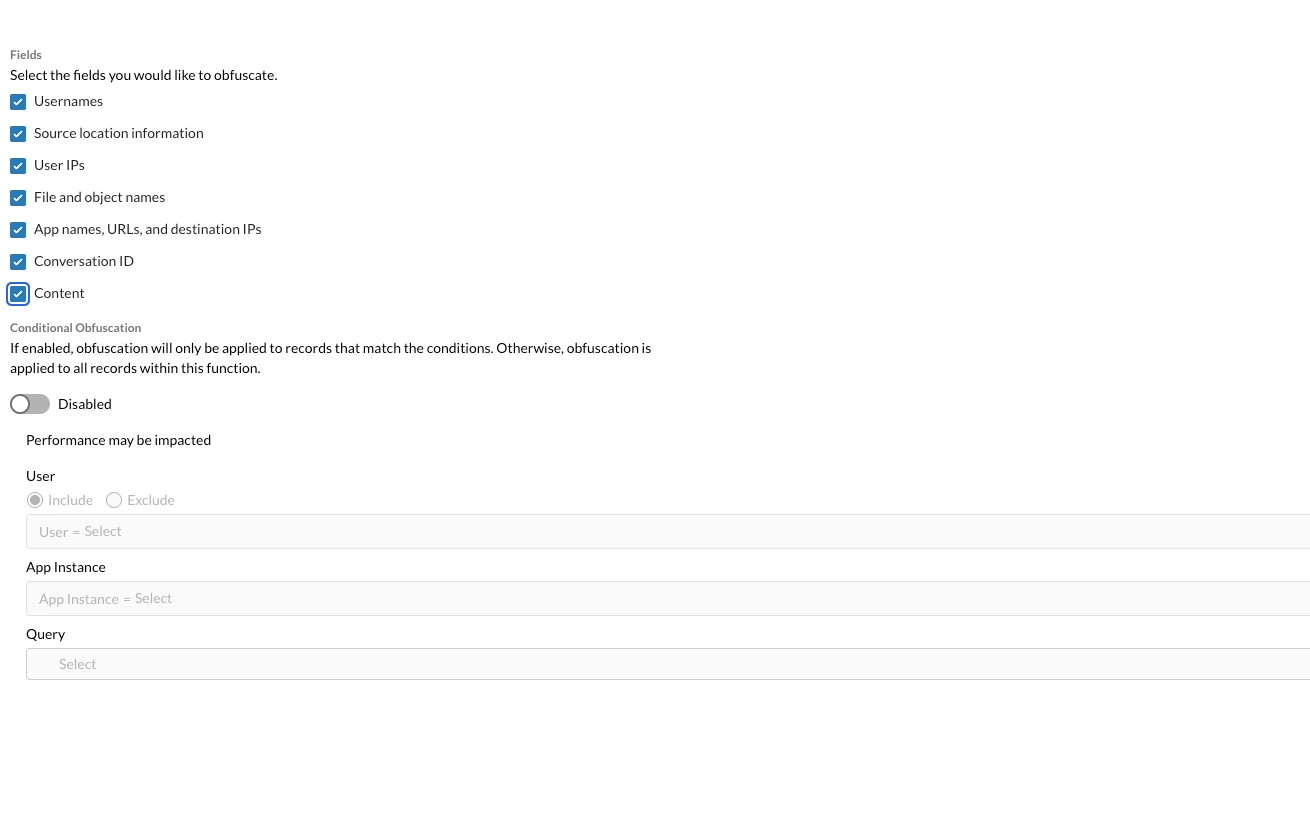
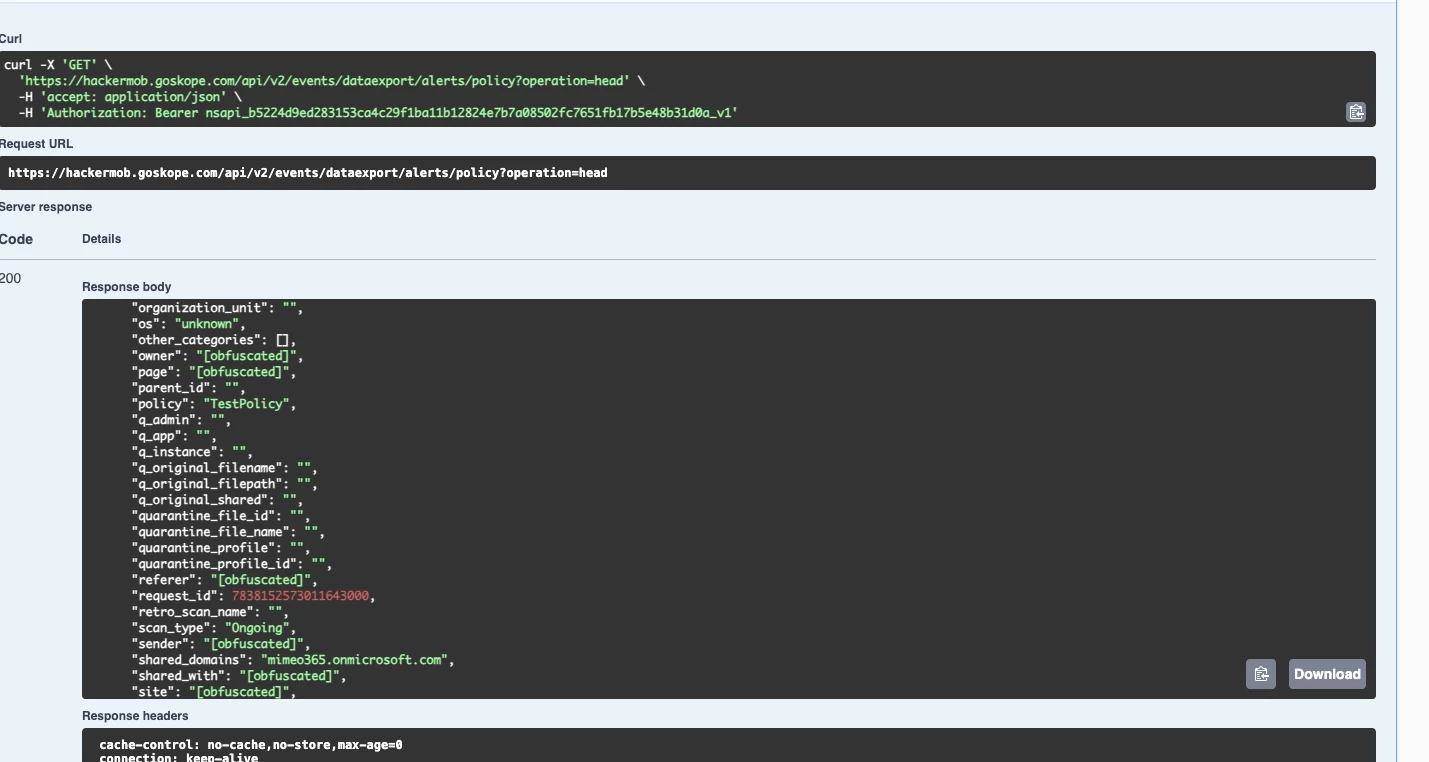
With Conditional Obfuscation disabled, the selected fields are masked on every record in the function. Here is a policy alert pulled through the API after saving this setting:
The analyst can still see the policy that fired (TestPolicy), the scan type, and the request ID, but not the people, pages, or sites involved.
Step 3: Limit obfuscation to the records that need it
Masking every alert can be more than you need. Malware alerts, for example, are often more useful with the hostname and file name intact, because the analyst has to find the infected device.
Turn on Conditional Obfuscation to apply the mask only to records that match your conditions. You can combine:
- User: Include or Exclude specific users. Use this for executives, HR staff, or other high-sensitivity groups.
- App Instance: Limit the mask to specific instances, such as your corporate Microsoft 365 tenant.
- Query: Filter on any record attribute.
For this scenario, the query masks DLP alerts only:
(alert_type in ['DLP'])
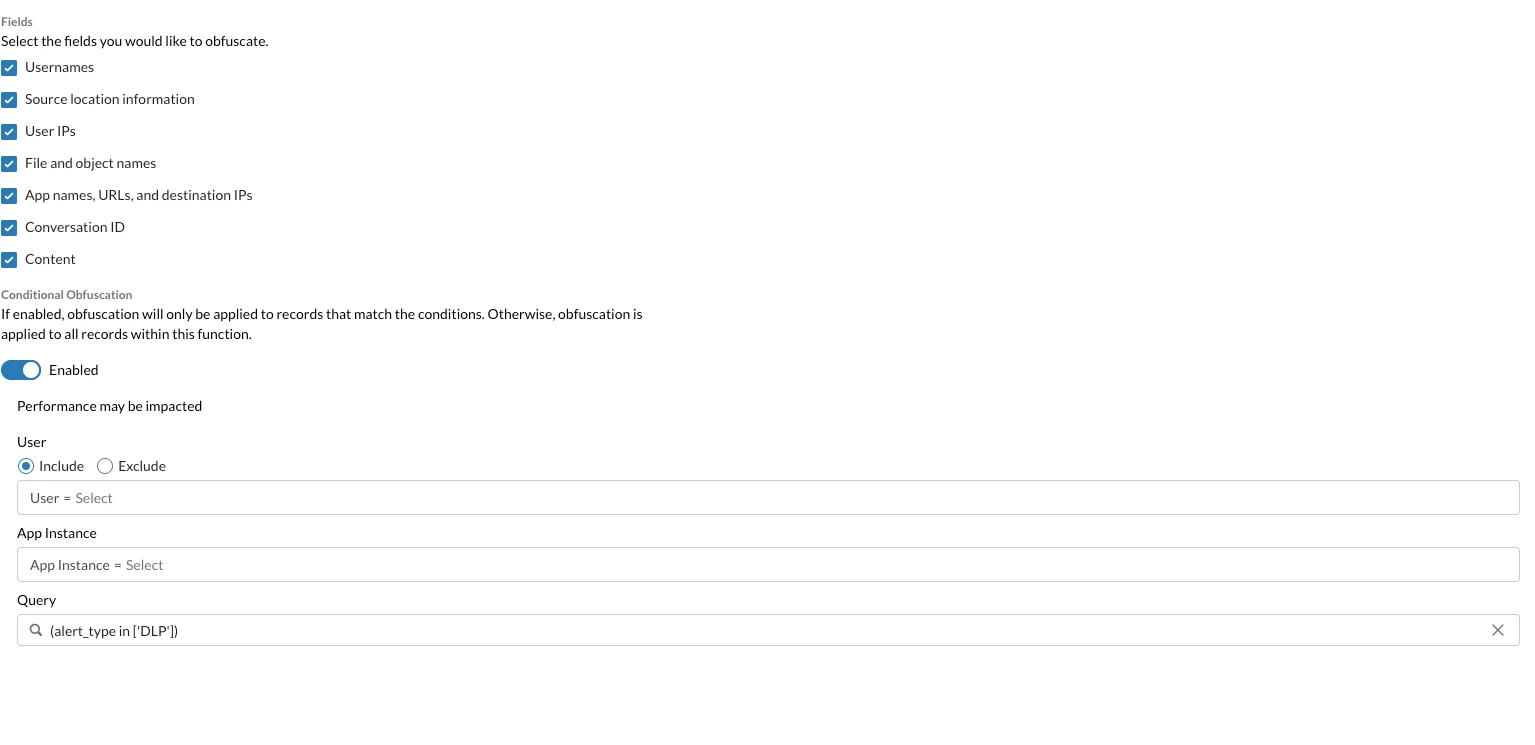
The rule is simple: records that match are masked, and records that don't match are returned as usual.
The dialog warns that performance may be impacted. Keep conditions as narrow and simple as you can, and test query response times with real data volumes before rolling the role out widely.
Step 4: Prove it works
Don't hand the role to users until you've seen the result yourself. Check both sides of the condition: a record that should be masked and a record that shouldn't.
A matching record (DLP alert): masked
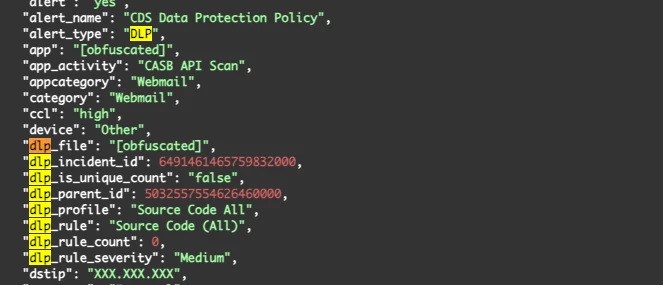
This is the outcome you want. The analyst can see that the CDS Data Protection Policy matched the Source Code (All) profile at Medium severity, so they can triage and escalate, but they can't see which app, file, or destination was involved.
A non-matching record (malware alert): not masked
In RBAC v3, API access goes through service accounts, and each service account is assigned a role. Create a test service account with the role you just built, copy its API token (it's shown only once), and call the data export API with it:
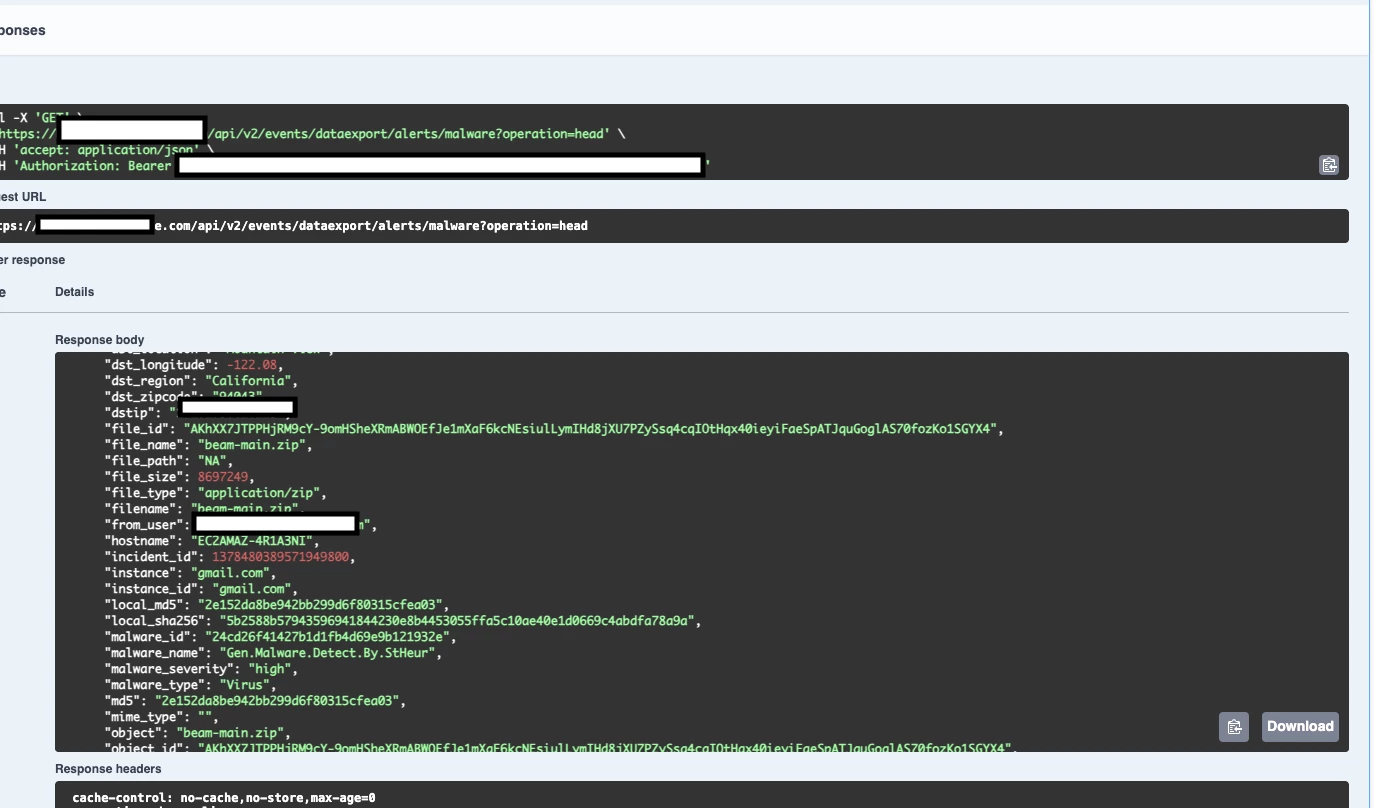
curl -X GET \
'https://<your-tenant>.goskope.com/api/v2/events/dataexport/alerts/malware?operation=head' \
-H 'accept: application/json' \
-H 'Authorization: Bearer <your-api-token>'
The malware alert doesn't match alert_type in ['DLP'], so it comes back unmasked, and the analyst has what they need to find the affected device.
To check other alert types, change malware in the URL to the type you want, for example policy.
FAQ
Does obfuscation change the stored data? No. The data stays the same. Obfuscation only changes what the role sees when it reads the data.
Can I mask one function and not another in the same role? Yes. Obfuscation is set per function, so Alerts can be masked while Application Events stay in clear text.