


If you have spent any time online recently, you have likely encountered a CAPTCHA verification or an unexpected browser error message. Cybercriminals are banking on that exact muscle memory. Today, they are leveraging our habit of clicking through technical glitches to bypass traditional security filters entirely.
At Netskope, our Global Information Security team recently launched an internal awareness campaign targeted at a highly sophisticated social engineering tactic known as "ClickFix." Rather than relying on technical exploits, these attacks trick users into manually infecting their own machines.
To ensure our team remained vigilant, we deployed a real-time training mechanism using our very own Netskope Client. Here is a behind-the-scenes look at how the campaign worked, what the threat looks like, and the remarkable engagement data we gathered across our departments.
What is a "ClickFix" Attack?
Unlike traditional phishing where a malicious file is downloaded automatically, ClickFix relies on an adversarial copy-paste mechanism. Users typically arrive on a compromised website or lookalike page, often disguised as a fake Google Drive verification, a GitHub error, or a broken AI prompt. The page displays a convincing "error" and provides a quick fix instruction: Press Win + R (or open your Terminal on macOS), paste this text block, and press Enter to resolve the issue.
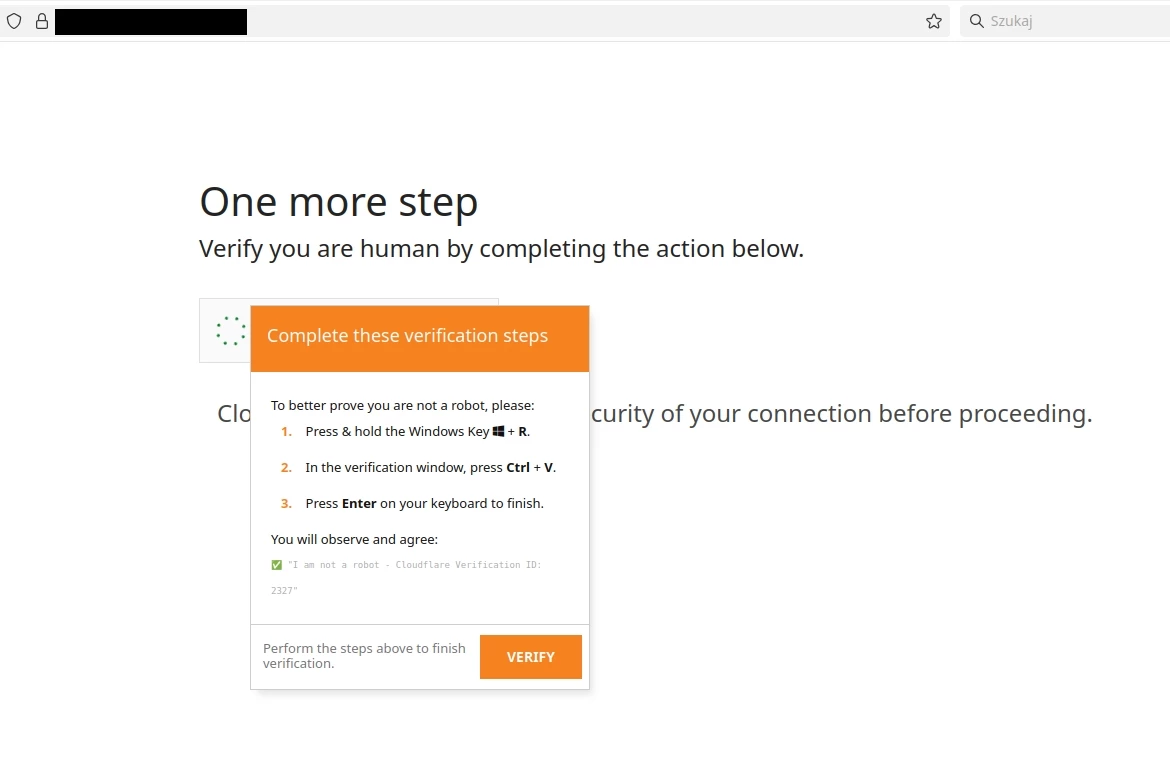
In reality, that block of text contains a hidden, malicious command. The exact moment the user presses Enter, they execute code that silently downloads information-stealing malware directly onto their endpoint, effectively executing the attack on behalf of the hacker.
The Campaign Strategy: Real-Time Coaching
To turn an active threat into an educational milestone, our security team implemented a targeted campaign. When users opened Gmail, they were immediately presented with a concise Security Notice delivered via a pop-up window natively triggered by the Netskope Client.
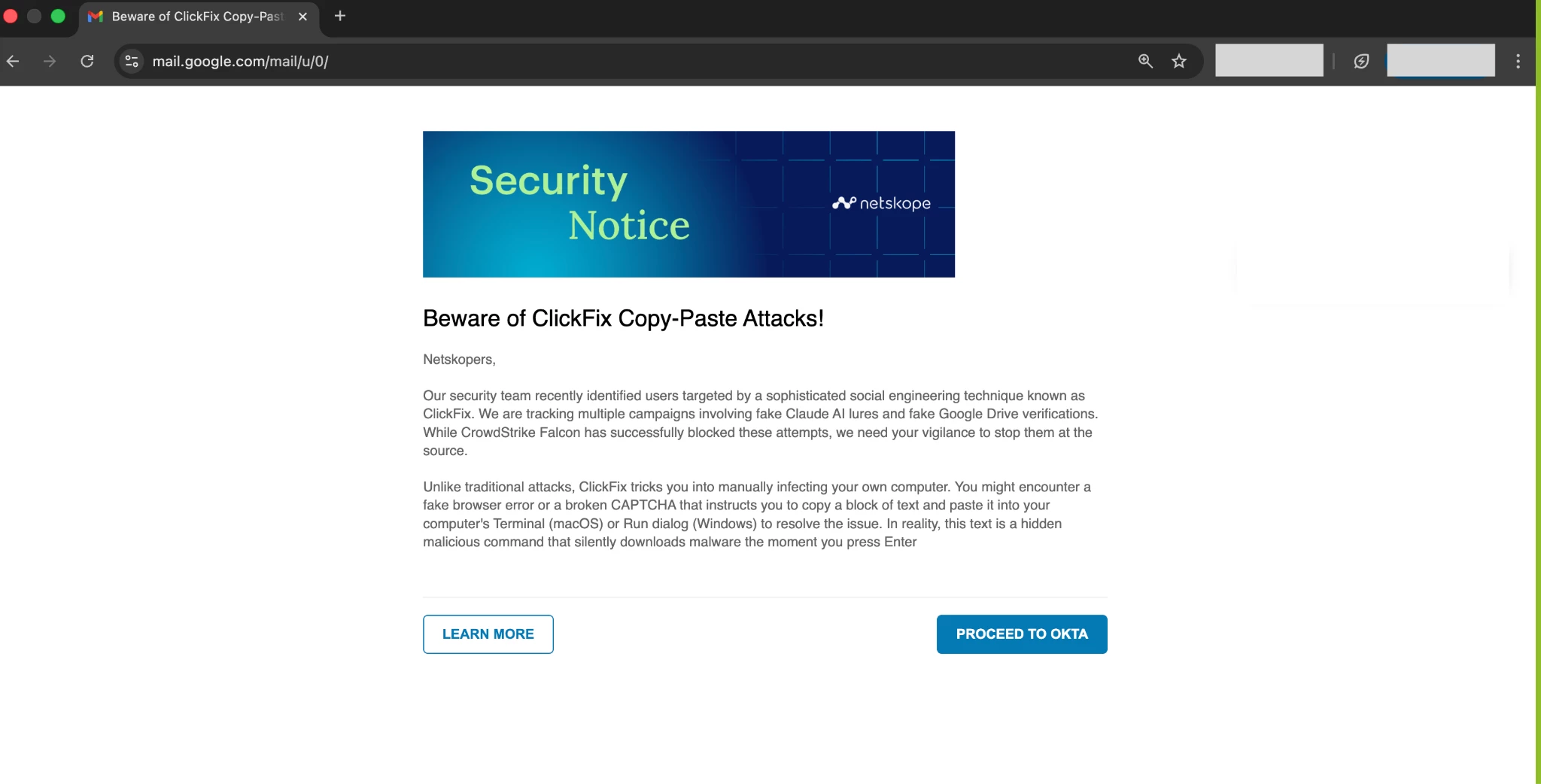
The copy was shortened to easily fit the user's view, ensuring high readability. The pop-up presented the user with a distinct visual look at a real-world ClickFix attack and offered two immediate options:
- Proceed: Acknowledging the notification to continue their work.
- Learn More: A redirection link that took the user directly to a detailed reference document detailing how ClickFix social engineering works, what to look out for, and how to report suspicious activity.
By intercepting the user right at the browser level, we provided immediate, contextual awareness before any risk could manifest.
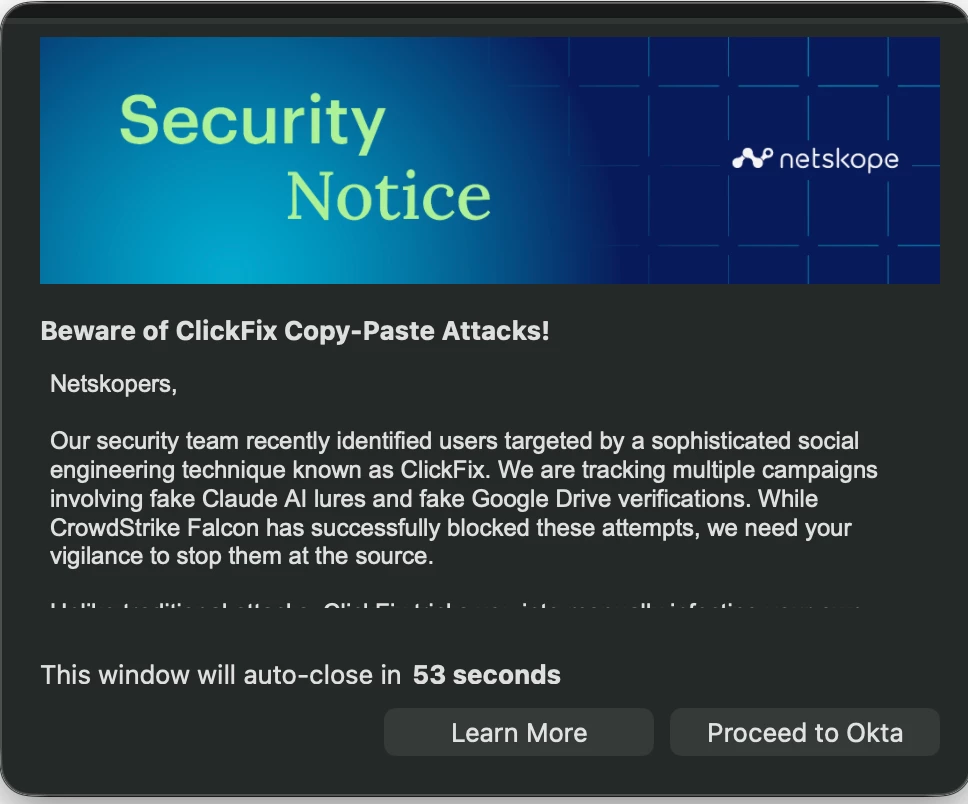
Technical Blueprint: How Admins Set This Up in Netskope
For security administrators looking to deploy a similar user coaching workflow, the setup leverages Netskope's Real-Time Protection policies combined with custom User Notification templates. Here is the high-level technical blueprint to configure a native Client pop-up alert:
Step 1: Create the User Notification Template
- Navigate to Settings > Enterprise Application > User Notifications.
- Create a new HTML template. Because space is limited in client pop-ups, keep your security notice text punchy and direct.
- Customize the action buttons. Configure one button as an acknowledgment ("Proceed") and the other as a hyperlink pointing to your internal training materials.
Step 2: Define the URL List
- If you are targeting specific everyday platforms (like a campaign triggered when users access Gmail or GitHub), create a custom URL List containing those domains.
- To scale the campaign quickly without manual entry, predefined Netskope URL categories can be used as well
Step 3: Configure the Real-Time Protection Policy
- Navigate to Policies > Real-Time Protection and select New Policy.
- Source: Define your user groups (e.g., scoping the rollout sequentially by department, just as we did with the CISO and IT teams).
- Destination: Select the Web Category, App, or the custom URL List you built in Step 2.
- Activity: Set the Activity field to Browse or Login, depending on your specific organizational tracking preference.
- Action: Set the action to ‘User Alert’.
- Template: Select the custom User Notification template you created in Step 1.
Step 4: Deploy and Monitor

Once the policy is saved and moved to the top of your policy order, click Apply Changes. The Netskope Client on your users' endpoints will automatically pull the updated configuration. The next time a scoped user opens their browser to access the target application, the Netskope Client will seamlessly intercept the session and display the message natively—no heavy client-side scripting required.
By the Numbers: How Netskopers Responded
We enabled the awareness policy incrementally across different segments of the organization to track how varied operational teams interacted with the campaign. By pacing the rollout across the entire organization on a sequential, day-by-day interval, we were able to ensure consistent enterprise-wide coverage while monitoring engagement closely.
The data from our initial waves speaks volumes about early participation and heightened security awareness across our functions:
| Department / Group | Policy Start Date | Campaign Reach / Status |
| Information Security Group | April 15, 2026 | 71.57% of active users reached |
| IT | April 16, 2026 | 82.26% of active users reached |
| Finance, HR, Legal Groups | April 20, 2026 | 86.03% of active users reached |
Following these initial groups, the policy continued its day-by-day progression across all remaining global business units and operational teams. The high percentages of reached users in the early waves demonstrate that embedding short, actionable security warnings directly into everyday workflows ensures safety rules aren't hidden away in an unread inbox folder—they become a natural extension of the digital workspace.
3 Golden Rules to Share with Your Team
As we emphasized in our internal documentation, legitimate applications and cloud service providers will never ask you to solve an interface error by pasting code into your machine's command line.
- The Golden Rule: Real websites or CAPTCHAs will never instruct you to copy and paste text into Terminal, PowerShell, or a Run dialog box.
- Stop and Think: If an error window tells you to use keyboard shortcuts like Windows Key + R to "verify" you are a human, it is an automatic red flag. Close the browser tab immediately.
- Report Instantly: Even if an employee realizes it is a trick and doesn't paste the command, the security team needs to know the malicious domain exists. Ensure you have clear pathways (like a designated Slack channel or direct email) to log the threat.
Through tools like the Netskope Client, transforming passive security rules into active, real-time context is how we stop social engineering at the source.