



INTEGRATION GUIDE
Automating Noncompliant Device Enforcement with Netskope Cloud Exchange and Microsoft Intune
Cloud Exchange × Microsoft Intune
This guide shows how the Netskope Cloud Exchange Risk Exchange (CRE) module reads device compliance from Microsoft Intune, tags noncompliant devices in the Netskope tenant, and drives real-time enforcement. The result is a closed loop between your Mobile Device Management (MDM) system and Netskope, with no manual handoff between consoles.
How the integration works
Microsoft Intune continuously evaluates enrolled devices against its compliance policies. Cloud Exchange pulls that device data through the Microsoft Intune plugin, merges it with the matching Netskope device record, and, when a business rule matches, pushes a device tag back to the Netskope tenant. A Device Classification rule reads that tag, and a Real-time Protection policy acts on the classification.
The stages below trace a single noncompliant Windows device end to end.
| 1 | 2 | 3 | 4 | 5 | 6 |
| Intune flags device noncompliant | Cloud Exchange pulls & maps fields | Records merged by Serial Number | Rule matches, tag pushed to Netskope | Device tagged in Netskope | Classification & policy enforce |
End-to-end flow from Intune compliance signal to Netskope real-time enforcement.
Before you begin
This walkthrough assumes the Microsoft Intune plugin is already installed in Cloud Exchange. The following are required.
- A Netskope tenant (production and, optionally, a development or test instance).
- A Netskope Cloud Exchange tenant with the Tenant plugin and the Risk Exchange module already configured.
- A Microsoft Entra ID application (formerly Azure Active Directory) with the Microsoft Graph permissions listed below.
- Outbound connectivity from Cloud Exchange to login.microsoftonline.com and graph.microsoft.com.
- The Client ID, Client Secret, and Tenant ID from your Entra ID application, used as the plugin configuration parameters.
Required Entra ID permissions
| MICROSOFT GRAPH PERMISSION | PURPOSE |
| DeviceManagementManagedDevices.Read.All | Read managed device inventory and compliance state. |
| DeviceManagementManagedDevices.ReadWrite.All | Read and update managed device records. |
| DeviceManagementManagedDevices.PrivilegedOperations.All | Run privileged device actions such as reboot and sync. |
| DeviceManagementServiceConfig.ReadWrite.All | Read and write Intune service configuration. |
Source: Microsoft Intune Plugin for Risk Exchange, Netskope documentation.
Walkthrough: tagging a noncompliant device
1. Intune identifies the noncompliant device
Microsoft Intune evaluates each enrolled device against its compliance policies. When a device falls out of compliance it is flagged on Devices > All devices. In this example the Windows device JENGA-SURFACE is reported as Noncompliant.
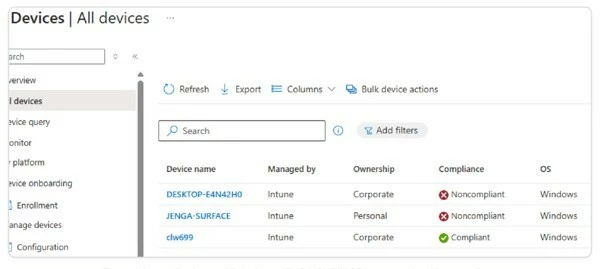
Figure 1. Intune Devices > All devices. JENGA-SURFACE is reported as Noncompliant.
2. Map Intune and Netskope fields in Cloud Exchange
In the Microsoft Intune plugin's Entity Sources step, map the device fields Risk Exchange should pull. Set Serial Number as a Unique field. Because both Netskope and Intune report a serial number, records from the two sources that share a serial number merge into a single device record. The fields brought in from Intune here include Intune Device ID, Device Name, Compliance State, User ID, and Serial Number.
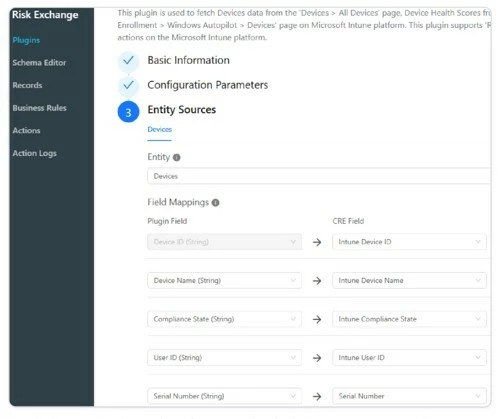
Figure 2. Field mappings in the Microsoft Intune plugin, with Serial Number set as the unique merge key.
3. Review the unified device record
On the Risk Exchange Records page, each device shows both Netskope and Intune attributes in a single record. The same row carries Netskope OS and Hostname alongside the Intune Device ID, Compliance State, and User ID, confirming the two sources merged correctly.
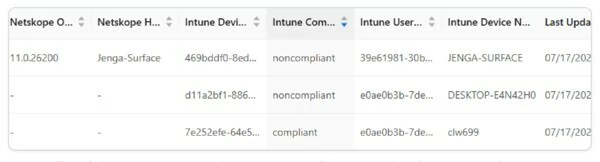
Figure 3. A merged record showing Netskope and Intune fields together, including the noncompliant state.
4. Configure the business rule and tag action
Create a business rule that matches any device whose Intune Compliance State is noncompliant, then attach an action to it. The Tag/Untag Device action pushes the device to the Netskope Risk Exchange target and adds the tag noncompliant, sourced from the Intune Compliance State field. The Netskope tagging API requires three fields: Netskope Device UID, User Key, and Hostname.
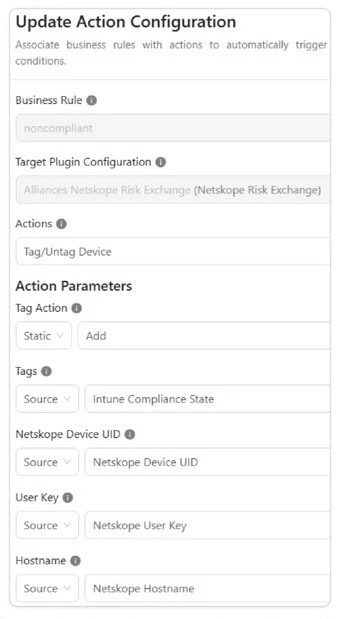
Figure 4. The Tag/Untag Device action, adding the noncompliant tag with the required Netskope fields.
5. Review and approve the action in the log
The Risk Exchange Action Logs page shows the full record and the tag being pushed, including tag_device_action: append and tags: noncompliant, together with the resolved Netskope Device UID, device user key, and hostname (Jenga-Surface). With Require Approval enabled, the action stays in Pending Approval until an administrator approves it.
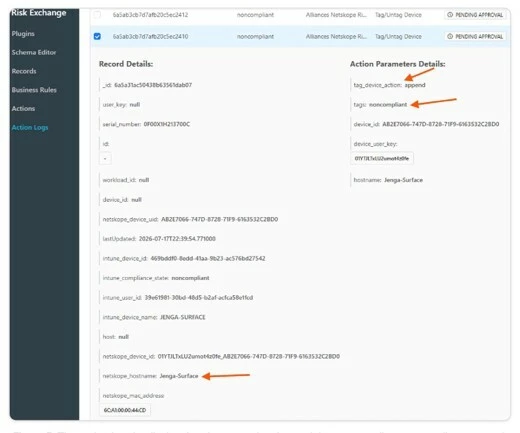
Figure 5. The action log detail, showing the append action and the noncompliant tag pending approval.
6. Confirm the tag in Netskope
In the Netskope console under Security Cloud Platform > Devices, open the device to confirm the noncompliant tag now appears under Device Tags, alongside any existing tags.
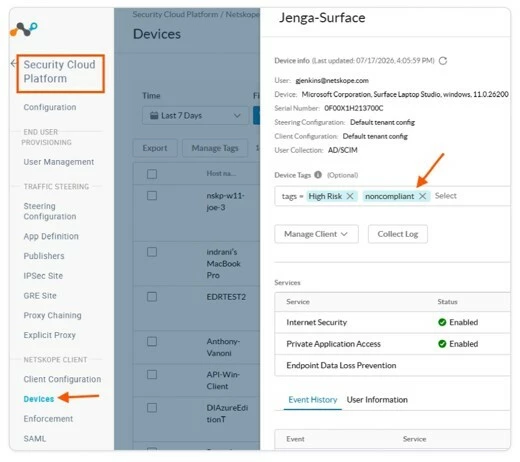
Figure 6. The Netskope device detail for Jenga-Surface, now carrying the noncompliant tag.
Enforcement in Netskope
The tag on its own does not change device access. Two more steps turn the tag into enforcement: a Device Classification rule that reads the tag, and a Real-time Protection policy that acts on the resulting classification.
7. Create the Device Classification rule
A Device Classification rule is required before a policy can act on the tag. Under Settings > Manage > Device Classification, create a rule that classifies a Windows device carrying the noncompliant tag. Device Classification functions like a posture check on the device and produces the label that policies reference.
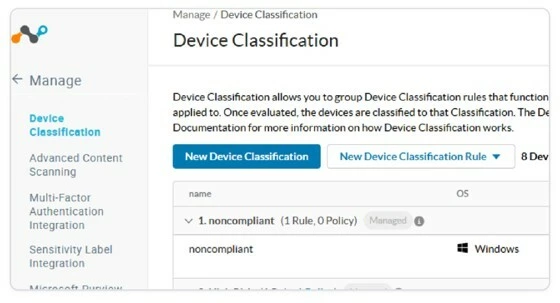
Figure 7. A Device Classification named noncompliant, with one rule targeting Windows devices that carry the tag.
8. Enforce with a Real-time Protection policy
Add a Real-time Protection policy whose Source uses the Device Classification of noncompliant. In this example the policy action is Alert, so any device classified as noncompliant triggers an alert. Change the action to block, or scope the destination and activities, to apply stricter controls to noncompliant devices.
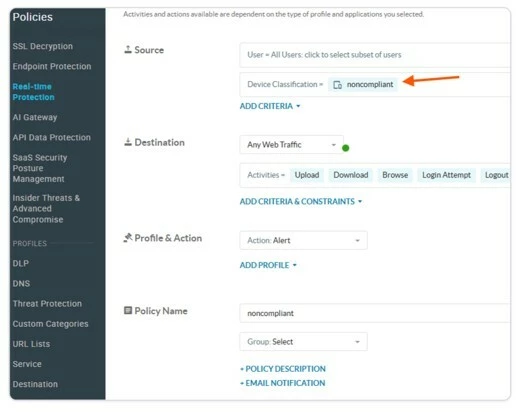
Figure 8. A Real-time Protection policy scoped to the noncompliant Device Classification, set to Alert.
Outcome
With this configuration in place, a device that Intune marks noncompliant is automatically tagged in Netskope through Cloud Exchange, classified by that tag, and governed by a Real-time Protection policy. Compliance signals move from the MDM to enforcement without an administrator switching between consoles.
| AT A GLANCE
|
2026 © Netskope Public. All rights reserved.