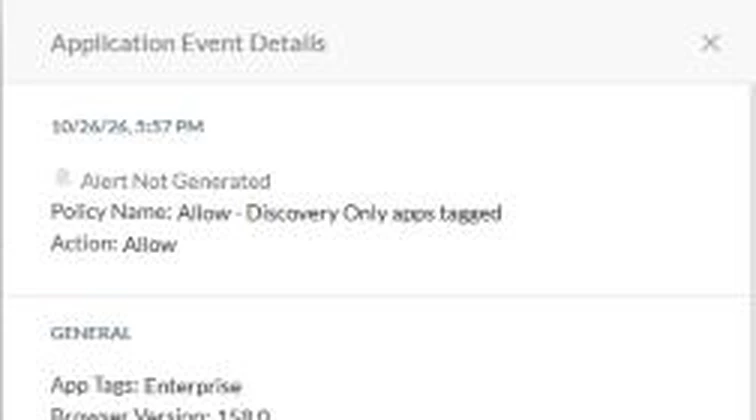



This procedure aims to illustrate the implementation of a network control based on an application tag associated with an app that does not exist as Cloud App in policies but exist in CCI catalog (for example Scaleway), then used in a policy rule to allow the corresponding traffic.
Why Can’t I Select Every Catalog App Directly in Real-Time Policies?
When browsing the Netskope App Catalog (CCI), you can see tens of thousands of applications with detailed risk ratings. However, when you create a Real-Time Protection (RTP) policy, you might notice that some applications appear in the Cloud App picker, while others—marked as "Discovery Only"—do not.
Here is why:
1. Predefined Cloud Apps ("True Cloud Apps" with Dedicated Connectors)
-
What they are: Popular SaaS applications (like Microsoft 365, Google Workspace, Salesforce, Box, Slack).
-
How Netskope sees them: Netskope has built a dedicated API/protocol connector specifically for each of these apps. Netskope doesn’t just see web traffic; it deeply understands the app’s internal APIs and JSON payloads (Cloud XD™).
-
What you can do:
-
Select the app directly by name in the RTP destination dropdown.
-
Control granular activities: Upload, Download, Share, Post, Delete, Edit.
-
Inspect corporate vs. personal instances and user identities.
-
2. Discovery-Only Applications (Universal Connector / Long Tail)
-
What they are: Niche, regional, or industry-specific tools (e.g., specialized accounting, logistics, or dev tools). Netskope tracks over 85,000+ of these in the catalog.
-
How Netskope sees them: Netskope recognizes the domain, SSL certificate (SNI), and URL patterns using the Universal Connector. Netskope can measure risk, track who visits the app, and see high-level data movement (like web browsing or generic data transfers). However, Netskope does not maintain a dedicated API parser for every single one of these 85,000+ tools.
-
Why they aren't in the RTP dropdown by default:
-
UI & Engine Scalability: Loading 85,000+ individual applications into a real-time policy dropdown would degrade console performance and policy evaluation speed.
-
Activity Granularity: Without a custom parser, Netskope cannot guarantee deep activity controls (like distinguishing a "Share link" from a "Comment").
-
-
How to enforce policy on them: Use a Custom CCI App Tag (scoped by Category) or define a Custom App.
Expected result
An application is tagged, the RTP policy references this tag, changes are applied, and events confirm that traffic is allowed.
To adapt before publication
Add the exact policy name, expected business criteria, environment scope, and any administrator permission prerequisites.
Objective
Describe how to create or update an application tag, use it as a destination criterion in an RTP policy, then verify that the configuration has been deployed correctly and produces the expected effect.
-
Standardize application identification by tag
-
Reduce dependency on manual selections or more fragile criteria
-
Make the policy easier to read, operate, and audit
-
Enable quick verification through observed events
Workflow overview
-
Select the relevant application in the catalog
-
Open tag editing
-
Add a custom tag
-
Create or complete an RTP policy using this tag as a criterion
-
Review pending changes
-
Apply the configuration
-
Check generated events to confirm the expected behavior
| Step | Purpose | Visible item in the screenshots | Expected result |
|---|---|---|---|
| Application tagging | Associate a logical identifier with the application | Application catalog, tag editing dialog, tag confirmation | The application has the desired tag |
| Policy creation | Reference the tag in a usable criterion | Add criterion menu, application tag selection, completed RTP form | The rule contains the correct functional scope |
| Deployment and validation | Promote to production, then verify behavior | Pending changes, changes applied, Skope IT events | The targeted traffic is allowed and traceable |
Procedure
1. Tag the application in the catalog
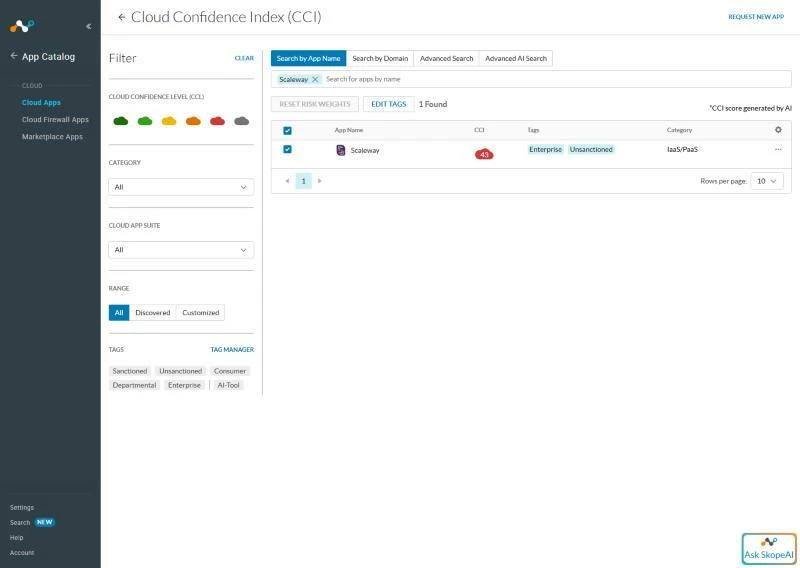
Start by locating the application to which the policy should apply. The screenshots show an application related to Scaleway selected in the catalog, followed by opening the tag editing action.
-
Open the application catalog
-
Select the target application
-
Launch the Edit tags action
-
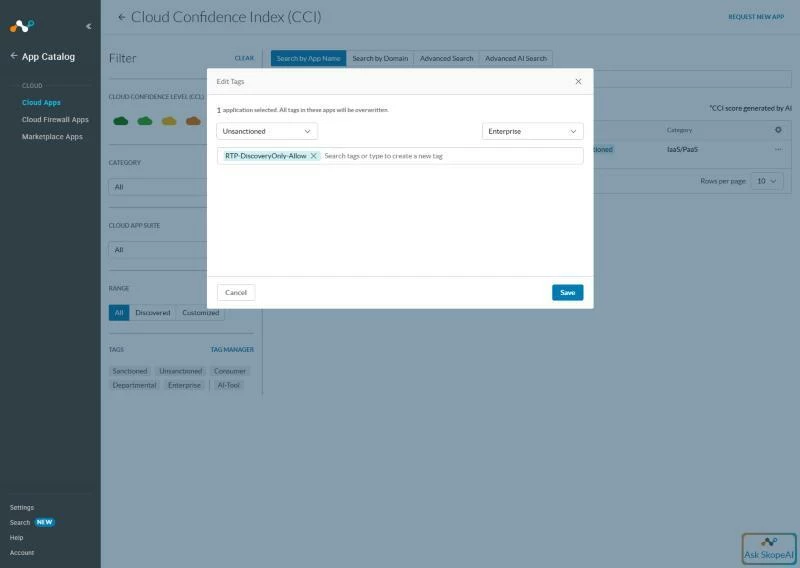
Add a custom tag matching the categorization need
-
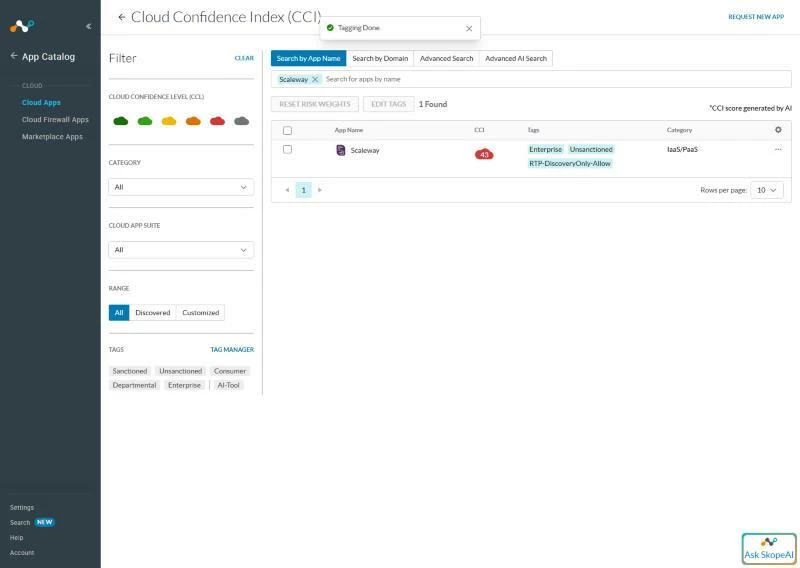
Save the change
Tagging best practices
-
Choose a clear, stable tag that network and security teams can understand
-
Avoid temporary labels or labels that are too specific to a single person
-
Prefer a consistent convention across applications, environments, and use cases
Related screenshots
-
01 — Application selection in the catalog
-
02 — Tag editing window with a custom tag added
-
03 — Visual confirmation that the application is tagged
2. Use the tag in an RTP policy
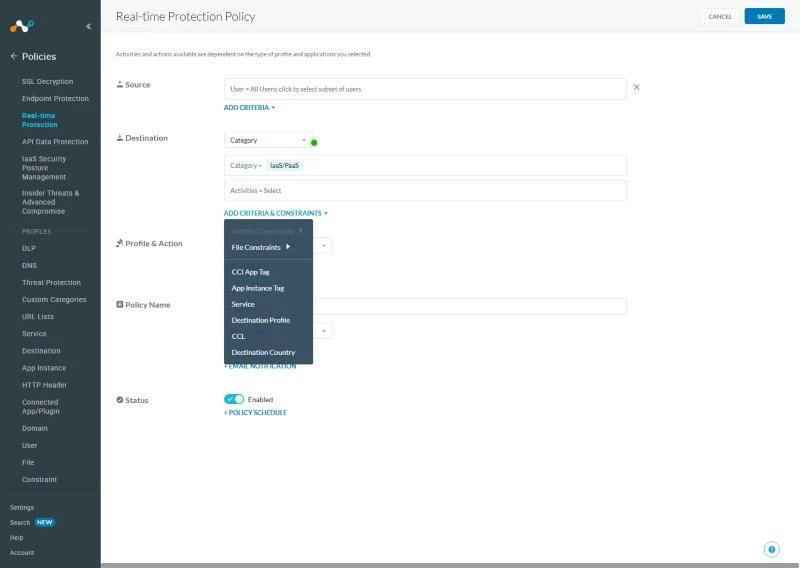
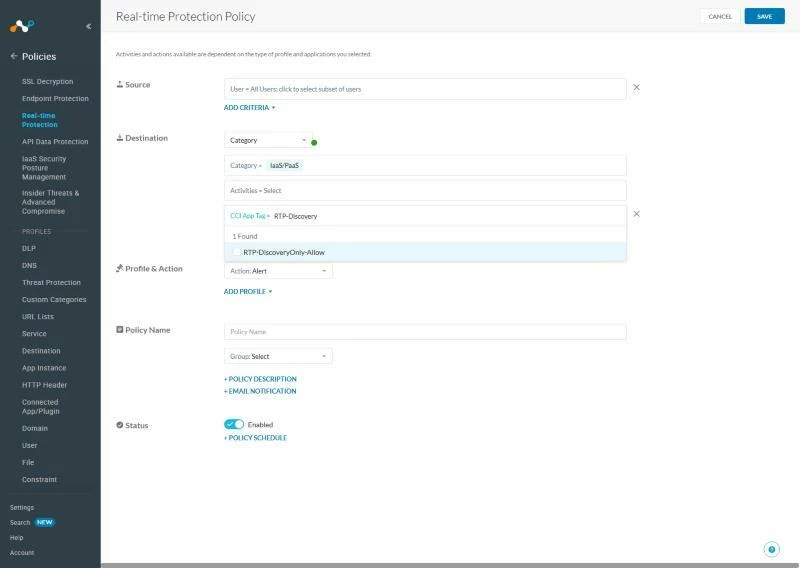
Once the tag has been applied to the application, it can be used as a criterion in the policy. The screenshots suggest adding a destination criterion, then selecting the application tag in the rule form.
-
Create a new RTP policy or modify an existing policy
-
In the criteria section, add a destination criterion
-
Choose the selection type that targets the application tag
-
Select the previously defined tag
-
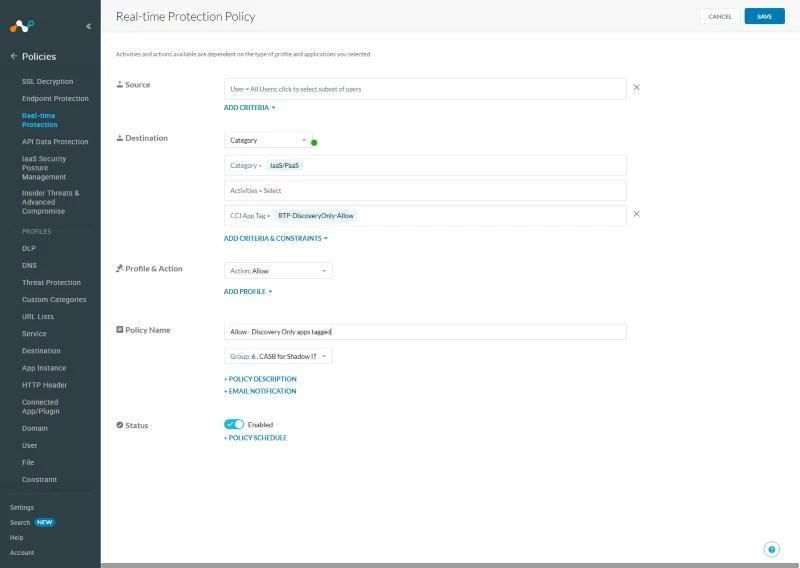
Complete the other required policy fields
-
Verify the expected rule action, likely Allow in this case
Before validation, verify that the selected tag matches the intended functional scope. A tag error may unintentionally broaden or restrict the rule scope.
Related screenshots
-
04 — Add criterion menu in the destination category
-
05 — Application tag selection in the interface
-
06 — Completed RTP form
3. Review and apply changes
After saving the policy, the interface shows pending changes before they are applied. This step is important to confirm the configuration delta before deployment.
-
Open the Pending changes view
-
Review the planned changes
-
Confirm that the relevant rule is the expected one
-
Apply the changes
-
Wait for confirmation that they have been applied successfully
4. Validate behavior in events
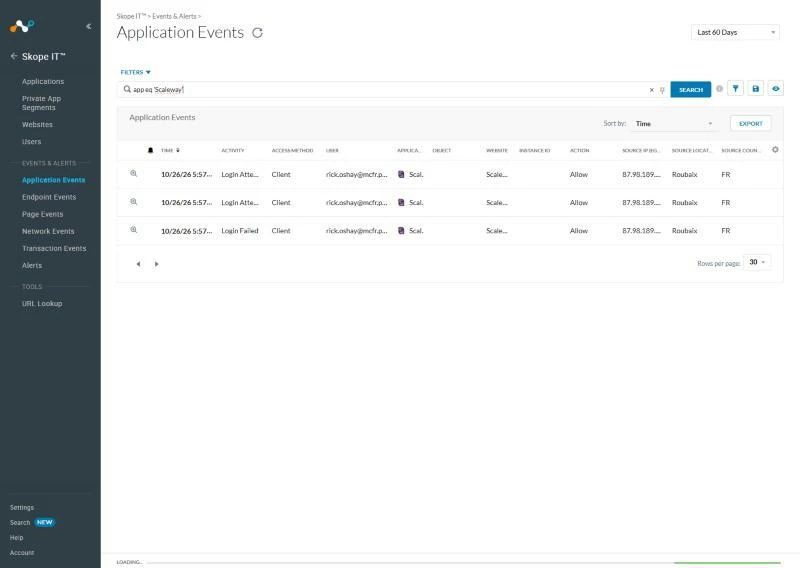
The final step is to review reported events to ensure that the newly configured policy produces the expected effect. The screenshots show Skope IT events associated with an allow action and details highlighting the policy name.
-
Open the events or investigation view
-
Filter by the relevant application, destination, or policy
-
Verify that the observed action is consistent with the configured rule
-
Check the event details to confirm the triggered policy
The check is successful if events show that the expected traffic is handled by the configured policy and that the policy name appears in the event details.
Related screenshots
-
09 — Events view with allow action
-
10 — Event details with the policy name