


Goal: Learn how to automate Netskope Admin Console role assignment based on a user's login location when authenticating through Okta.
Example: When logging in to the Netskope Admin Console through Okta, different admin roles should be assigned automatically depending on the country the user is signing in from.
Partner requirement: Administrators should be able to configure different roles for different members, based on their own requirement definition (e.g., country, region).
Prerequisites
- Netskope tenant configured for SSO/SAML with Okta as the Identity Provider for Admin Console login.
- A local tenant admin account in Netskope with rights to view predefined roles and create custom roles.
- Okta Workflows enabled on the Okta tenant. Workflows is a separate entitlement/add-on and is not included in every Okta edition — confirm this is licensed before scoping the project.
- Admin rights in Okta to create groups, edit the Netskope SAML app configuration, and build/activate Workflows.
Limitations
- Timing: Since the workflow reacts to a sign-in attempt, there's a risk the group update completes after the SAML assertion for a login that was already generated. In practice, this can mean a role change only takes effect on the user's next login, not the one that triggered it. This is not a real-time role switch.
- Geolocation accuracy: Country detection is based on IP-derived geolocation. Users on a VPN, corporate proxy, or traveling with roaming IPs may be geolocated incorrectly, resulting in the wrong role being assigned.
- Overlapping group membership: If not actively managed, a user could end up in more than one country/role group at once (see Step 6), which makes role mapping ambiguous on the Netskope side.
- Workflow reliability: Like any automation, this depends on Okta Workflows being active and executing without error. Monitor execution history rather than assuming it always succeeds silently.
Key Concepts
- Netskope Tenant: The admin should have local tenant admin account access to the Netskope tenant so they can view predefined roles or create custom roles during initial configuration.
- Role mapping via SAML group attribute: Netskope doesn't read Okta group membership directly — it reads whatever group information Okta includes in the SAML assertion at login time. That means the Okta group name must be passed through a Group Attribute Statement on the Netskope SAML app, and that value must match a role name configured in Netskope.
Workflow / Implementation
Step 1: Create Country-Based Groups in Okta
Create one Okta group per country or region that needs a distinct role. Use one consistent naming convention throughout — for example:
- Admin_US
- Admin_France

The group name should exactly match the predefined role or custom role name configured in your Netskope tenant, since this is what will ultimately be matched during role mapping.
Step 2: Use Okta Workflows to Detect Login Country and Assign Groups
Automate the group assignment based on login location using Okta Workflows.
Access Okta Workflows Console:
- Log in to your Okta Admin Console.
- Navigate to Workflows → Workflows Console.
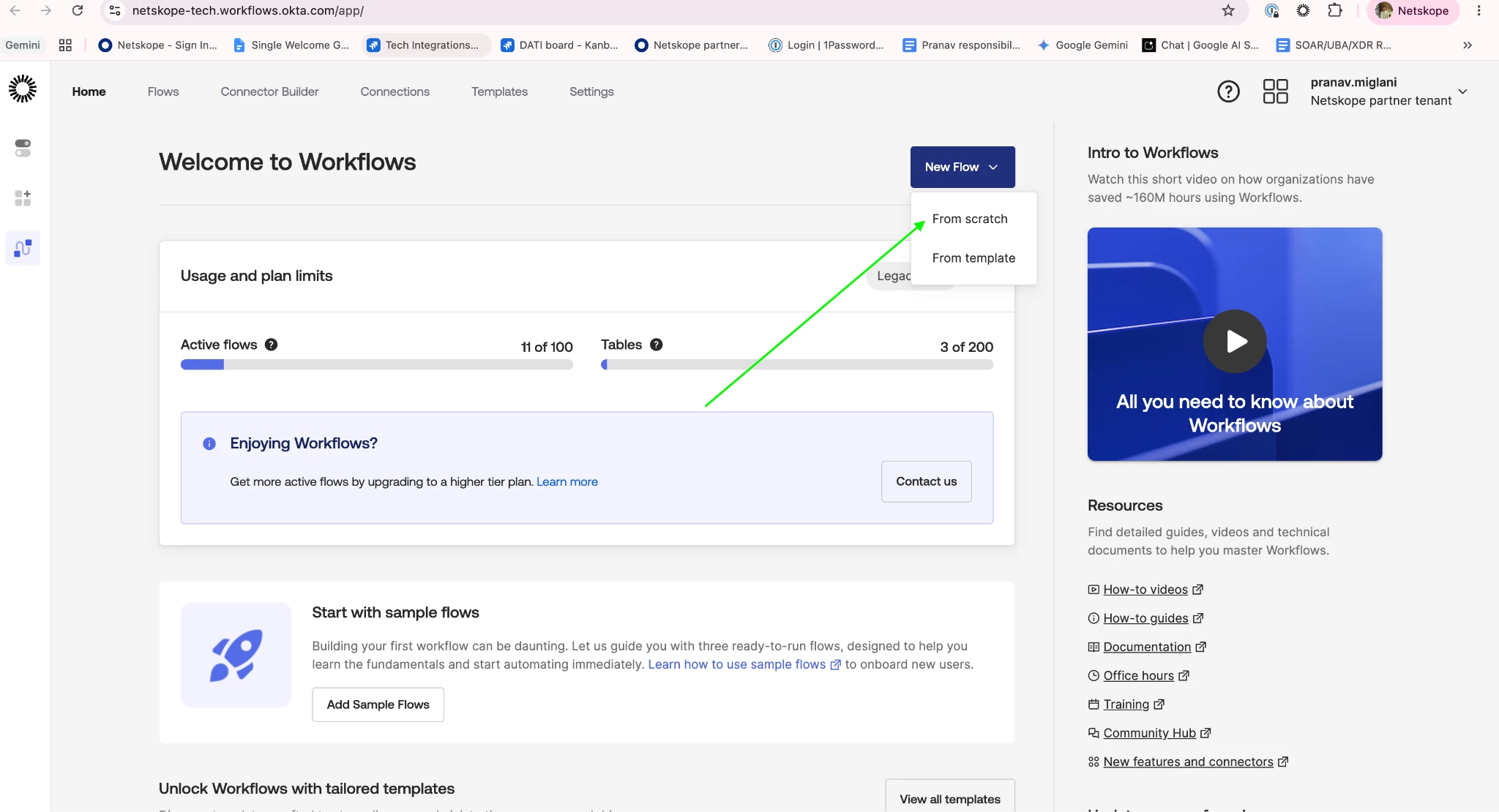
- Click New Flow.
- Enter a flow name (e.g., "Country-Based Role Assignment for Netskope").
- Click Save.
Step 3: Add the Event Card
- In the Workflows Console, click Add Event.
- From the application list, select Okta.
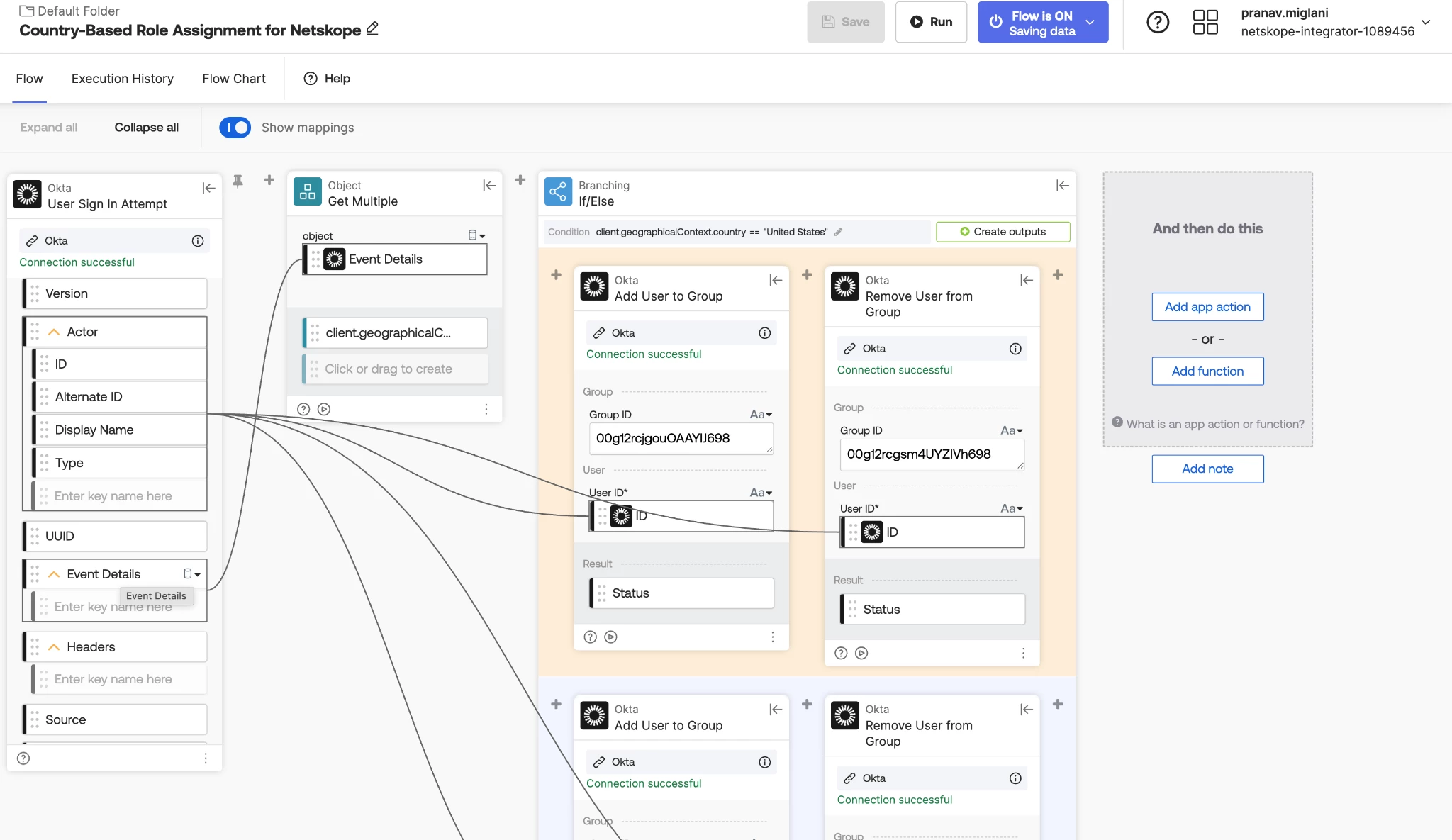
- From the Okta events menu, select the sign-in event card (verify the exact current name in your Workflows console — this has been labeled User Sign-In Attempt in some Okta releases).
- This event card triggers the flow when a user attempts to sign in to Okta, on both successful and failed attempts.
Step 4: Configure the Event Card and Filter for Successful Logins
- Once the event card is added, available fields typically include:
- User ID
- User Name
- Sign-in Status
- Geolocation Context (client.geographicalContext)
- Add a Continue If function immediately after the event card, checking that Sign-in Status = SUCCESS. This is important — without it, the flow can act on failed login attempts too.
Step 5: Extract Country and Apply Conditional Logic
- Add a function card to reference the country field from the geolocation context (client.geographicalContext.country), mapping it directly rather than through an unrelated data-lookup function.
- Add a Continue If function to branch on country value.
- Example: IF country = "United States" THEN proceed to add the user to Netskope_Role_Admin_US.
- Handle previous group membership: Before or after adding the user to the new country group, check whether they already belong to a different country/role group from a prior login and remove them from it. Otherwise, users who travel can end up in multiple role groups at once, which creates ambiguous role mapping in Netskope.
Step 6: Add Okta Action Cards
- Click Add Action and select Okta.
- Add the action Remove User from Group (previous country group, if applicable), then Add User to Group (new country group).
- Map the inputs:
- User ID → from the sign-in event card.
- Group Name → the target country-based group (e.g., Netskope_Role_Admin_US).
Step 7: Save Your Flow
- Click Save at the top of the page.
- Confirm the flow name if prompted.
- Ensure Save All Data is selected, for debugging and execution logging.
Step 8: Activate the Flow
Toggle Flow Activation to ON. Activation takes roughly 60 seconds to take effect, so wait a minute before testing.
Step 9: Test the Workflow
Automatic trigger:
- User signs in to Okta from any location.
- The flow detects the sign-in event and confirms it was successful.
- It extracts the geolocation country.
- It evaluates the conditional logic and updates group membership accordingly.
Manual trigger (for testing):
- In the Workflows Console, click Run.
- Manually enter test data (User ID, Country, Sign-in Status = SUCCESS).
- Click Run to execute the flow.
- Check Execution History to confirm the group update succeeded.
Conclusion
Once configured, a user's Okta group membership — driven by their detected login country — is passed to Netskope through the SAML group attribute at sign-in and mapped to a corresponding admin role. The user's Netskope Admin Console permissions will reflect whichever role is currently mapped to their group at the time of that login, with role changes typically taking effect from the next sign-in following a location change, not necessarily the one that triggered it.