



This post extends the existing integration guide: Integration: Web Transactions from Netskope Log Streaming to Microsoft Sentinel
The original guide walks through the full setup: streaming Netskope Web Transaction logs to an Azure Blob container and ingesting them into Microsoft Sentinel through the Codeless Connector Framework. Read that first if you have not deployed the connector yet.
This follow-up covers one thing: updating an existing deployment to capture the new fields that come with the Netskope Web Transaction Universal Format log.
What changed in Universal Format
Universal Format adds 51 new fields to the Web Transaction log. The connector was updated to carry them.
| Item | Before | After |
|---|---|---|
| Fields in the log line | 146 | 197 |
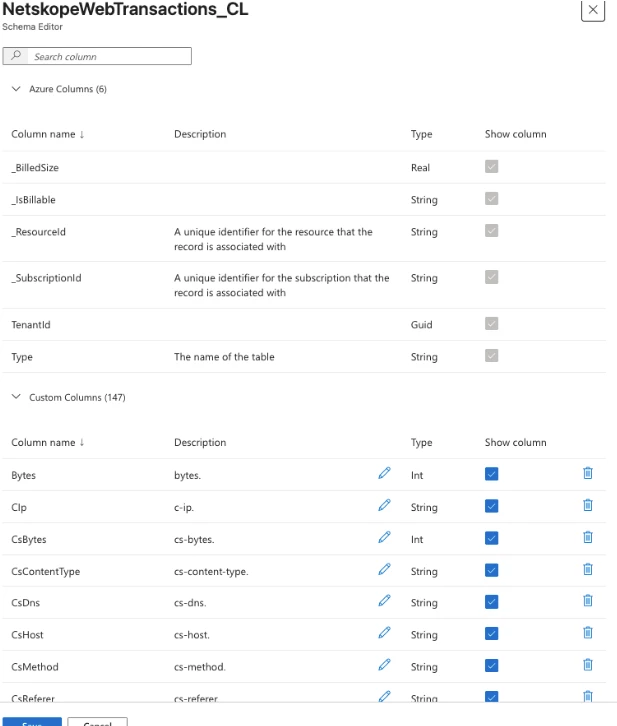
| Columns in NetskopeWebTransactions_CL | 147 | 198 |
The table column count includes the built-in TimeGenerated column, so it is one higher than the field count. The change is additive. No existing field was removed or renamed.
NetskopeWebTransactions_CL table with 146 fields
The new fields
- Response bytes: sr-bytes, rs-bytes
- Action: x-action, x-action-reason
- Authentication and authorization: x-c-authn-user, x-c-authn-source, x-c-authn-surrogate, x-c-authn-surrogate-status, x-c-authz-groups, x-c-authz-ou, x-c-authz-source, x-cs-xau, x-cs-connect-xau
- Client device, OS, and Netskope client: x-c-hostname, x-c-device-uid, x-c-device-classification, x-c-os-family, x-c-os-version, x-c-nsclient-version, x-c-nsclient-client-profile, x-c-nsclient-steering-profile, x-cs-nsclient-tunnel-type, x-c-timezone, x-c-user-confidence-index
- Process: x-cs-process, x-cs-pid, x-cs-parent-process, x-cs-ppid
- Threat protection: x-tp-result, x-tp-engine, x-tp-malware-name, x-tp-severity
- Policy and forwarding: x-sr-forward-dest, x-ssl-policy-issuer, x-eip-policy-name, x-eip-policy-footprint, x-policy-categories
- Origin server geo: x-r-country, x-r-latitude, x-r-longitude, x-r-location, x-r-region, x-r-zipcode
- Certificate dates: x-r-cert-start, x-r-cert-end
- Other: x-cs-app-instance-tags, x-cs-ssl-malformed-ssl, x-cs-access-proxy, x-c-local-timestamp, x-support, x-tenant-id
Switch your Netskope log stream to Universal Format
For the new columns to fill, the Web Transaction stream must send the Universal Format fields. Update the stream before or alongside the connector upgrade.
- In the Netskope admin console, open the Web Transaction log streaming configuration for your Azure Blob destination.
- For the log format, select Universal Format, and choose the parser that outputs all 197 fields (Parser Order 2).
- Save the configuration. Blobs written after this change carry the 197-field Universal Format layout.
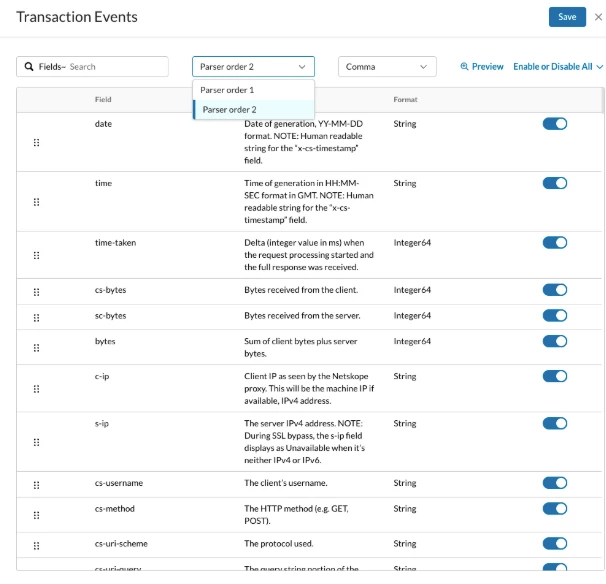
Keep the full field set and the field order. The Sentinel connector maps each value to a column by its position in the line. Netskope's parser lets you remove fields or place them in a different order, but if you do, the columns shift and the connector fails to convert the records. Use the parser that sends all 197 fields in the order the connector expects. Do not drop or reorder fields.
Get the updated connector
The updated connector template is on GitHub. It parses the comma-separated Web Transaction log.
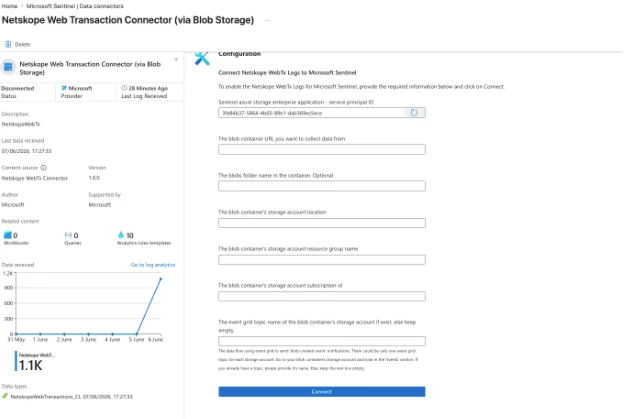
Disconnect the existing connector
Make sure to disconnect the existing connector or else it will still get disconnected when you perform the below steps.
Upgrade an existing deployment
You can upgrade an existing connector with this template. The update is additive, so it adds the 51 new columns and leaves your existing columns and data in place.
- Open the Azure Portal and search for Deploy a custom template.
- Select Build your own template in the editor.
- Load the updated JSON from the GitHub link above, or paste its contents. Click Save.
- Fill in the parameters: Workspace, Workspace Location, Region, and the Resource Group where Sentinel is located. Use the same values as your original deployment.
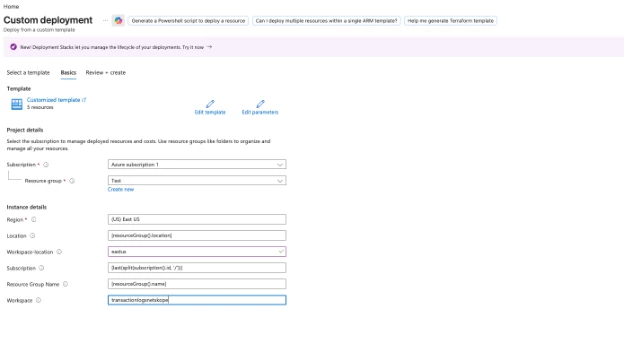
- Click Review + create, then Create.
- The deployment updates both the table schema and the Data Collection Rule, so the new columns appear and also fill with data.
Connect the existing connector
Connect the existing connector after deploying the new template with the new fields addition and perform the same steps for the connection.
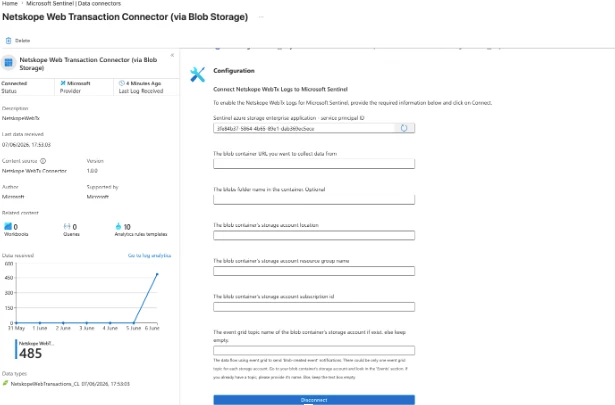
After connecting the new connector you will see the same table getting updated with the additional fields.
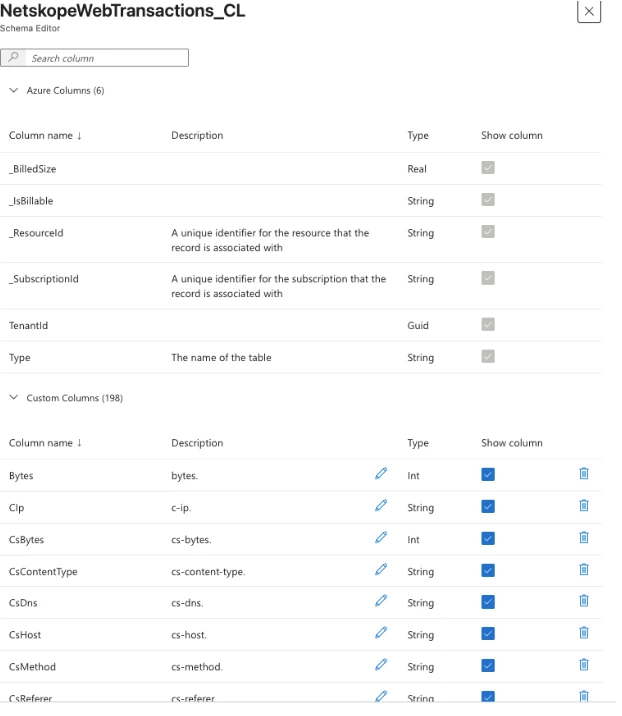
Verify
Open your Log Analytics workspace > Tables > NetskopeWebTransactions_CL. The column count is higher than before. Search the schema for a new column, for example XRCountry, XTenantId, or SrBytes.
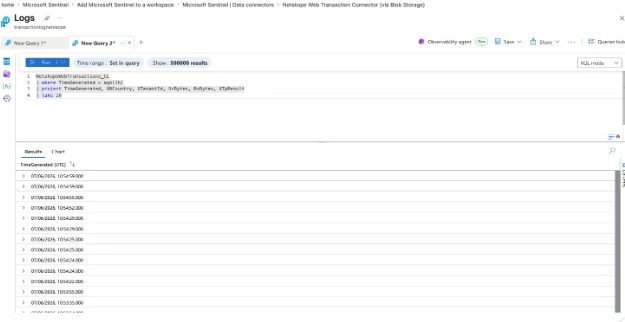
Then confirm data, once logs arrive (it can take Upto 20 minutes):
NetskopeWebTransactions_CL
| where TimeGenerated > ago(1h)
| project TimeGenerated, XRCountry, XTenantId, SrBytes, RsBytes, XTpResult
| take 20
Notes
- Additive only. This update adds columns. Do not use it to change a column's type or remove a column. That triggers the schema error described in the original guide.
- New columns can take a few minutes to show in the schema editor. Data follows once logs flow in.
- Send Universal Format from Netskope. The new columns fill only when the stream sends the Universal Format fields in the expected order. See Switch your Netskope log stream to Universal Format above.



