





Netskope Global Technical Success (GTS)
Anthropic Claude - Access to Corporate Instance Only (via Instance Detection)
Netskope Cloud Version - 135
Objective
Anthropic Claude - Access to Corporate Instance Only (via Instance Detection)
Prerequisite
Netskope Next-Gen SWG license
Context
Customers licensed to use Anthropic Claude may require that access be restricted to users authenticated with approved corporate domain accounts. Any attempts to access Anthropic Claude using accounts from non-corporate or unauthorized domains should be blocked.
This knowledge base article explains how to achieve this use case using Netskope CASB Instance Detection.
Author Notes
- If the core business objective is to allow access only to the Corporate Anthropic Claude instance and block all other instances, please follow the KB articles listed below.
- However, if the business objective is to allow access to the Corporate Anthropic Claude instance while permitting a few exceptions for specific users, please continue reading this KB article.
Do You Know?
- Netskope acknowledges Anthropic Claude as a Cloud Application and provides a pre-defined cloud app connector.
- Netskope categorizes Anthropic Claude.com under the 'Generative AI' web category.
- As of May 18, 2026 with Netskope’s Anthropic Claude predefined connector, customers can exercise control over the following activities.
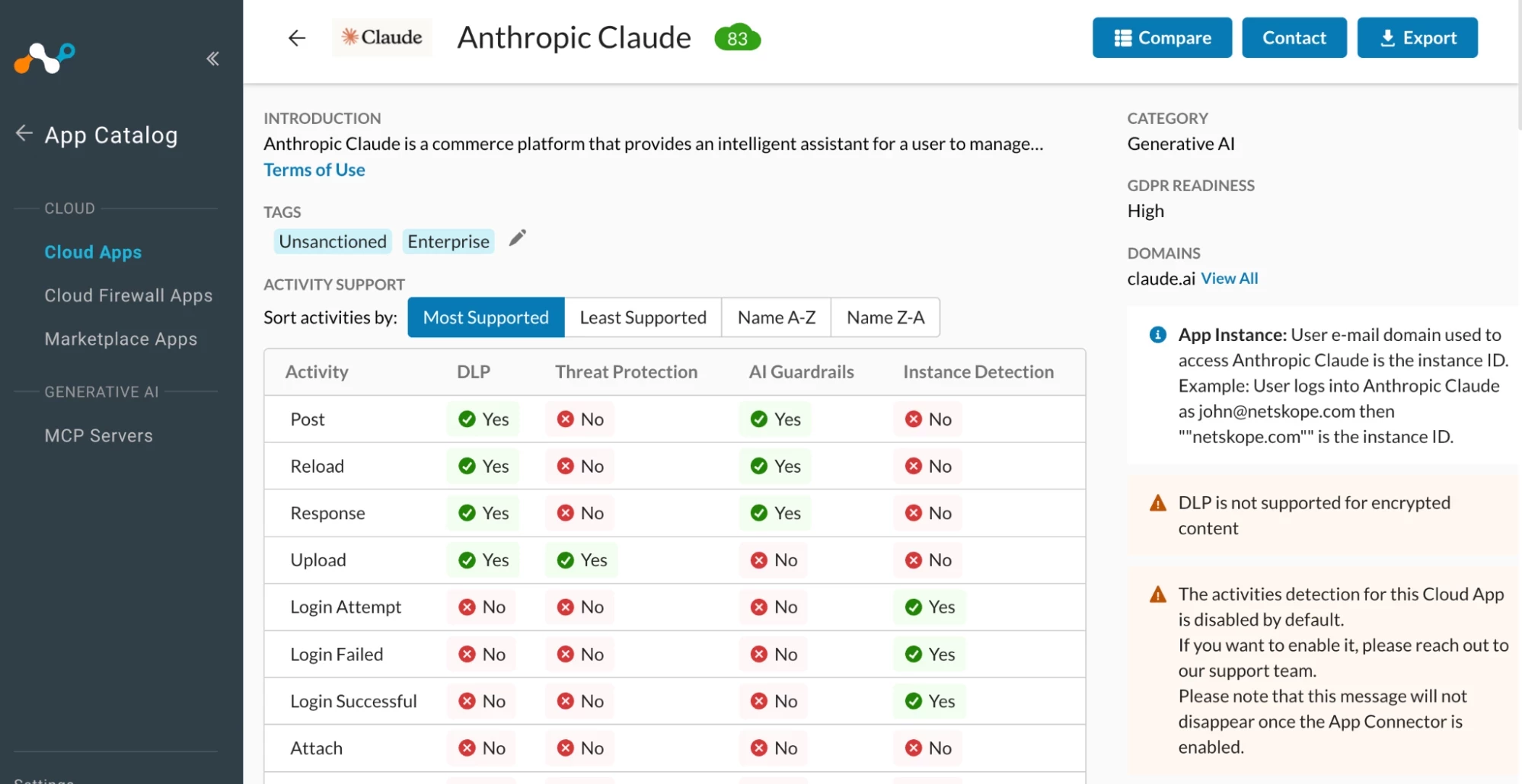

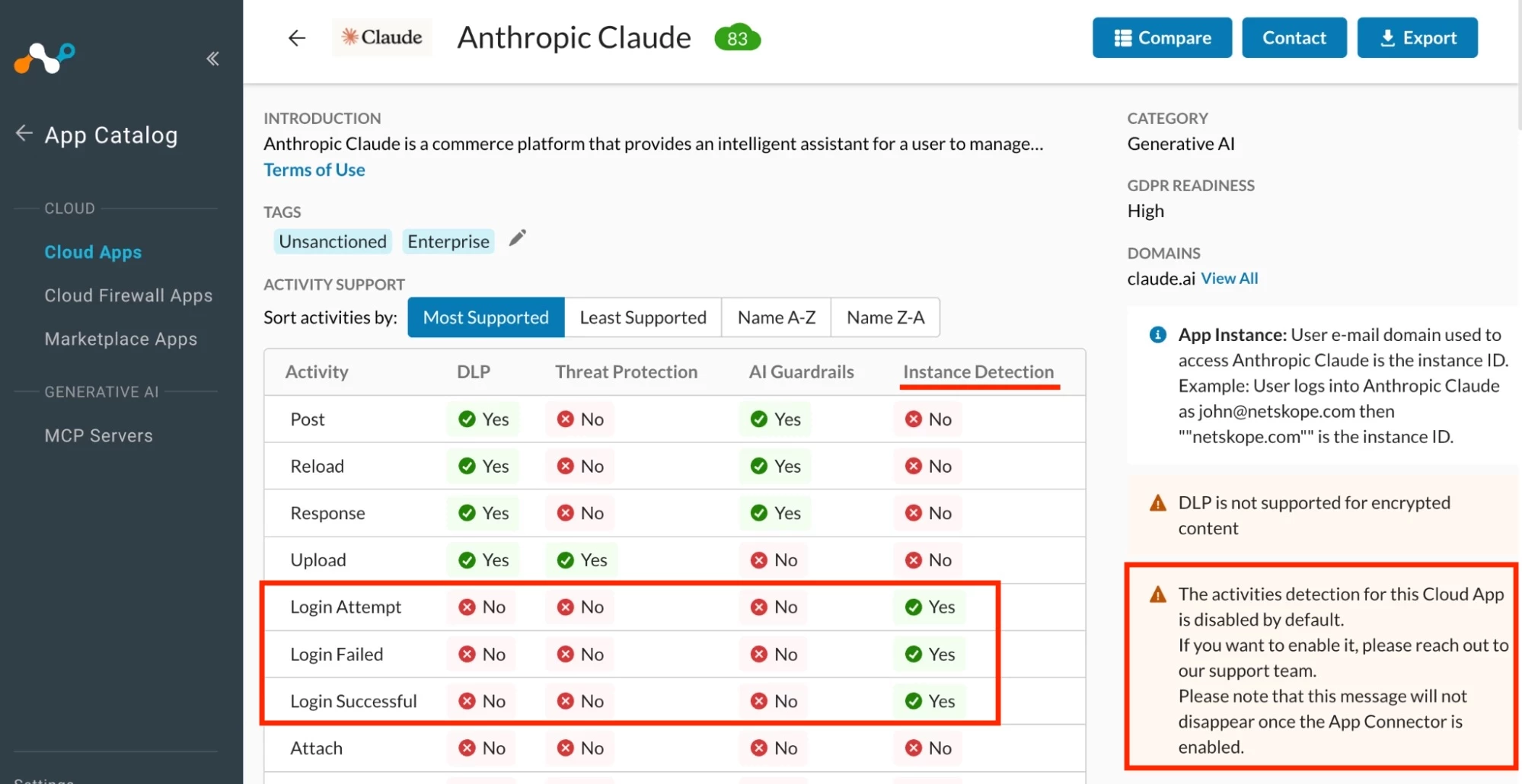
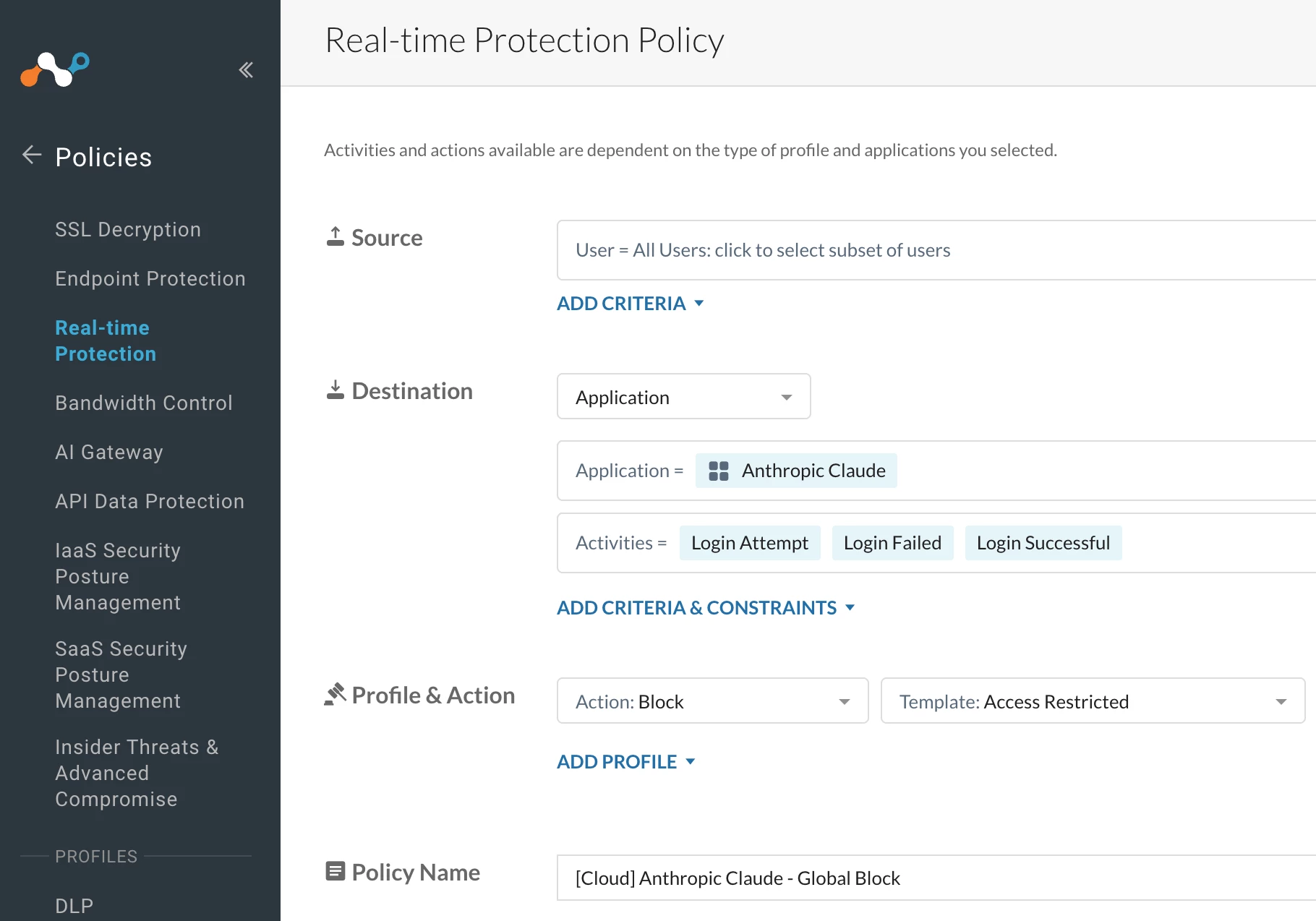
- Out of the activities highlighted above, instance detection can be achieved using only three activities:
- Login Attempt
- Login Failed
- Login Successful

Configuration
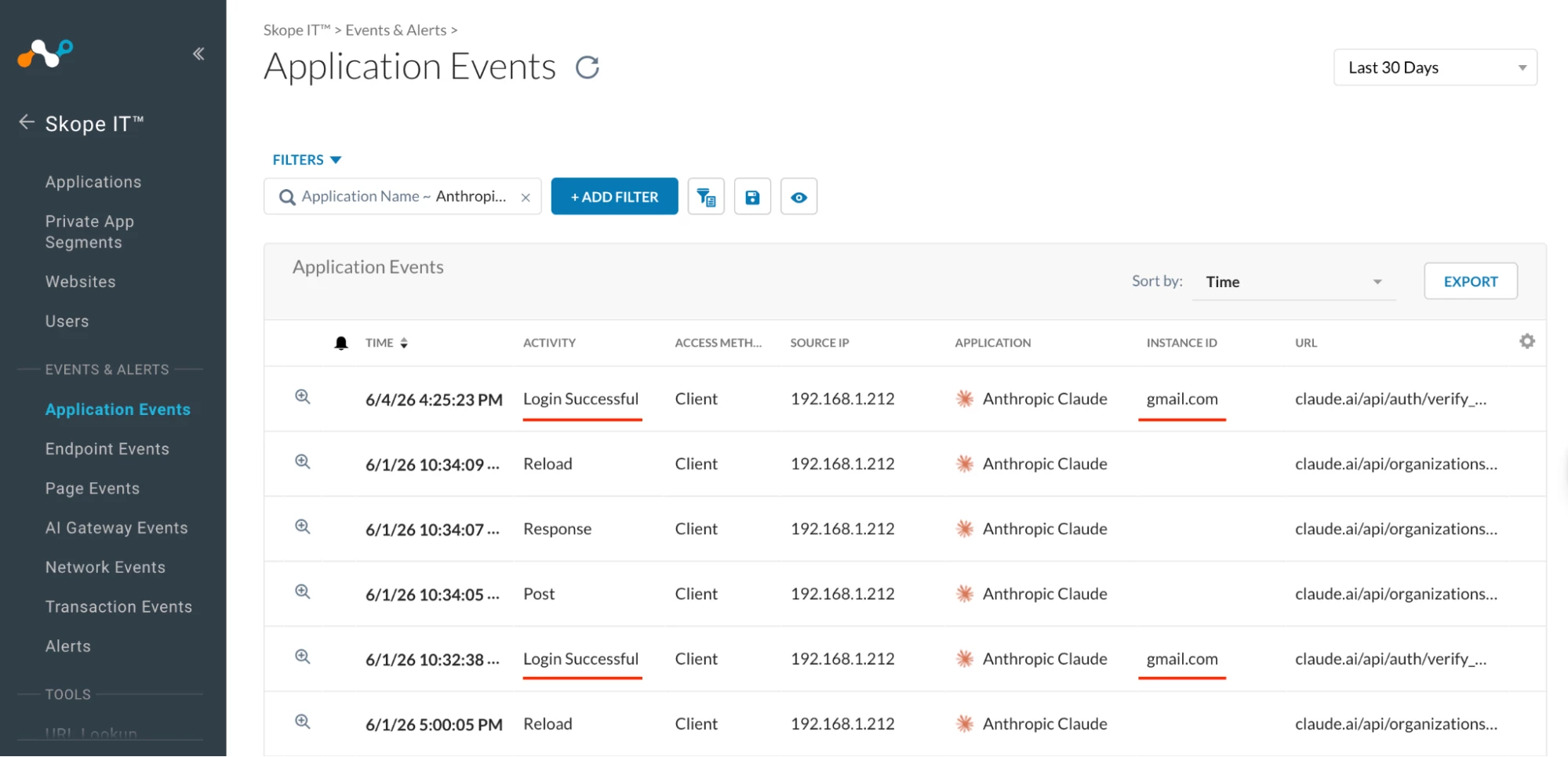
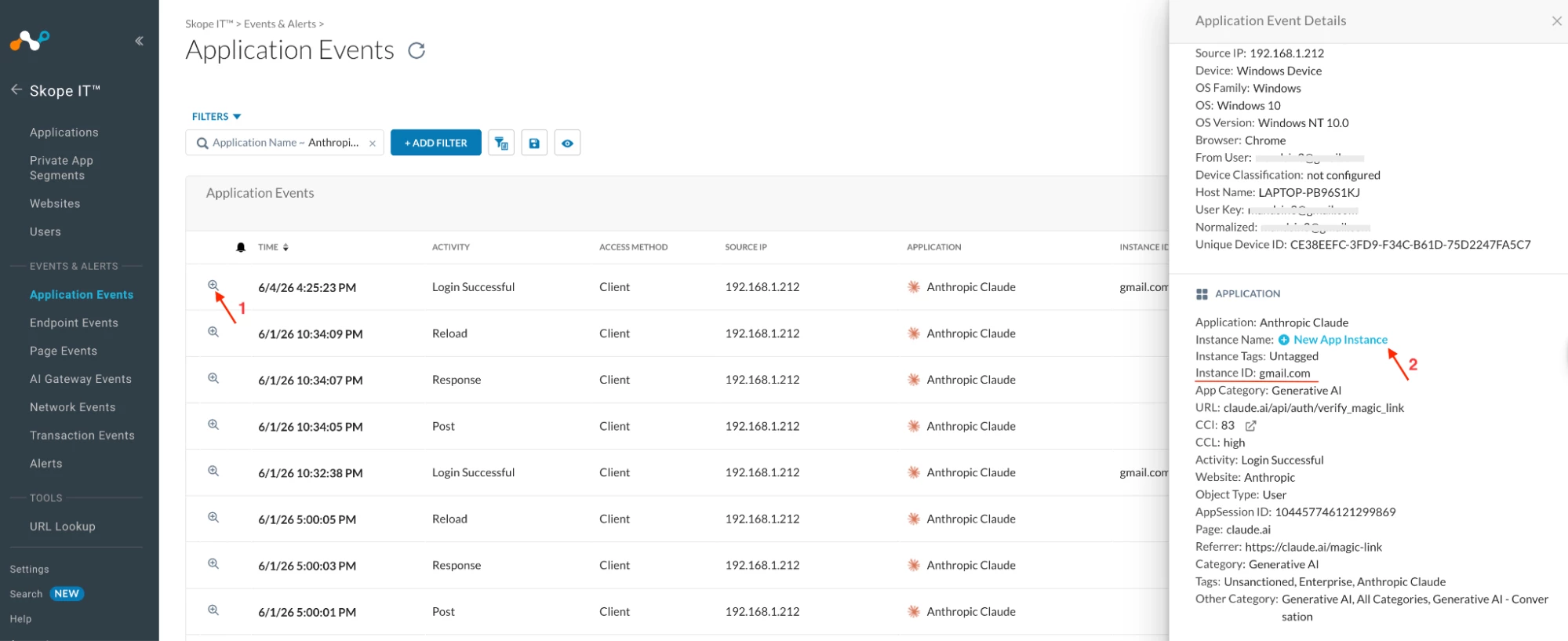
Step 1: Map the Corporate Instance
Lets assume my corporate domain is gmail.com
Path: Netskope Tenant UI >>> Application Events

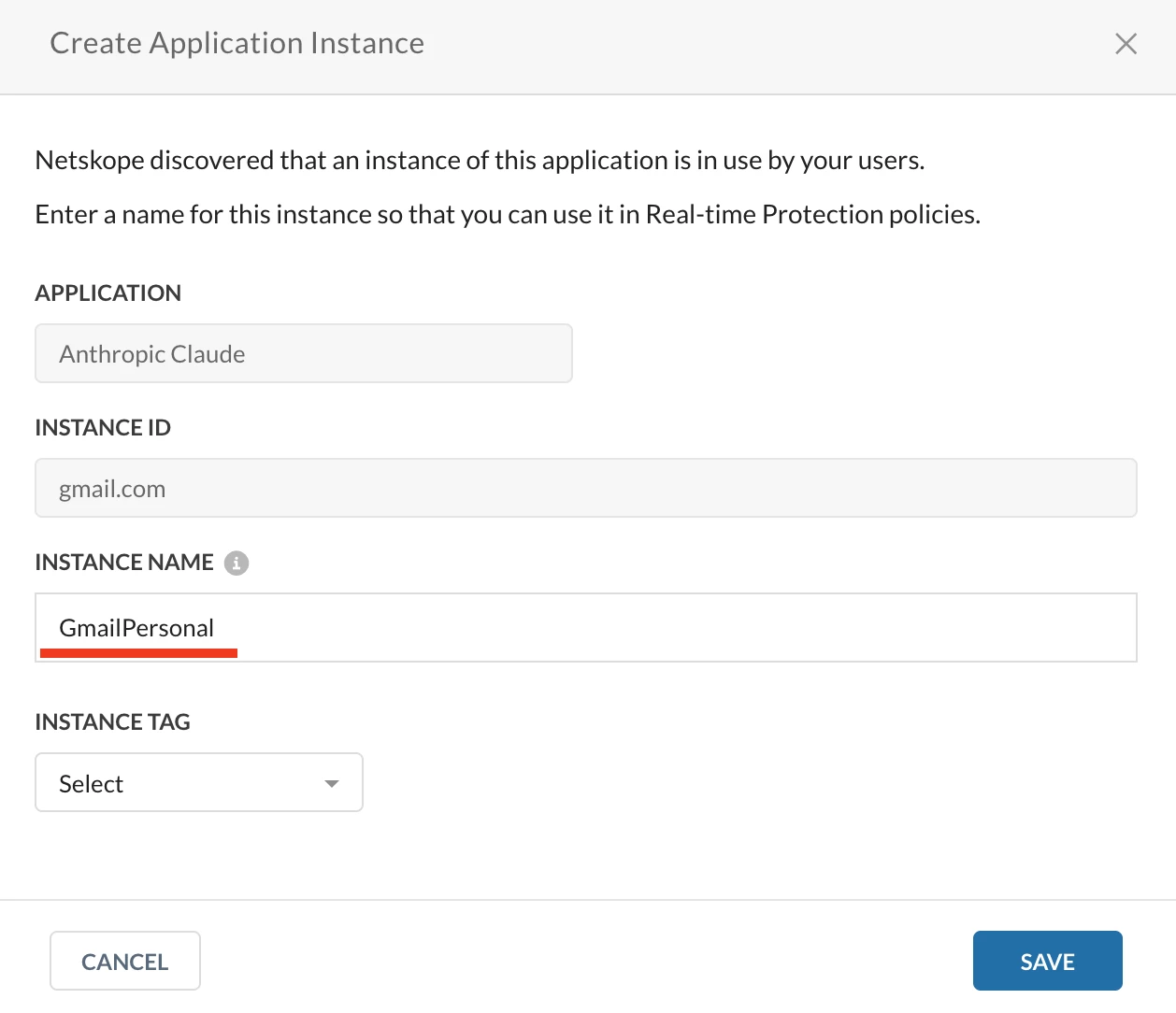
 Step 2: Create a Realtime Policy
Path: Netskope Tenant UI >>> Policies >>> Real-time Protection
Policy 1.1
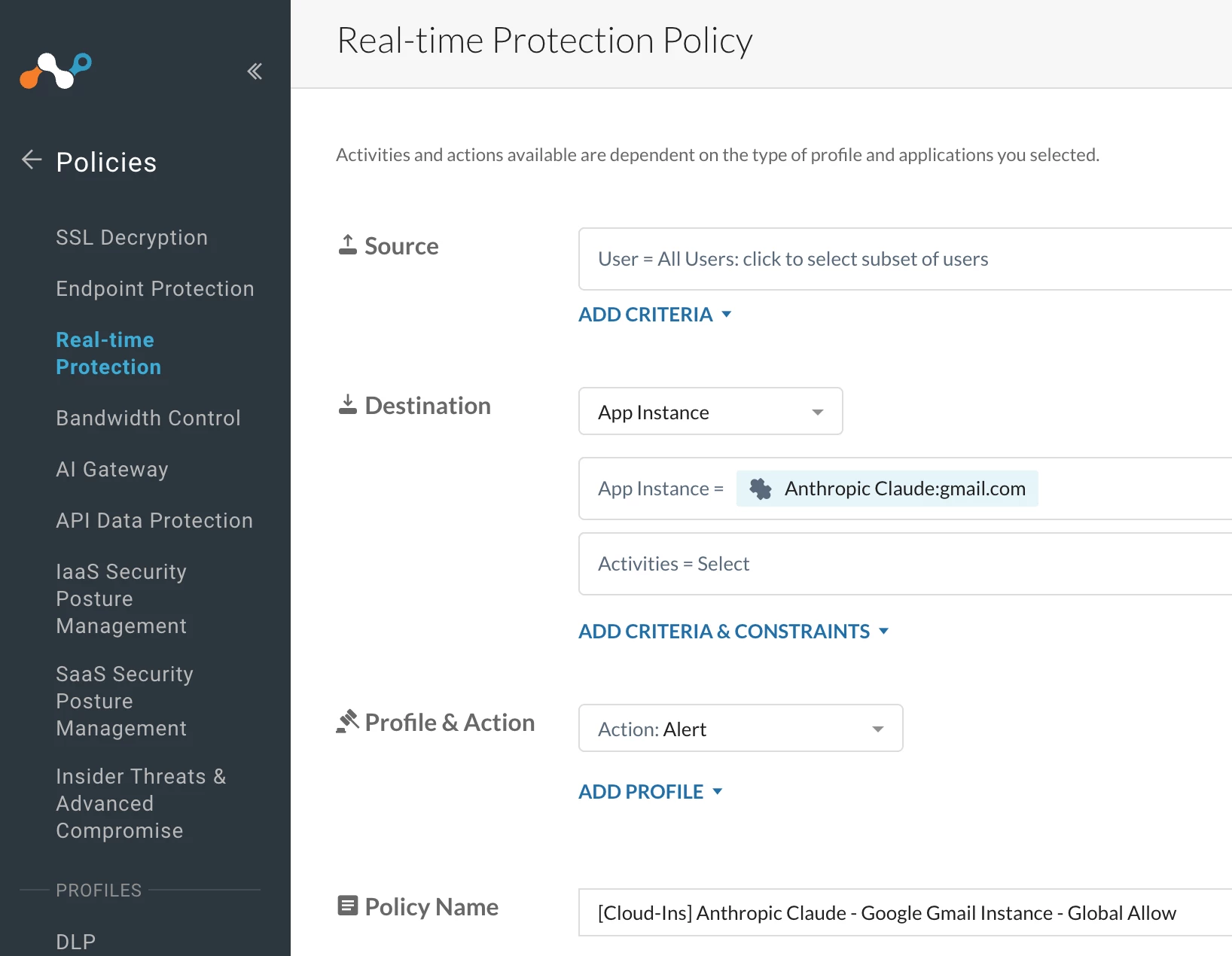

Policy 1.2 
Author Notes
- The configuration proposed above is based on login activity detection.
- I recommend blocking logins through ‘Continue with Google’ and the ‘Google Sign-In Prompt’, as login activities are not triggered when users authenticate using these methods.
- Please refer to the article below for the required configuration and create the corresponding Realtime Policy above section 1.1
Terms and Conditions
- All documented information undergoes testing and verification to ensure accuracy.
- In the future, it is possible that the application's functionality may be altered by the vendor. If any such changes are brought to our attention, we will promptly update the documentation to reflect them.
Notes
- This article is authored by Netskope Global Technical Success (GTS).
- For any further inquiries related to this article, please contact Netskope GTS by submitting a support case with 'Case Type – How To Questions'.



