




Allow Source Code on Corporate Claude Accounts and Block It on Personal Accounts
Netskope Cloud Version - 143
Objective
Block source code from being posted or uploaded to personal Anthropic Claude accounts, while allowing the same activity on corporate Claude accounts. This is done using Netskope App Instance tagging combined with Real-time Protection DLP policies.
Context
Netskope can distinguish between a corporate Claude account and a personal Claude account using the App Instance feature. Each Claude organization has a unique Organization ID. Netskope reads this ID from the traffic and matches it against a named instance you define.
The policy logic is straightforward:
-
If the traffic comes from the corporate Claude instance, source code is allowed.
-
If the traffic comes from any other Claude account (personal or unknown), source code is blocked.
Step 1 - Find the Corporate Claude Organization ID
Option A - From Claude Settings:
Ask a user who is signed in to the corporate Claude account to do the following:
-
Open claude.ai and click the profile icon.
-
Go to Settings > Account.
-
Scroll down to find the Organization ID field and copy the value.
Option B - From Netskope Application Event Logs:
-
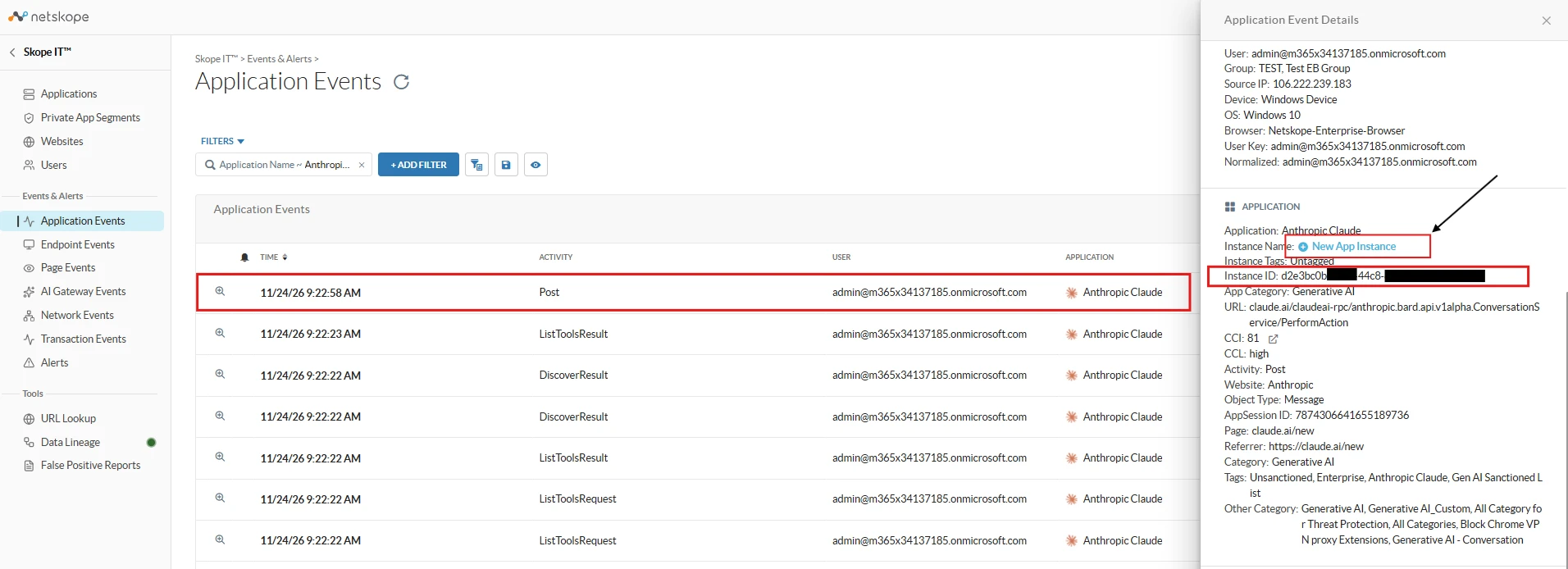
Go to Skope IT > Events & Alerts > Application Events.
-
Filter by Application Name = Anthropic Claude.
-
Click on any event row to open the Application Event Details panel on the right.
-
Locate the Instance ID field. This is the Organization ID of the account the user was signed in to at that time.
Use the Instance ID value from an event where the user was signed in to the corporate account.
Step 2 - Create the Corporate App Instance in Netskope
Option A : Click on “New App Instance” from Application event logs as shown in above screenshot
Option B:
-
Navigate to Policies > App Instance in the left sidebar.
-
Click New App Instance.
-
Fill in the fields:
-
Application: Anthropic Claude
-
Instance ID: Paste the Organization ID from Step 1
-
Instance Name:
Corporate-Claude-Account -
Instance Tag: Sanctioned
-
Click Save.
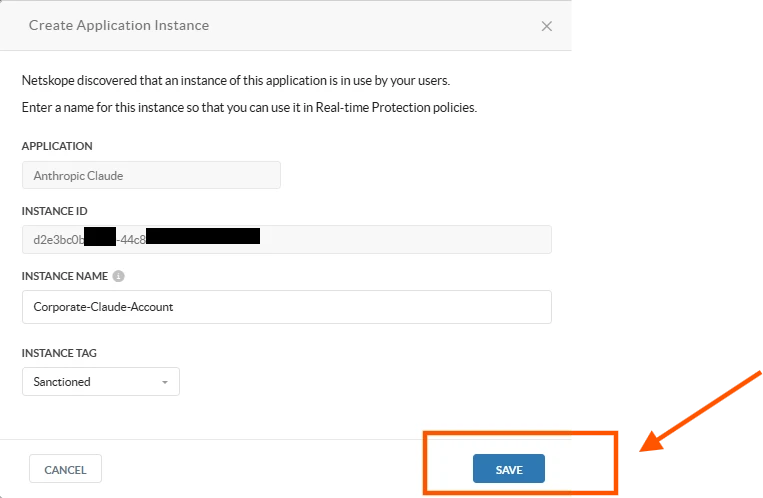
Note: The Instance ID must exactly match the Organization ID from Claude. Any mismatch means the policy will not recognize the corporate account correctly.
Step 3 - Create the DLP Profile for Source Code
-
Navigate to Policies > DLP.
-
Click New Profile.
-
On the File Profiles step, click Next (no file type filter needed here).
-
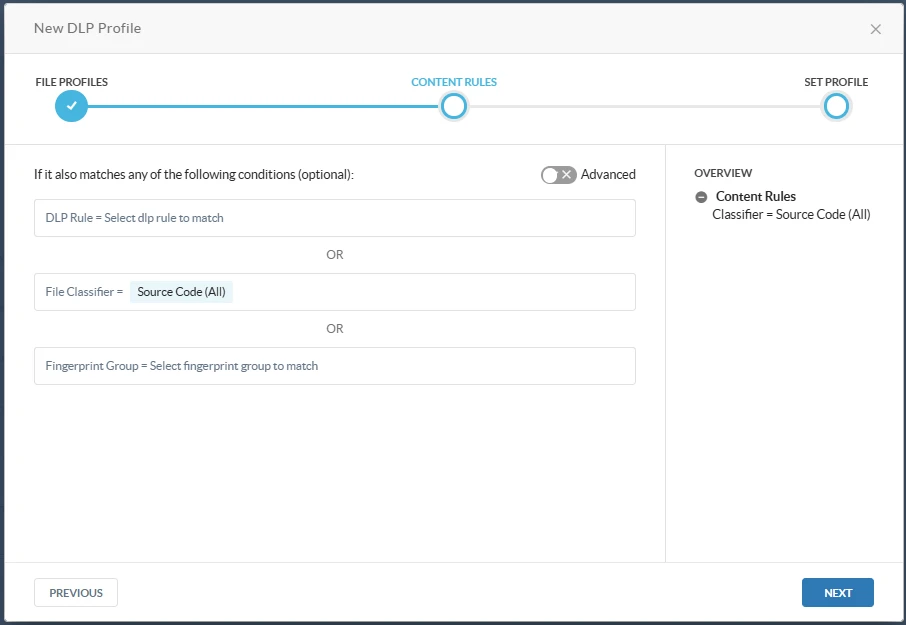
On the Content Rules step, set:
-
File Classifier: Source Code (All)
-
-
Click Next.
-
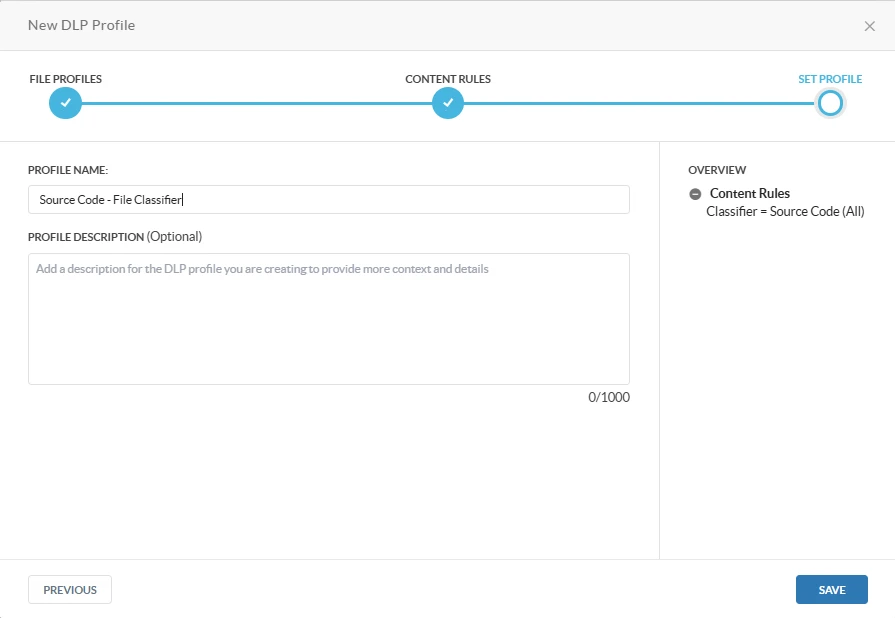
On the Set Profile step, enter:
-
Profile Name: Source Code - File Classifier
-
-
Click Save.
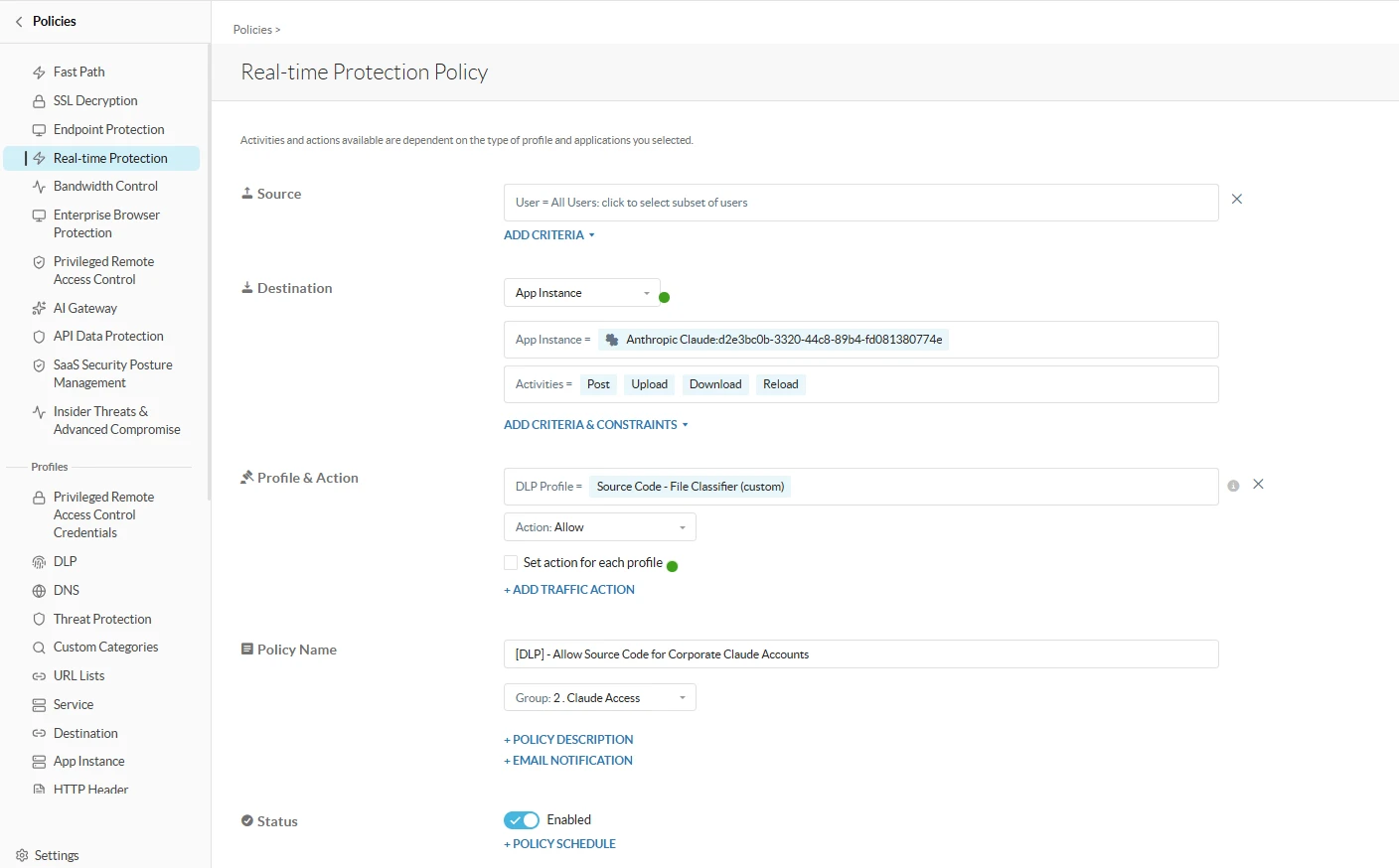
Step 4 - Create Policy 2.1: Allow Source Code for Corporate Claude
-
Navigate to Policies > Real-time Protection.
-
Click New Policy.
-
Configure the policy fields as follows:
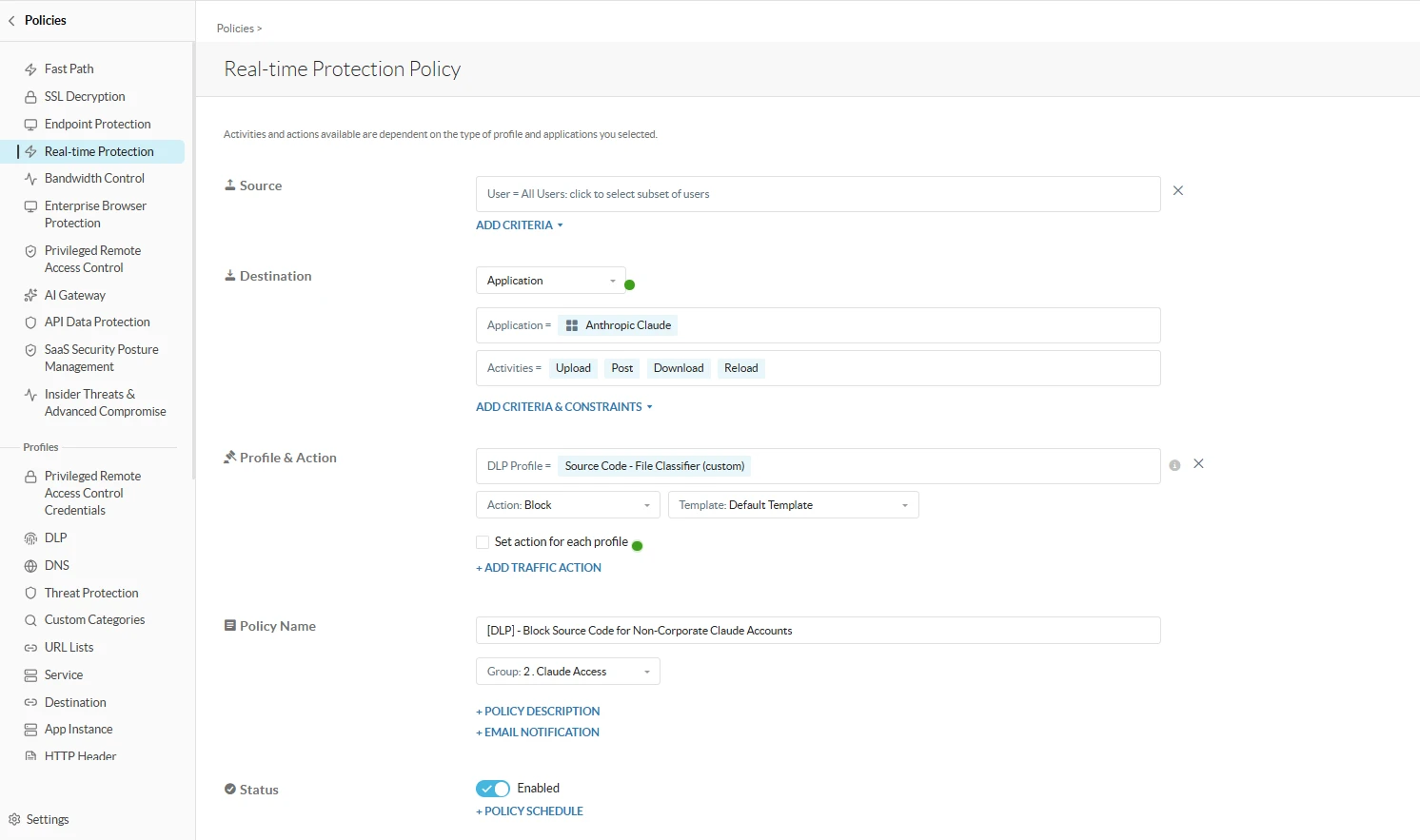
Step 5 - Create Policy 2.2: Block Source Code for All Other Claude Accounts
Configure the policy fields as follows:
Policy Order Summary :

Verification :
To confirm the policies are working:
-
Sign in to Claude with the corporate account and attempt to post or upload a source code file. The action should succeed.
-
Sign in with a personal Claude account and attempt the same. The upload or post should be blocked and the user should see the block page.
-
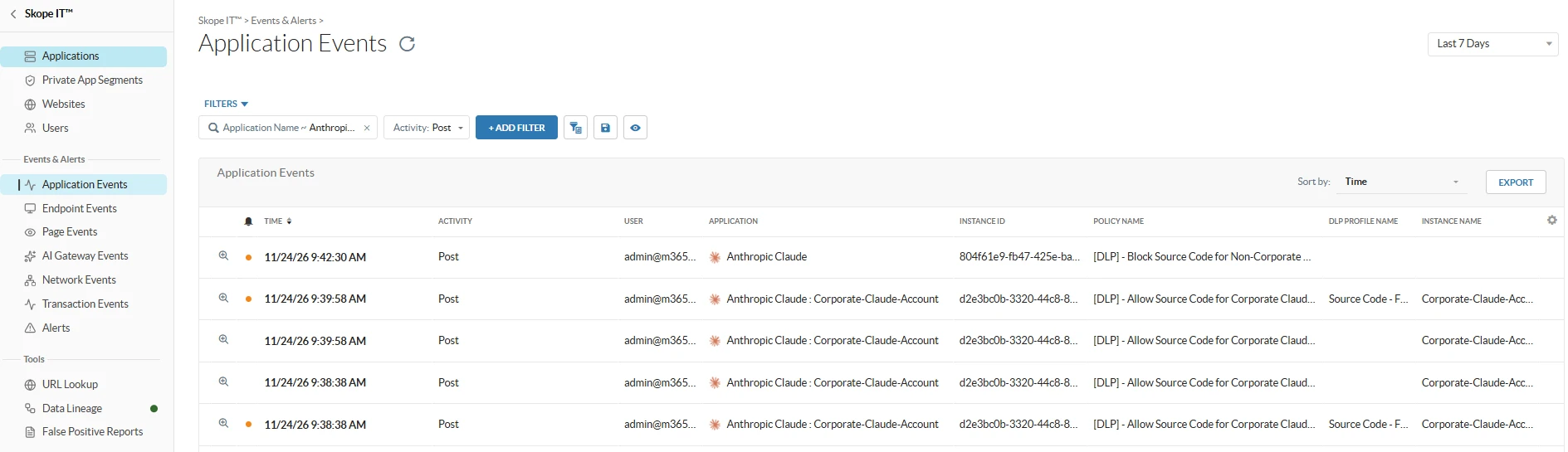
Check Skope IT > Application Events and filter by Application Name = Anthropic Claude to review the events and confirm the DLP policy name appears in the matched events.
Terms and Conditions
- All documented information undergoes testing and verification to ensure accuracy.
- In the future, it is possible that the application's functionality may be altered by the vendor. If any such changes are brought to our attention, we will promptly update the documentation to reflect them.
Notes
- For any further inquiries related to this article, please contact Netskope by submitting a support case with 'Case Type – How To Questions'.