



Netskope Global Technical Success (GTS)
Understanding “Patient Zero” Logging Behaviour and Policy Matching
Objective
If you've already configured a Patient Zero Protection policy, you may have noticed something confusing in SkopeIT: the alert doesn't always say "Patient Zero," the Policy Name doesn't always match the policy you expect, and "Block" actions for held-but-benign files can seem to disappear from your filters.
This article picks up where our existing Patient Zero articles leave off. Instead of covering policy setup again, it focuses on how to read and correlate Patient Zero logs, so you can confidently confirm whether your policy is doing its job during an investigation.
If you haven't yet configured a Patient Zero Protection policy, start with Netskope Cloud Sandboxing – 'Patient Zero' Real-time Protection Policy and the Netskope Knowledge Portal guide for step-by-step configuration. This article assumes that groundwork is already in place.
Prerequisite
-
Netskope Advanced Threat Protection (ATP) license.
-
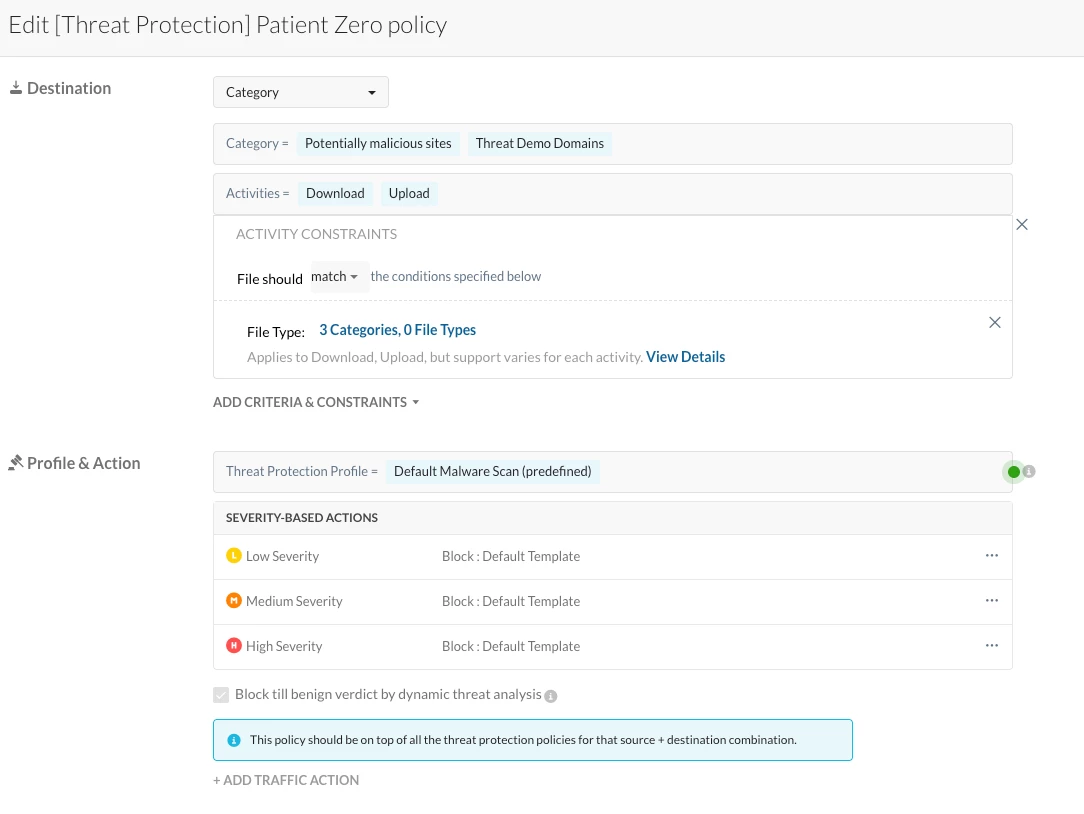
A Patient Zero Protection policy configured with Block till benign verdict by dynamic threat analysis enabled (see referenced articles above for setup steps).
-
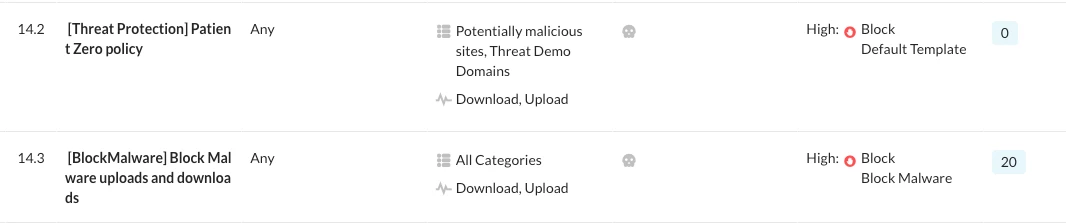
A general malware scanning policy (Standard Threat Protection / Fast Scan) also in place, positioned below the Patient Zero policy.
Context: Two Engines, One Workflow
Before diving into log behaviour, it helps to recall how the Threat Scanning Service (TSS) is structured, since this is the root cause of most of the log confusion:
-
Standard Threat (Fast Scan) is the first line of defense and the only stage that performs real-time blocking based on known signatures.
-
Advanced Threat (Deep Scan) runs after Fast Scan, performing sandboxing and heuristic analysis. Deep Scan can identify malware Fast Scan misses, but it does not block traffic on its own — it relies on a Patient Zero policy to hold the file while it works.
A Patient Zero event, by definition, is a Fast Scan miss followed by a Deep Scan detection. Whether that event becomes a proactive block or a reactive alert-only notification depends entirely on whether a Patient Zero Protection policy matched the transaction. That distinction is exactly what drives the differences in log naming and action shown below.
Why It Matters: Policy Order and File Constraints
Two configuration details directly affect what you'll see in SkopeIT:
-
Policy order – The Patient Zero Protection policy must sit above any general-purpose malware scanning policy. If a broader policy evaluates the file first, you may see logs attributed to that policy instead of your P0 policy.
-
File type constraints – The Patient Zero hold action only applies when the policy includes specific file constraints (for example, Binary or Executable). Without a constraint, the "Block till benign verdict" option isn't available, and the file won't be held even if the policy otherwise matches.
If your logs show events under a general Standard Threat Protection policy name rather than your P0 policy, re-check these two items first.
Reading the Logs: Four Scenarios
The table below summarizes what to expect in SkopeIT depending on which engine returns the verdict and whether a Patient Zero Protection policy actually held the file. Use the Incident ID (shown as Transaction ID in the UI) to correlate all log entries belonging to the same event — this is the most reliable way to confirm whether a "Patient Zero" entry and a "Malware" entry refer to the same download.
| Scenario | Trigger | SkopeIT Log Behaviour | Outcome for the User |
|---|---|---|---|
| Fast Scan misses, Deep Scan detects malware | Alert with the hardcoded name Patient Zero, Action: Detection. A separate Malware alert from Deep Scan shares the same Incident ID. | File is already delivered — this is a retrospective alert, not a block. |
| File matches P0 policy, both engines find it clean | Action: Detection/Block under your P0 Policy Name on the first attempt; no malware alert is generated; no log on the cached second attempt. | User sees "This file requires further analysis," then succeeds on retry once cached. |
| File matches P0 policy, Deep Scan finds malware | Alert named Patient Zero Policy Hit, Action: Detection, engine: Cloud Sandbox — plus a separate Malware alert from Deep Scan's heuristic engine. Both share the same Incident ID. | File is never delivered on the first attempt; a repeat attempt is blocked outright since the verdict is now cached. |
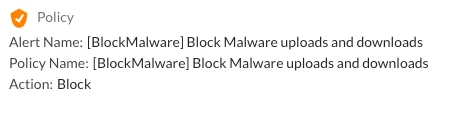
| File matches P0 policy, but is already a known threat | Action: Block under your P0 Policy Name, with a standard Malware alert from Fast Scan. | Looks identical to a normal malware block; the only tell is the Policy Name. |
A few patterns worth committing to memory:
-
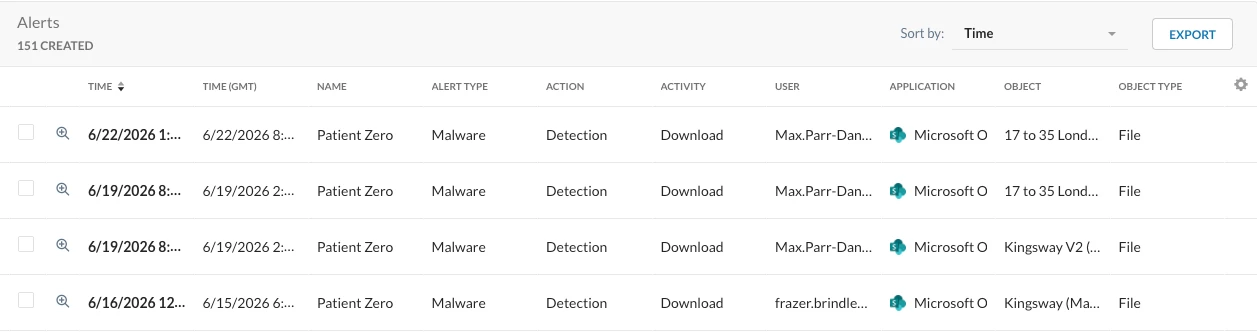
The hardcoded label "Patient Zero" only appears in Scenario 1, where no protection policy intervened. Once a P0 policy actually holds the file, the alert is instead named Patient Zero Policy Hit (Scenario 3).
-
The absence of a malware alert tied to an Incident ID is itself meaningful — it's the indicator that a held file (Scenario 2) was deemed benign.
-
Because TSS is policy-aware, the same detection can produce multiple log lines if a file matches more than one malware scanning policy. Differentiate these by the Policy Name field rather than assuming duplicate entries are an error.
-
Filtering only for "Malware" actions can cause you to miss Scenario 2 entirely, since the relevant log there is a Detection/Block under your P0 policy with no companion malware alert. When auditing whether your P0 policy is active, search by Policy Name, not just by alert type.
Scenario-Based Log Behaviour:
-
Scenario 1 (Detection Only): File delivered, then found malicious. Log shows Action: Detection with the hardcoded alert name Patient Zerounder P1 policy name.
Note: Then make sure P0 policy is configured correctly with the "Block till benign verdict" check box selected and is in the right order.
-
Scenario 2 (Protection - Benign): File held and found safe. Log shows Action: Detection/Block under the P0 Policy Name, but no malware alert is generated. And file is eventually released for user access.
| Phase | User Experience | SkopeIT Log |
|---|---|---|
| Initial Attempt | User sees "File requires further analysis" pop-up. Download stops. | Action: Detection/Block (Policy: Your P0 Policy) |
| Scan Phase | Deep Scan analyzes the file (takes up to 10 mins). | No new logs (file is benign). |
| Second Attempt | User retries the download after a few minutes. | Action: Allow (The benign verdict is now cached). No log generated. |
-
Scenario 3 (Protection - Malicious Deep Scan): This is the primary proactive block scenario.
-
Log Entry 1: An alert named Patient Zero Policy Hit is generated with Action: Detection from Netskope Cloud Sandbox engine under your P0 policy name. This represents the initial "hold".
-
Log Entry 2: A corresponding Malware alert from Netskope advanced heuristic analysis engine (Deep Scan) is generated.
-
Correlation: Both entries share the same Incident ID. Note that the hardcoded name Patient Zero (from Scenario 1) is not used here because the file was successfully hold till the verdict.
-
| Log Entry | Action | Engine | Meaning |
|---|---|---|---|
| Patient Zero Policy Hit | Detection | Netskope Cloud Sandbox | The file matched your P0 policy and was successfully held for analysis. |
| Malware Alert | Detection | Netskope Advanced Heuristic Analysis | Deep Scan finished and confirmed the file is malicious. |
-
Scenario 4 (Protection - Malicious Fast Scan): File is already known and blocked immediately. Log shows Action: Block under the P1 Policy Name + a standard Malware Alert is generated.
Reproducing This in a Lab
To safely observe Scenario 1 or Scenario 3 behaviour, use a password-protected malware sample (for example, from MalwareBazaar, commonly password-protected with "infected"). Fast Scan cannot inspect password-protected content and will pass the file through, while Deep Scan has password-cracking capability for common passwords and will catch the threat — reliably reproducing the Fast Scan miss / Deep Scan catch pattern described above.
Accelerating Response to These Alerts
Once you can reliably identify a genuine Patient Zero Policy Hit in your logs, Netskope Cloud Exchange can shorten your response time:
-
Cloud Ticket Orchestrator (CTO) can automatically open a ticket in Jira or ServiceNow whenever a Patient Zero alert is ingested.
-
Notifiers can push a real-time message to Slack or Microsoft Teams, ideally including the Incident ID, source IP, username, URL, and hostname so responders can immediately pull the full correlated event.
Conclusion
Patient Zero logging behaviour is a direct reflection of which TSS engine produced the verdict and whether a Patient Zero Protection policy was correctly positioned and scoped to hold the file. The hardcoded "Patient Zero" alert name, the "Patient Zero Policy Hit" alert, and the presence or absence of a companion malware alert are the three signals to check first whenever a customer reports a confusing or "missing" log entry. Correlating everything by Incident ID remains the fastest way to confirm what actually happened to a given file.
Related Articles
-
Netskope Cloud Sandboxing – 'Patient Zero' Real-time Protection Policy — policy configuration walkthrough and FAQ.
-
Netskope Knowledge Portal: Creating a Threat Protection Policy for Patient Zero
Terms and Conditions
-
All documented information undergoes testing and verification to ensure accuracy.
-
In the future, it is possible that the feature’s functionality may be altered/updated by Netskope Engineering. If any such changes are brought to our attention, we will promptly update the documentation to reflect them.
Notes
-
This article is authored by Netskope Global Technical Success (GTS).
-
For any further inquiries related to this article, please contact Netskope GTS by submitting a support case with 'Case Type – How To Questions'.



